TABLE OF CONTENTS
- Batch Erase Course Grades, Skill Grades, or MP Narratives
- Batch Erase Course Narratives
- Batch Fill Report Card Column
Batch Erase Course Grades, Skill Grades, or MP Narratives
To Batch Erase Column Grades (Course Grades or Skill Grades) and Narratives for a Marking Period, do the following:
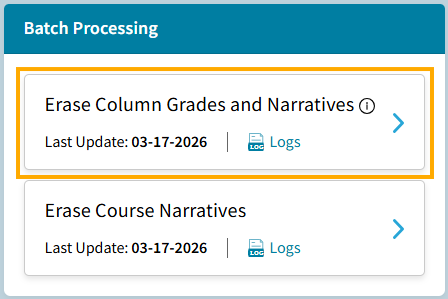
- Go to School > Grades > Batch Processing > Erase Columns Grades and Narratives:
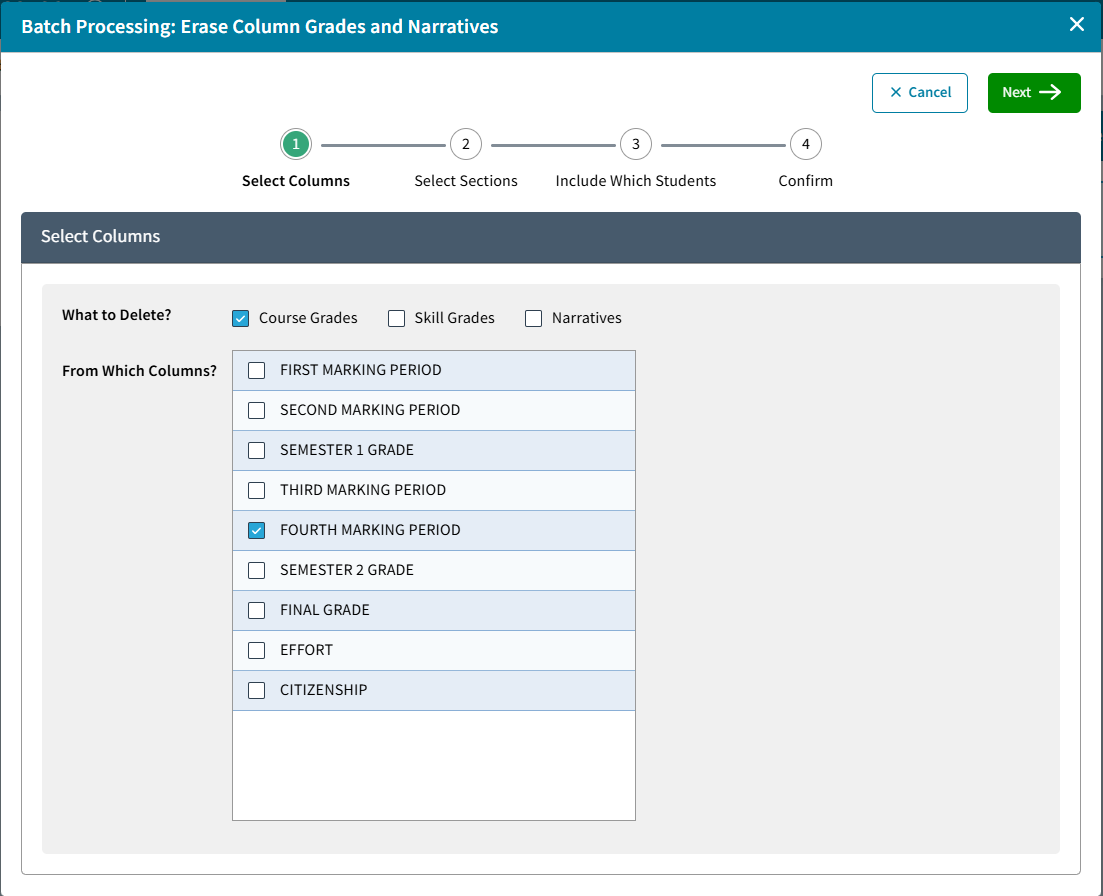
- In the Batch Processing: Erase Column Grades and Narratives window, Select Columns you would like to erase:
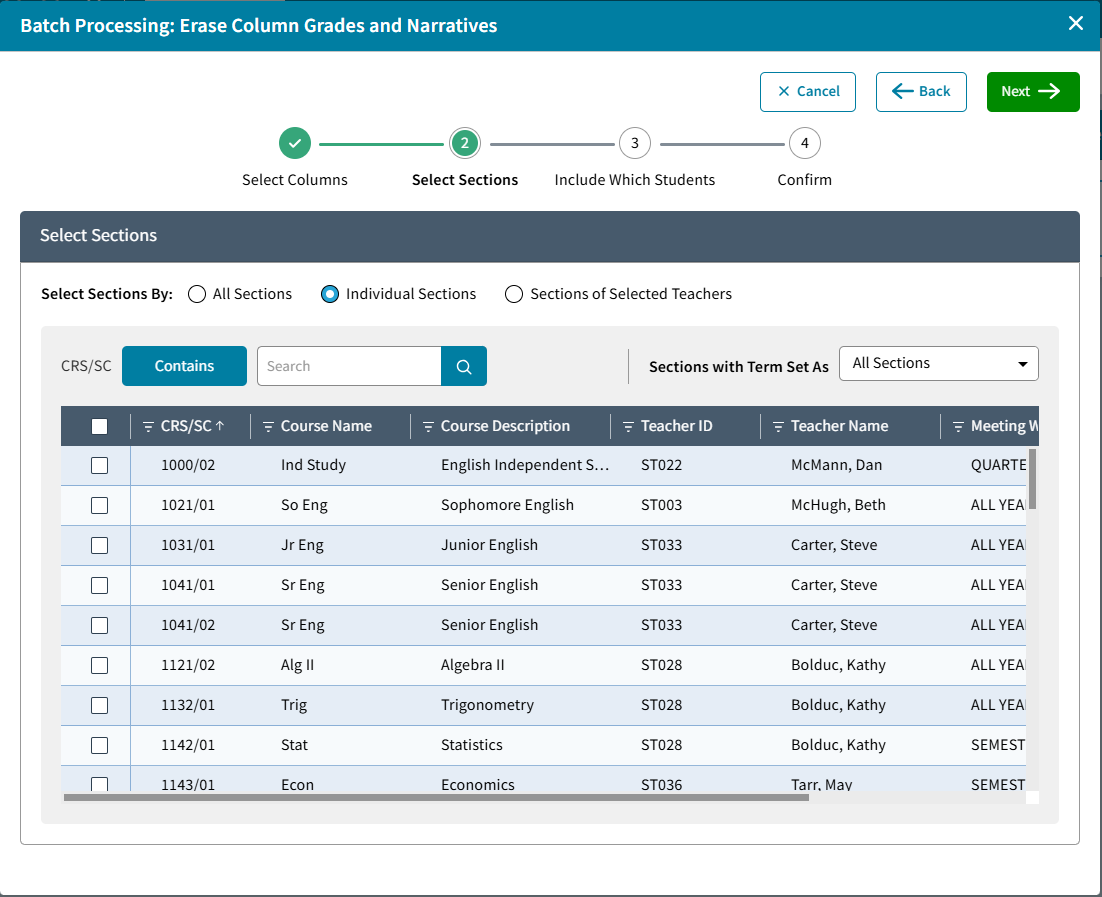
- Select to include: Sections: All Sections within a Range, Individual Sections or Sections of Selected Teachers:
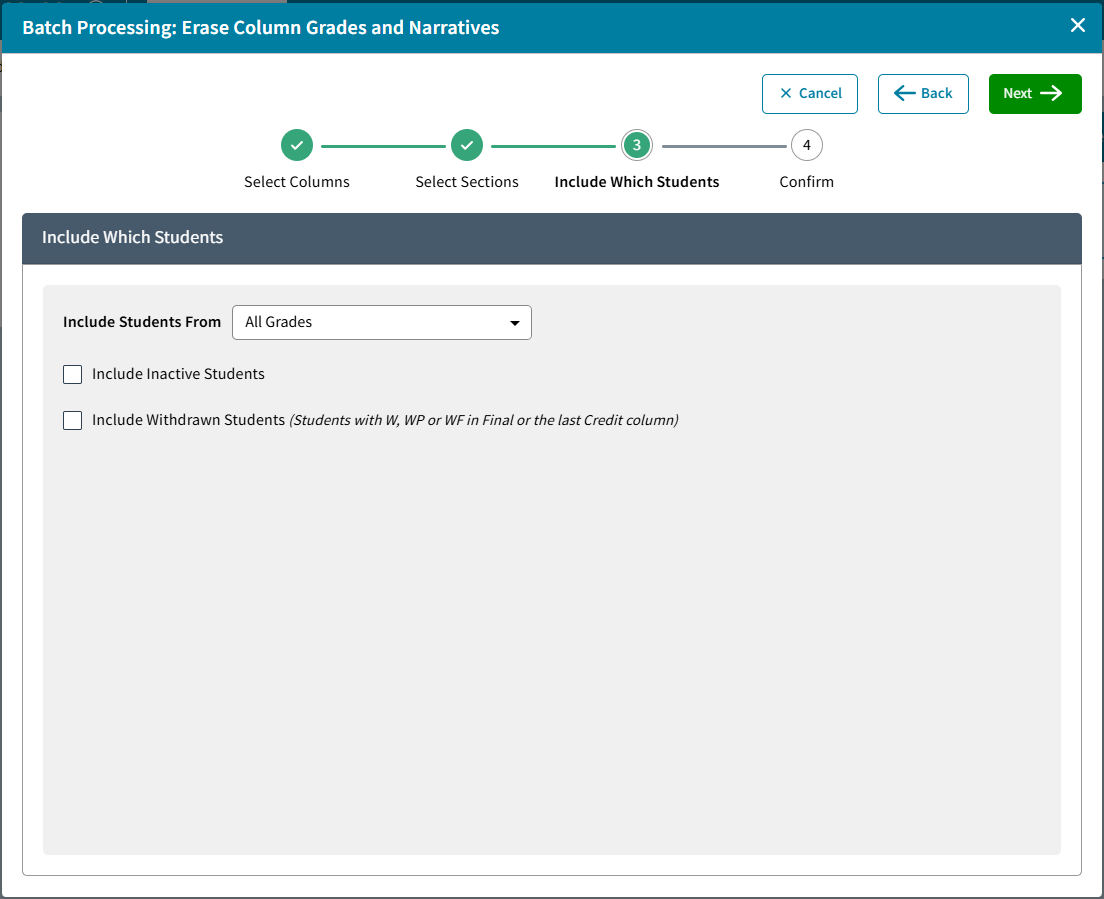
- Choose which students to include under Include Which Students. Click Next.
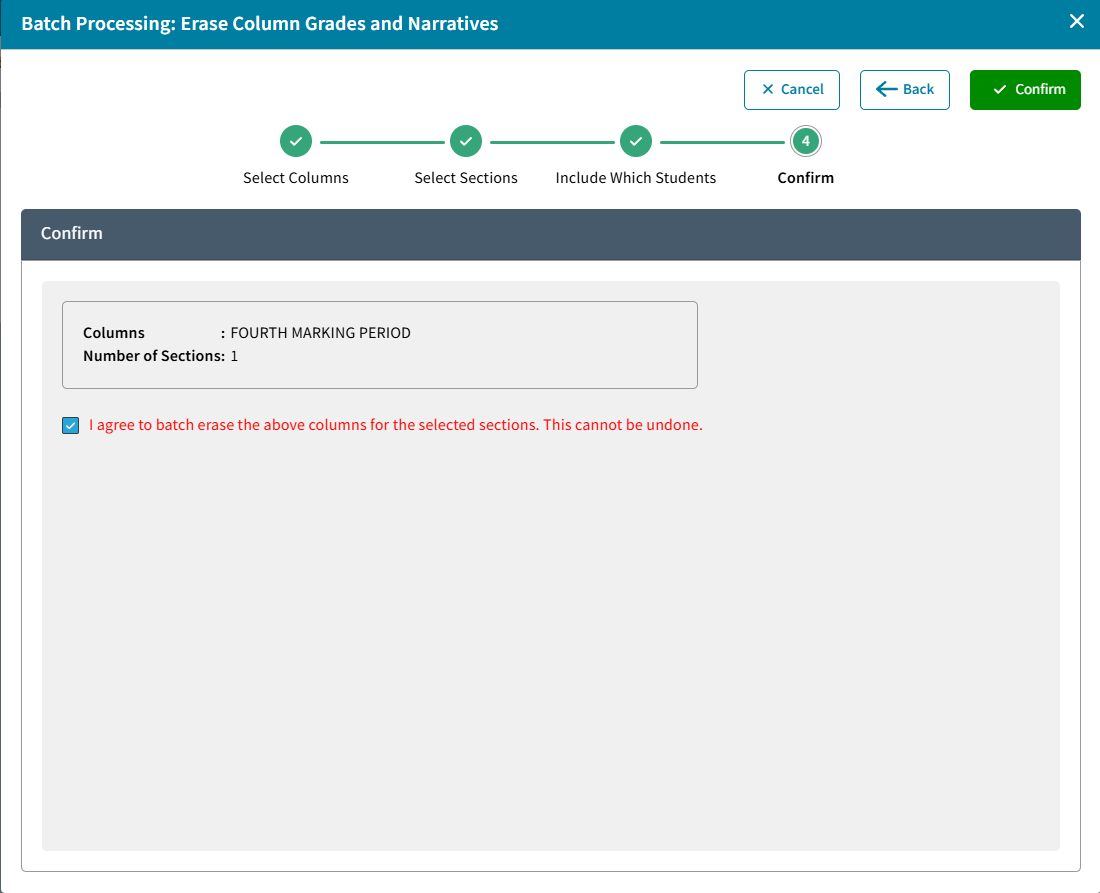
- The Confirm screen shows the Report Card Columns that will be erased and number of sections. If this is correct check the box next to I agree and click Confirm.
- From the Batch Processing tile, click Logs to see a list of Erase Column Grades and Narratives events.
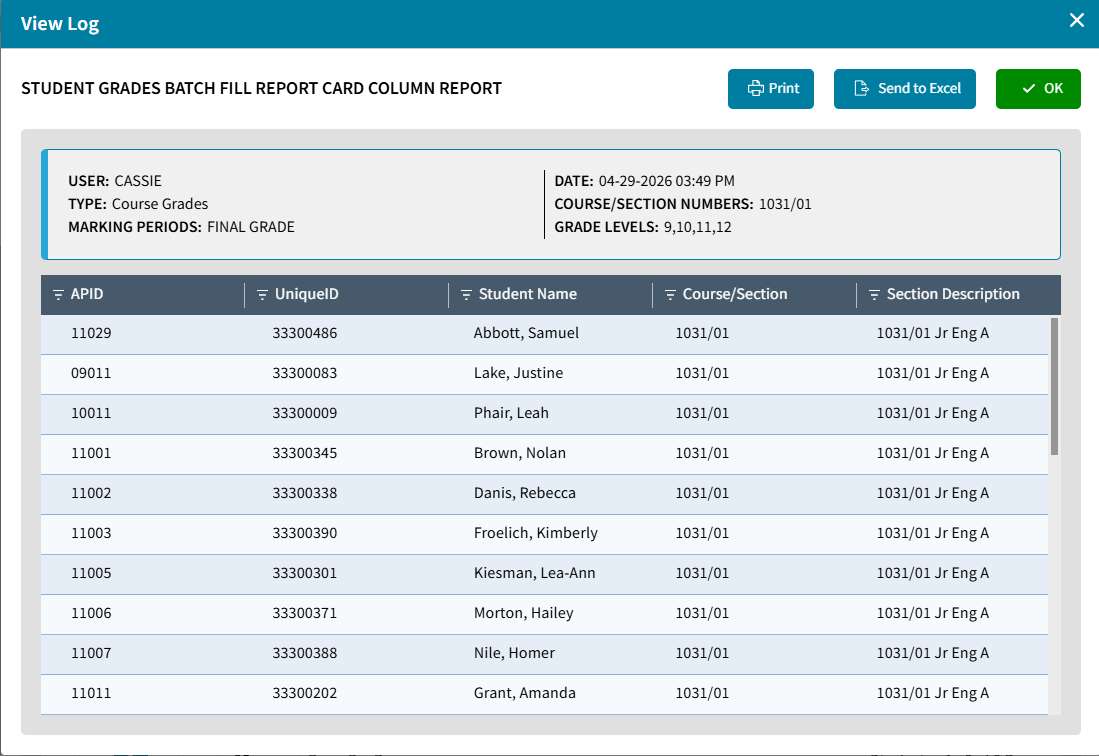
Click View Log to see the list of students affected. Select Print or Send to Excel if needed.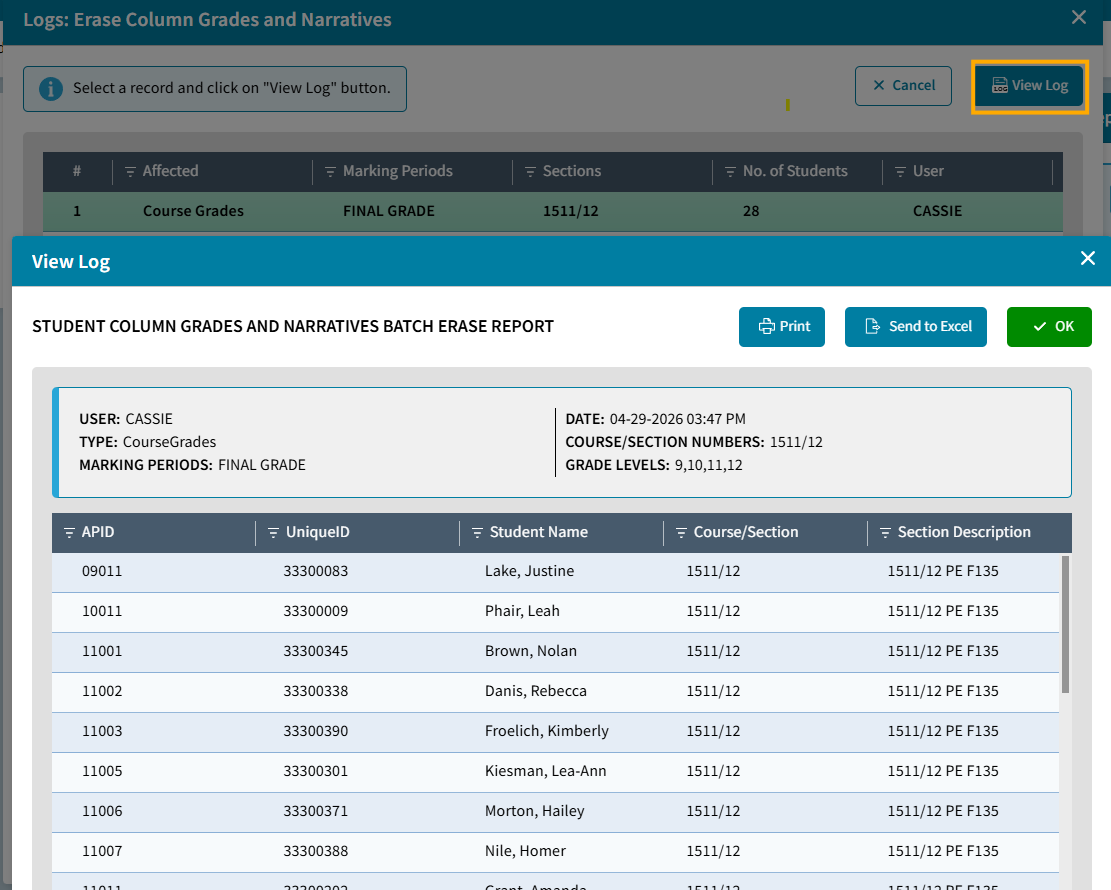
Batch Erase Course Narratives
To Batch Erase Course Narratives for a Marking Period, do the following:
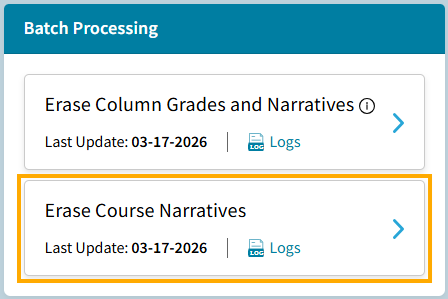
- Go to School > Grades > Batch Processing > Erase Course Narratives:
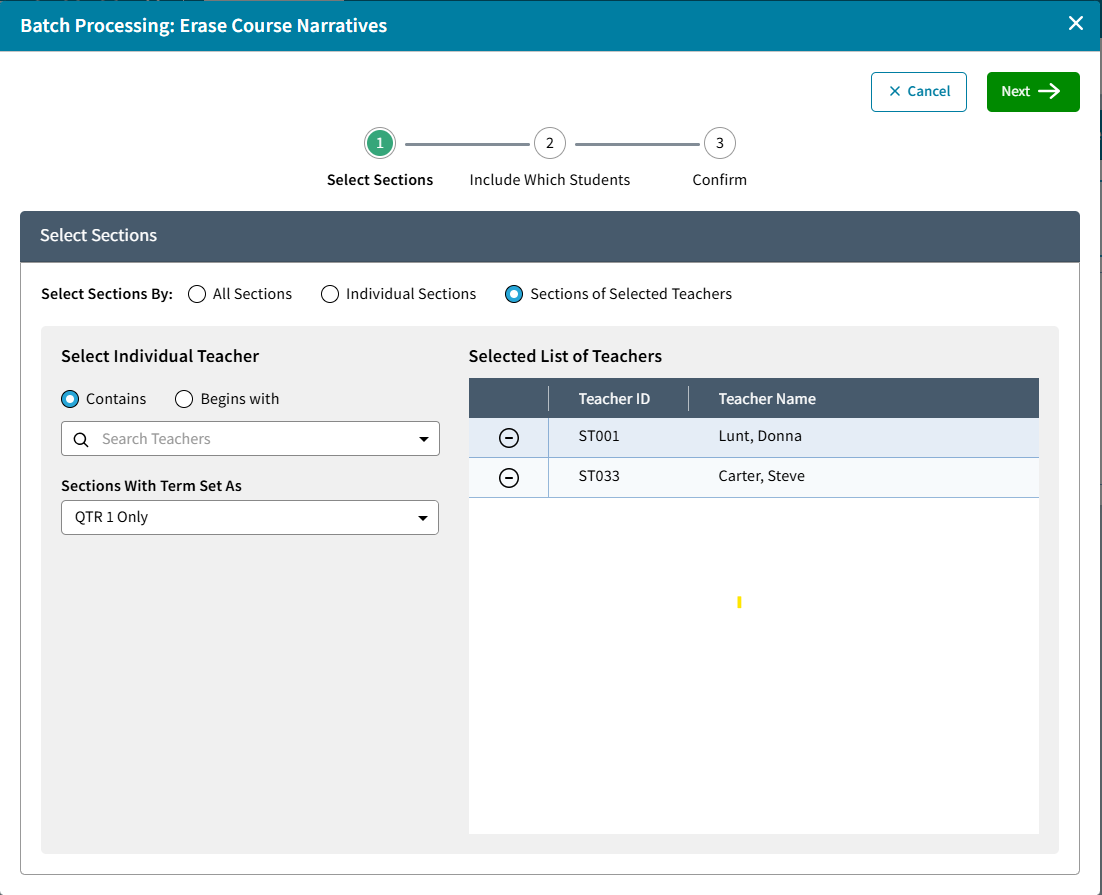
- Select to include Sections:All Sections within a Range, Individual Sections or Sections of Selected Teachers. Click Next.
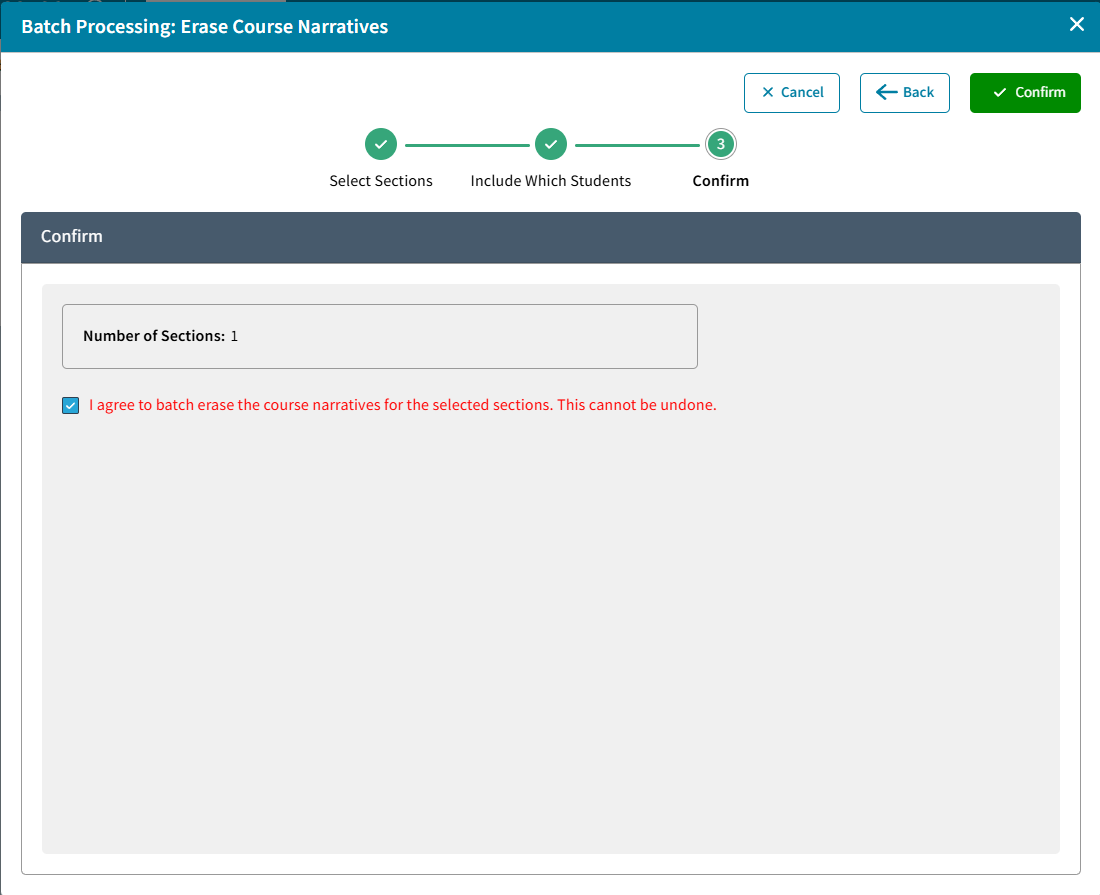
- Confirm displays the number of sections. If this is correct check the box next to I agree and click Confirm.
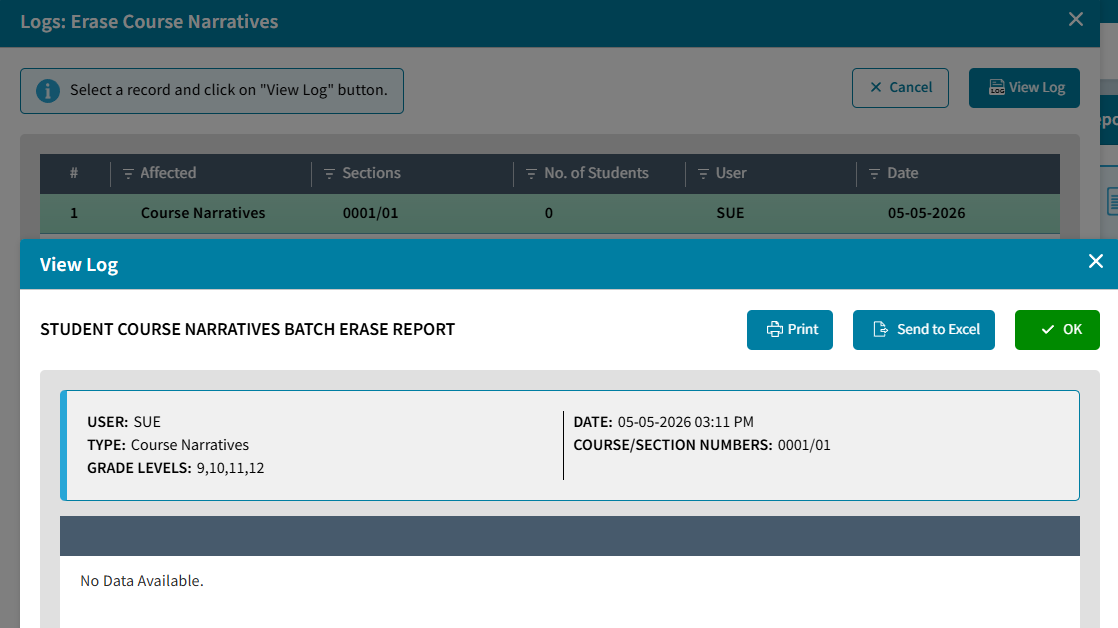
- From the Batch Processing tile, click Logs to see a list of Erase Course Narrative events. Select the event and click View Log to see the list of Students affected. If no students had a course narrative then No Data Available will display.
Batch Fill Report Card Column
To Batch Fill Report Card Column for a Marking Period, do the following:
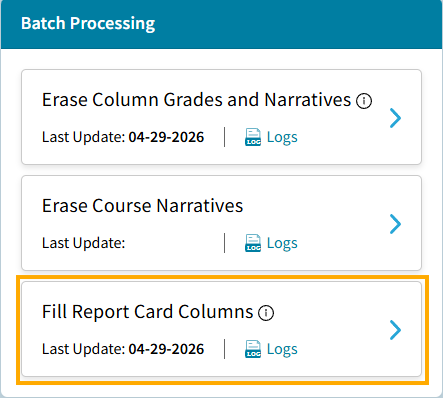
- Go to School > Grades > Batch Processing > Fill Report Card Column
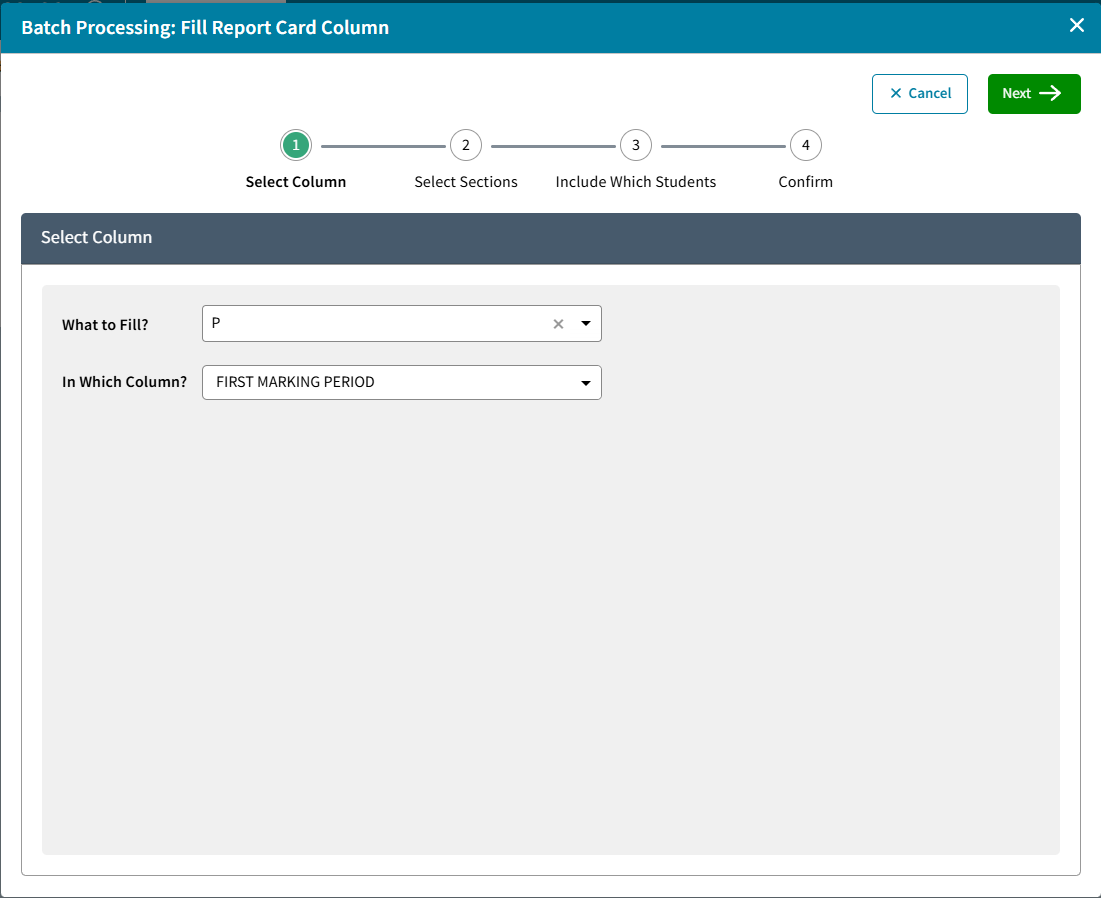
- Select the Grade symbol to use for What to Fill? and select the Report Card Column In Which Column?
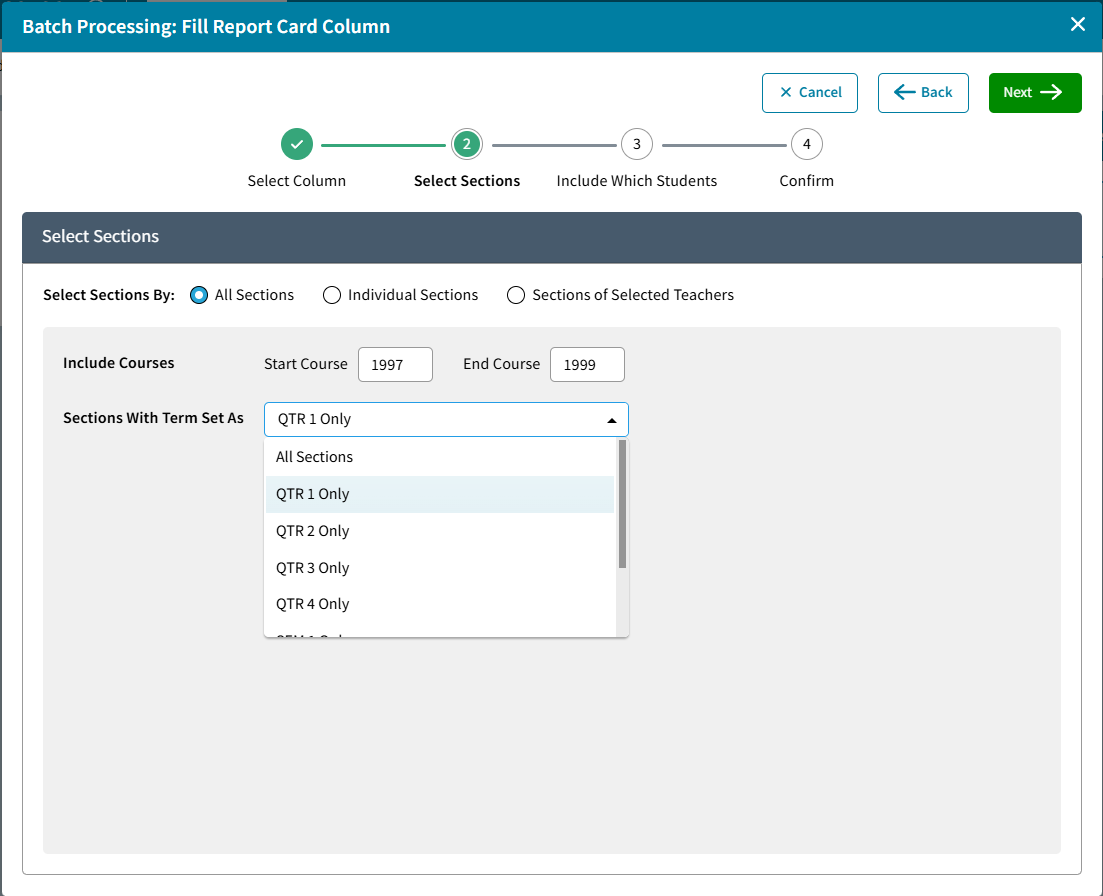
- Select Sections By: All Sections within a Course Range and Section Term, Individual Sections or Sections of Selected Teachers. Click Next.
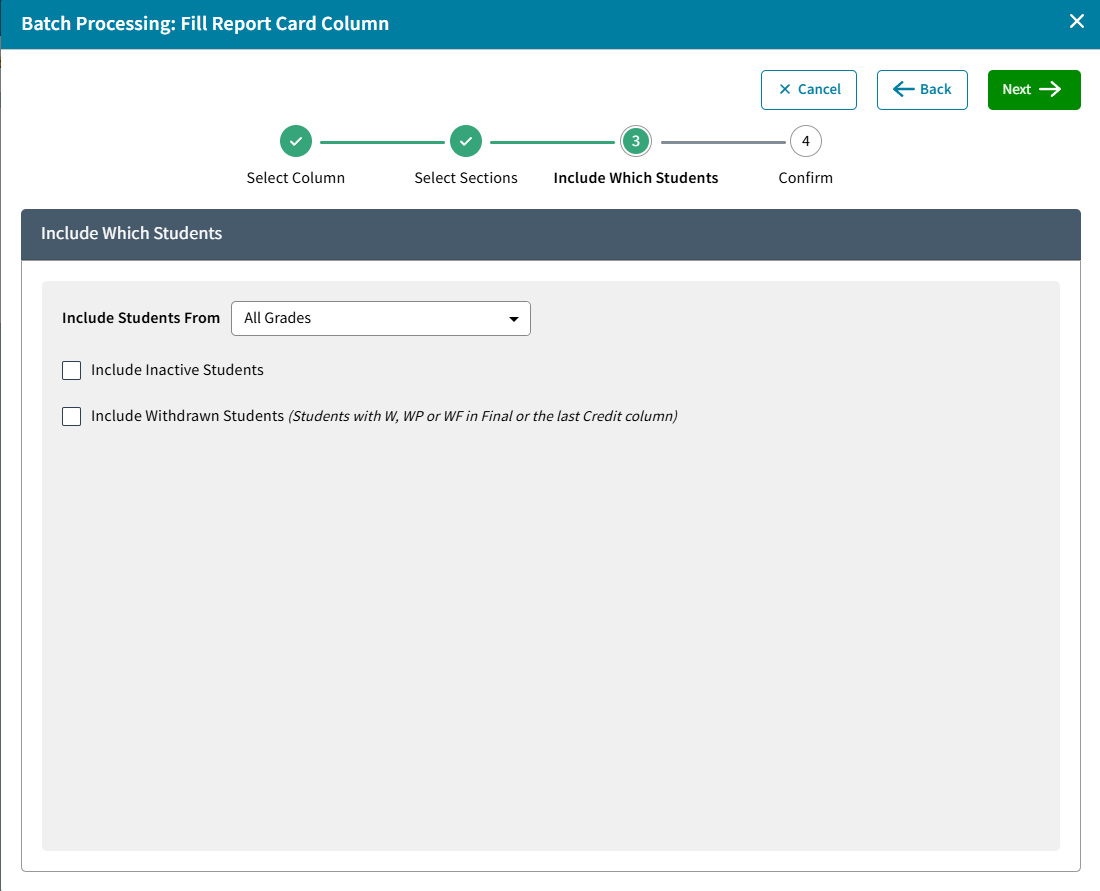
- Include Which Students - based on Grade Level. To Include Inactive Students or Withdrawn Students select the appropriate box.
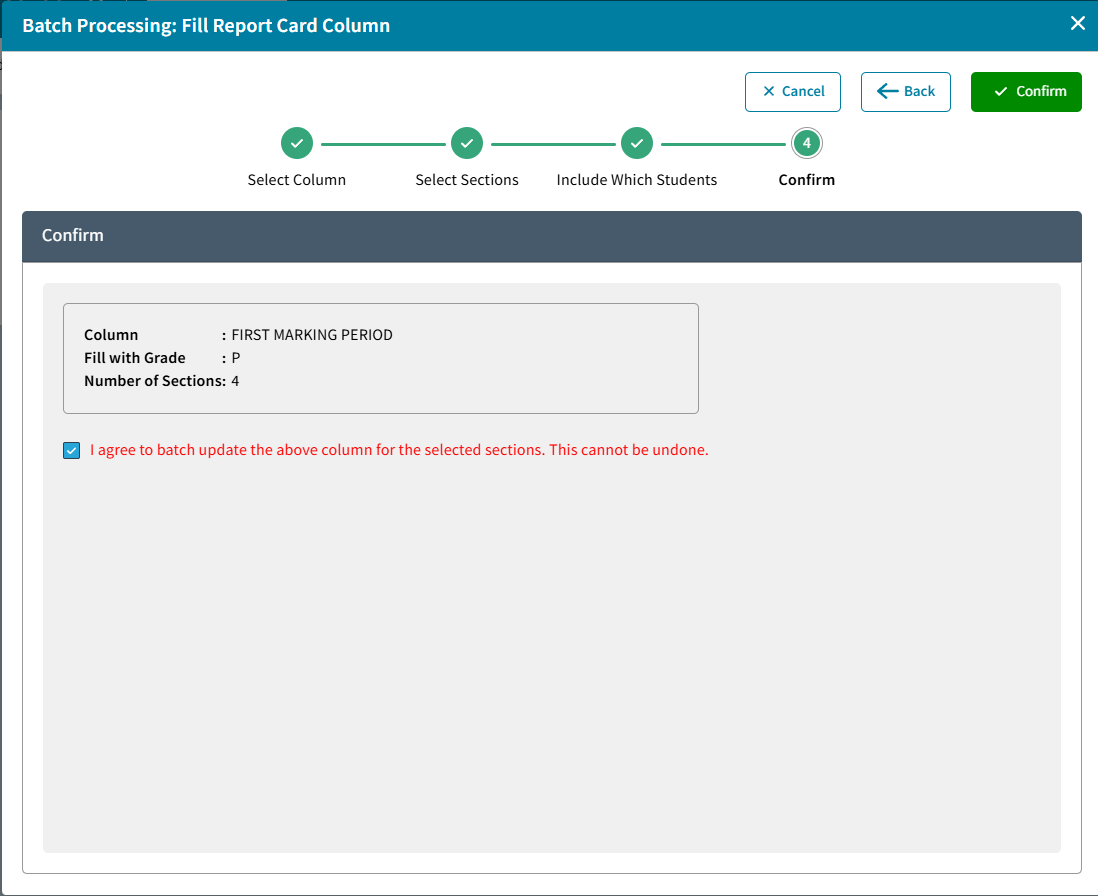
- Confirm will display the Column, Grade Symbol, and Number of Sections. If this is correct check the box and click Confirm.
- From the Batch Processing tile, click Logs to see a list of Fill Report Card Column events.
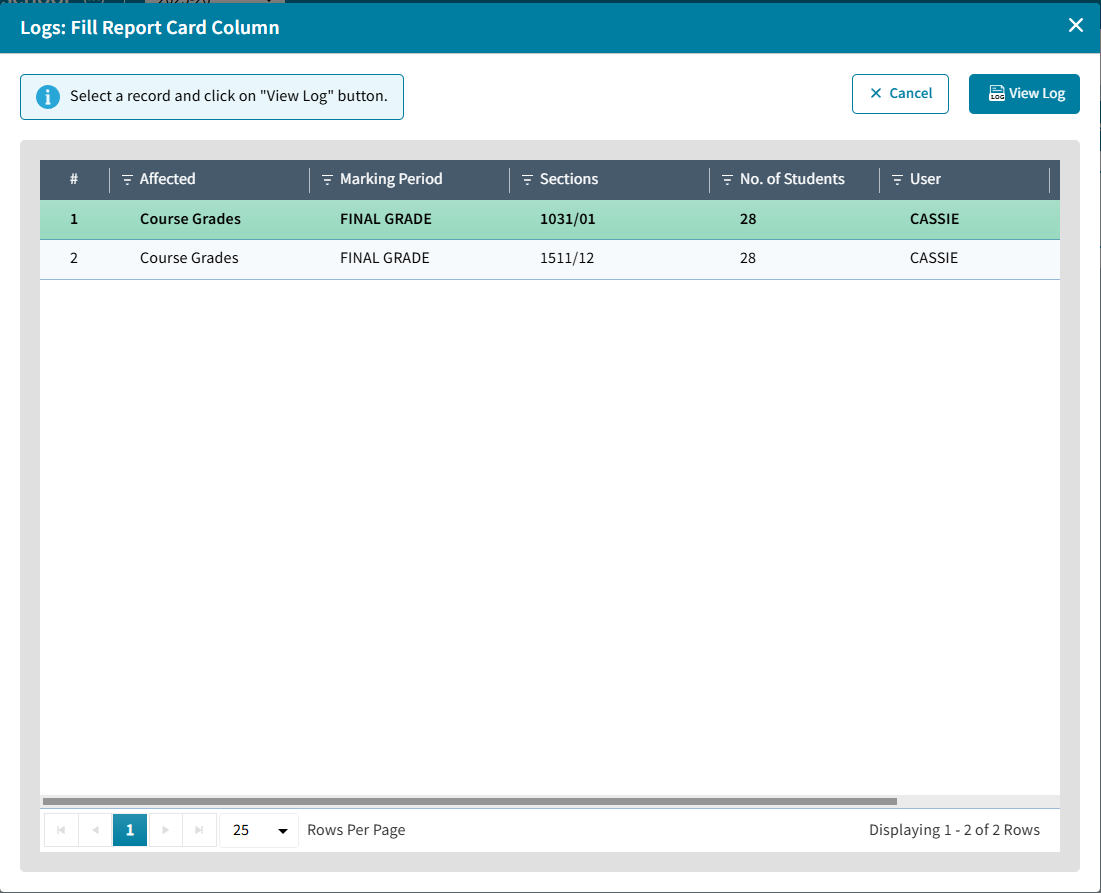
- Select an Event and click View Log to see the list of Students affected. Click Print or Send to Excel to export if needed.