
User rights and last login date can be viewed by the AdminPlus Supervisor. Search on the Classic AP User Name to filter the table for just that users or use the table filters on any column. There are a total of 7 views, each include Search by Classic AP User Name.
AdminPlus Lock
- The option to Lock AdminPlus has been added to the Users screen on the top left. Select the Lock icon. The Lock AdminPlus window will open. Select a Start and End Date and Time. Select Done once the time and date has been selected:

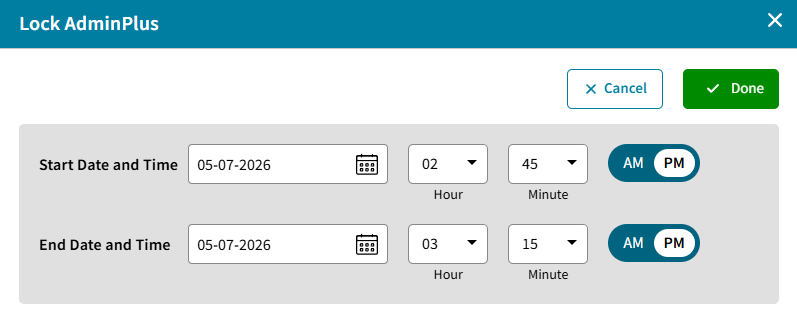
- When AdminPlus has been locked, the Start and End Time and Date will display. The Supervisor may select to edit the time and date or remove the lock:

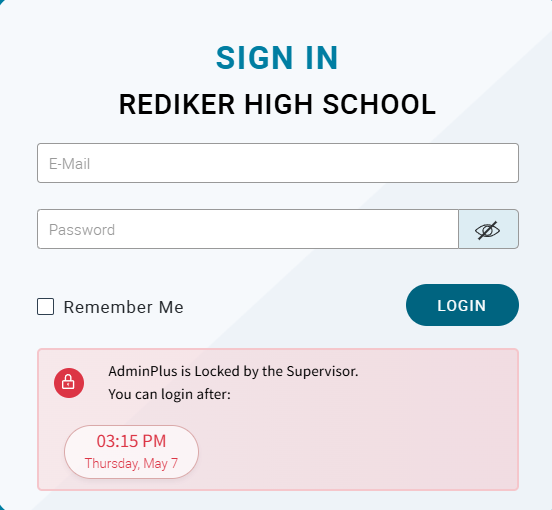
- Users who try to access AdminPlus.com while it is locked will receive a message during this time:
Basic View
- Classic AP User Name, Login E-Mail, Privileged Access (Supervisor, Asst. Supervisor), Last Login, Status
Sort on Last Login to see to see Last Login Date and Currently Logged In status.
Current and Scheduling Year Permissions
- Classic AP User Name, Privileged Access, Database, Attendance, Report Cards, Scheduling, Discipline, BI/Payments
Users may have ,
, , or
, or rights to a module.
Past Year Permissions
- Classic AP User Name, Privileged Access, Database, Attendance, Report Cards, Scheduling, Discipline, BI/Payments
Users may have ,
, , or
, or rights to a module.
Portfolio Permissions
- Classic AP User Name, Portfolio Permissions
Users may have ,
, , or
, or rights to Portfolio.
Access Permissions
- Classic AP User Name, Scheduling Year Access, AdminPlus Mobile App, E-Mail/AP-Notify
Either or
or
Contact Permissions
- Classic AP User Name, Configure User Defined Fields, Add Records, Delete Records, Co-Owner, Field Permissions
Users may have ,
, , or
, or rights.
SuperDB Permissions for selected SuperDB Table
- Classic AP User Name, Configure, Add Records, Delete Records, Co-Owner, Field Permissions.
Users may have ,
, , or
, or rights.
Users with SuperDB rights can view the User Rights for SuperDB tables they Own or Co-Own.