
Two-Factor Authentication (2FA) provides an additional layer of security for your Organization Manager account. This setting is managed at the user level, allowing each user to choose how they receive their verification code when signing in.
Users can choose to receive a verification code using one of the following methods:
- Authenticator app
Supported authenticator apps include, but are not limited to:
- Microsoft Authenticator
- Google Authenticator
- Authy
Once Two-Factor Authentication is enabled, it cannot be disabled.
Two-Factor Authentication Setup for New Users
New users are prompted to select a Two-Factor Authentication method during account setup.
- When a new user account is created, an email is sent containing a link to set the account password.
- Select the link in the email to activate your account and set a password. The Account Activation screen opens:
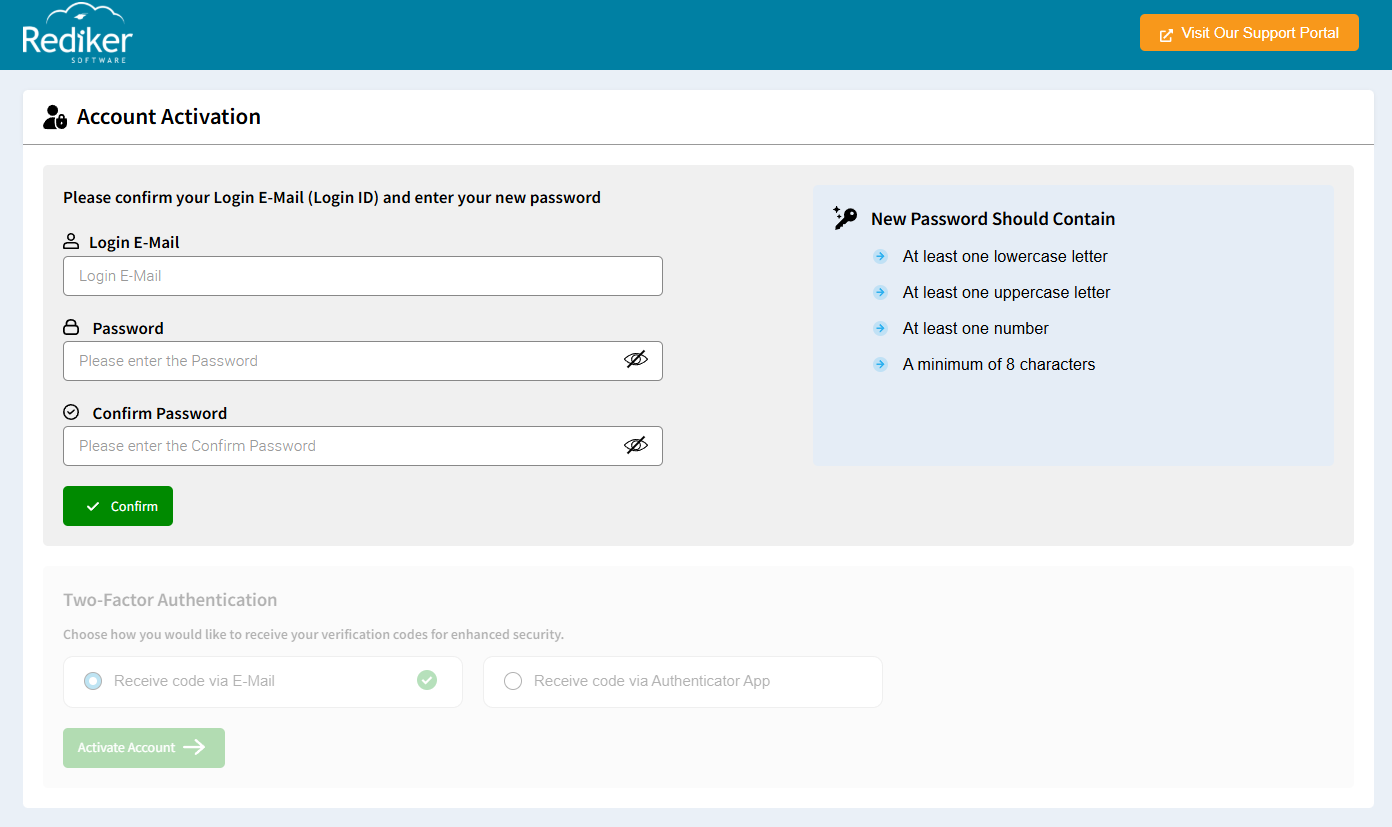
- Select Confirm to be sure the password meets the required security criteria.
- Once the password is successfully confirmed, the Two-Factor Authentication section will be available. Select how you would like to receive your two-factor authentication (2FA) verification code.
- Users can choose Receive code via E-Mail or Receive code via Authenticator App.
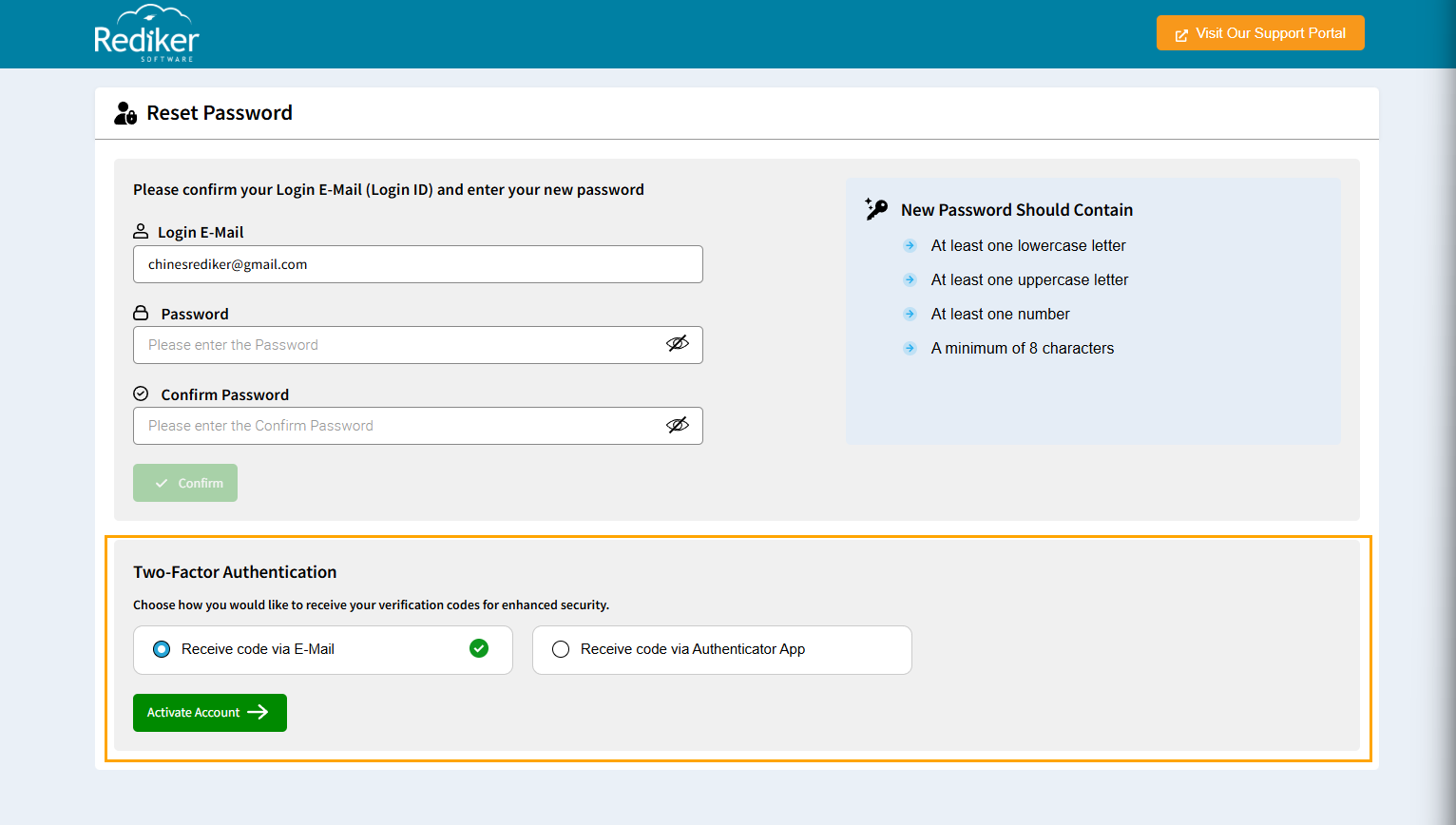
- If you choose Receive code via E-Mail, select Activate Account. You will receive a message sating your account has been activated and will be taken to the login screen.
- If you choose Receive code via Authenticator App, A window will open to Scan the QR Code. Use the Authenticator App of your choice to scan the code. This will connect the app with your account.
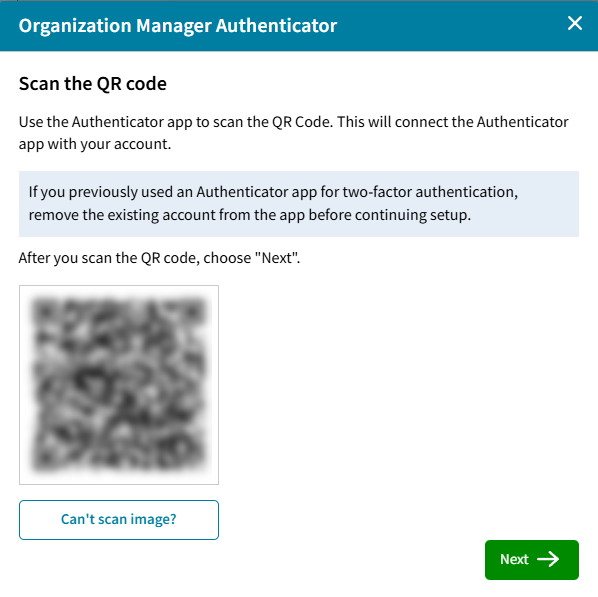
- Click Next once scanned.
- A code will be available in the app. Enter the code on the next screen:
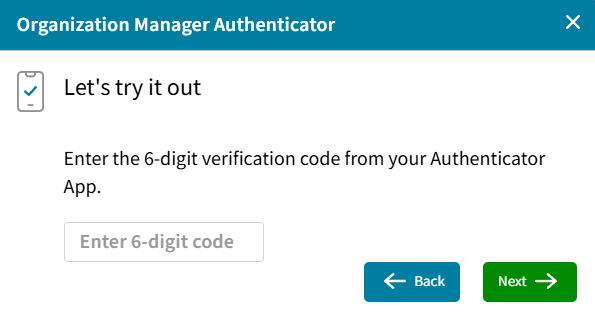
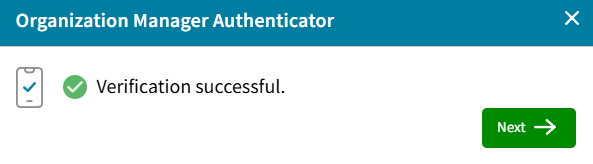
- After the code was successfully entered you will receive a Verification Successful message:
Enable Two-Factor Authentication for Existing Users
Existing users can enable Two-Factor Authentication after signing in to Organization Manager.
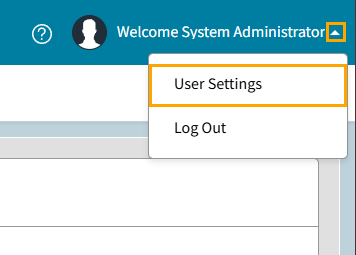
- In the upper-right corner of the screen, select the arrow next to your name and choose User Settings.
- The User Settings screen opens.
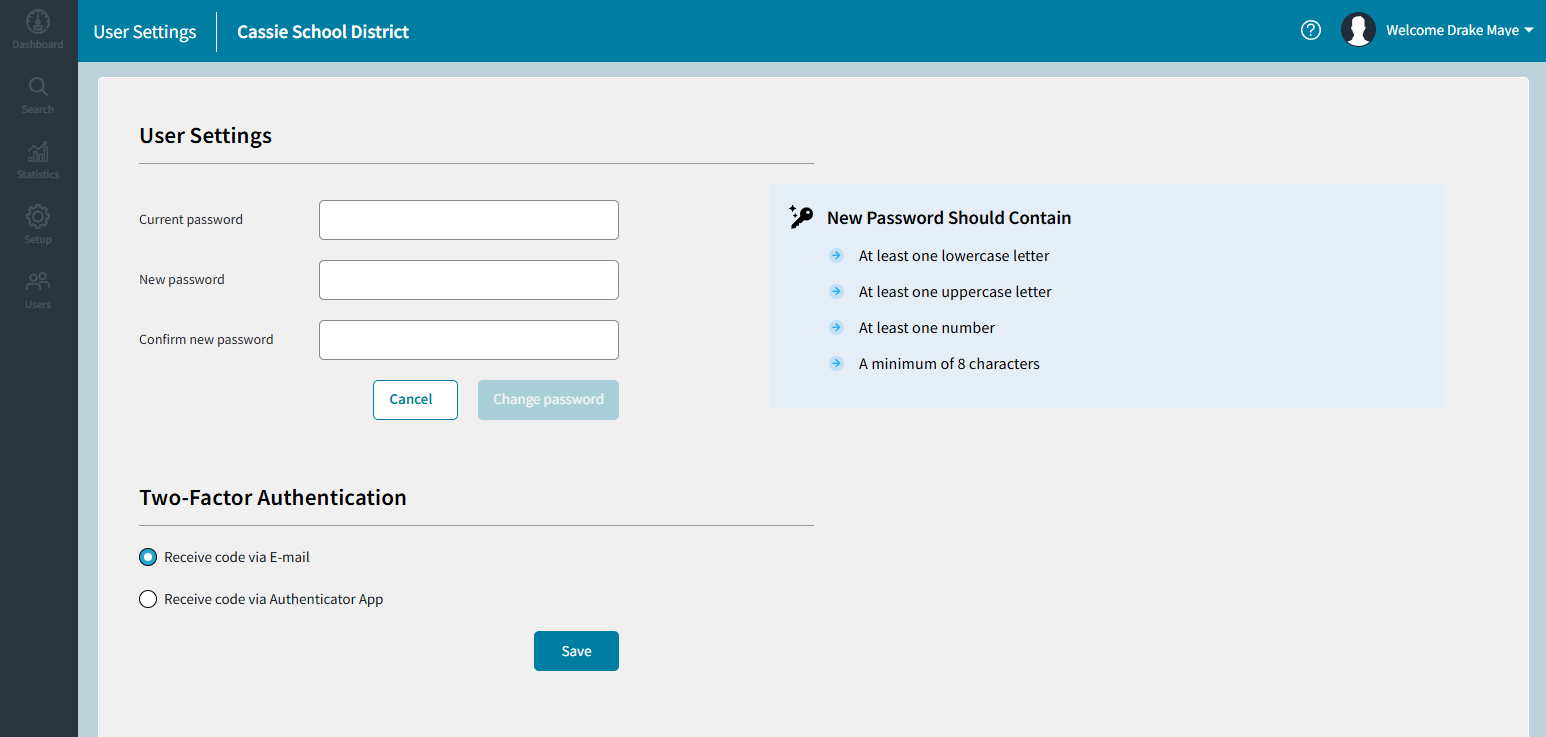
- Locate the Two-Factor Authentication section.
- Select one of the following options:
- Receive code via Email
- By default, this option is selected. To use this option, select Save.
- A message will appear. Select yes to continue.
In the future, if you have previously selected to use an Authenticator App to receive a code, select Yes to confirm that you will need to remove the existing account from your authenticator app: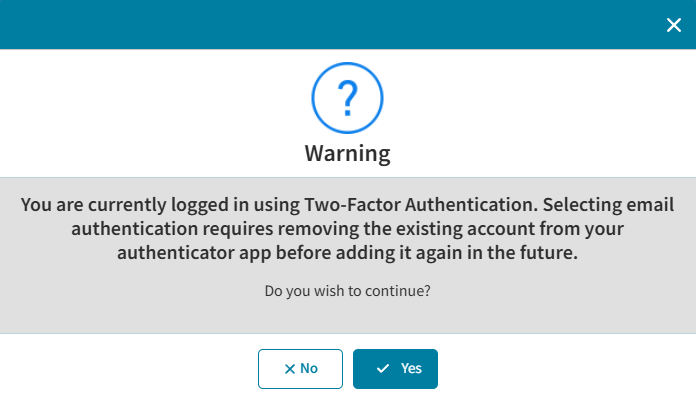
- Receive code via Authenticator App
- A window will open to Scan the QR Code. Use the Authenticator App of your choice to scan the code. This will connect the app with your account.
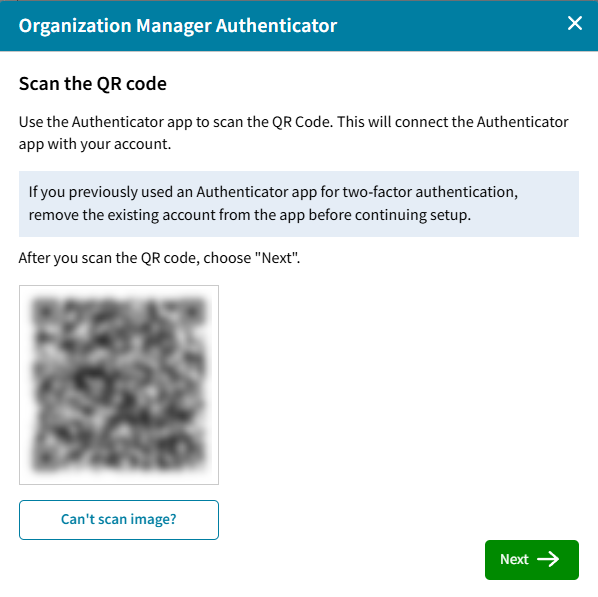
- Click Next once scanned.
- A code will be available in the app. Enter the code on the next screen:
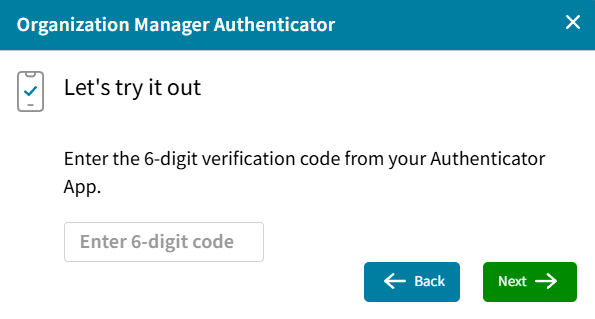
- After the code was successfully entered you will receive a Verification Successful message:
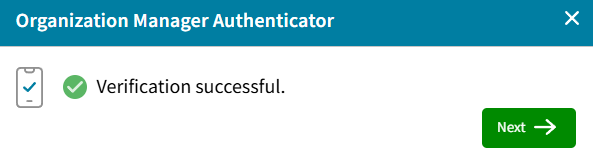
- A window will open to Scan the QR Code. Use the Authenticator App of your choice to scan the code. This will connect the app with your account.
- Receive code via Email