
TABLE OF CONTENTS
Reports on the Demographic Dashboard introduces a new workflow for creating reports. Begin by selecting the Student or Staff Demographic Report template to generate either a detailed report or totals only summary. Customize the report by selecting the data fields to include and the font you prefer. You can further refine the output by choosing how the information should be grouped and sorted. Reports will have a half inch margin on Letter size paper. In future we will add more options for margin settings and paper size.
Create a Detailed Report
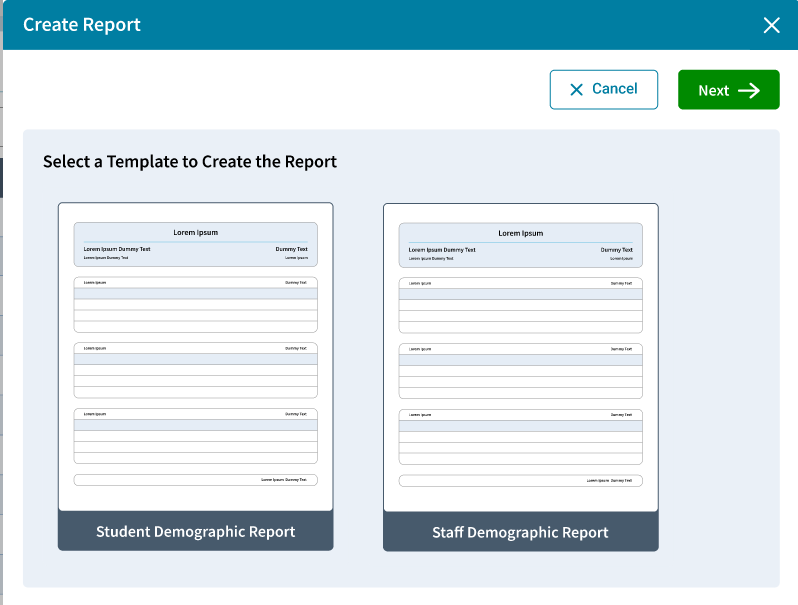
- Create Report select the Student Demographic or Staff Demographic Report Template
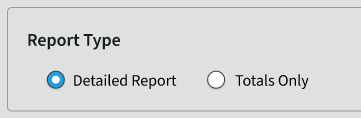
- Next select the Report Type: Detailed Report.
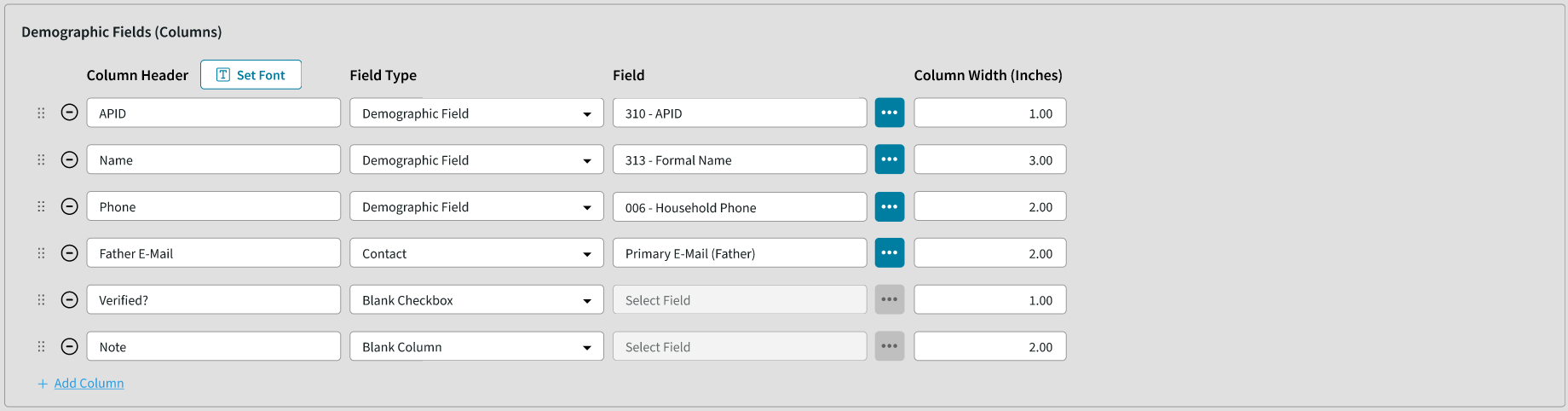
- Select the Demographic Fields (Columns), Set Font, and Column Width.
 Add Column
  Up to 10 columns can be added, specify the Column Header, Field Type, Field, and Column Width. The left and right margins are fixed at .5 inches.
Minus to delete a column.
Drag and Drop can be used to reorder the columns. Set Font
  to set the Font Properties.
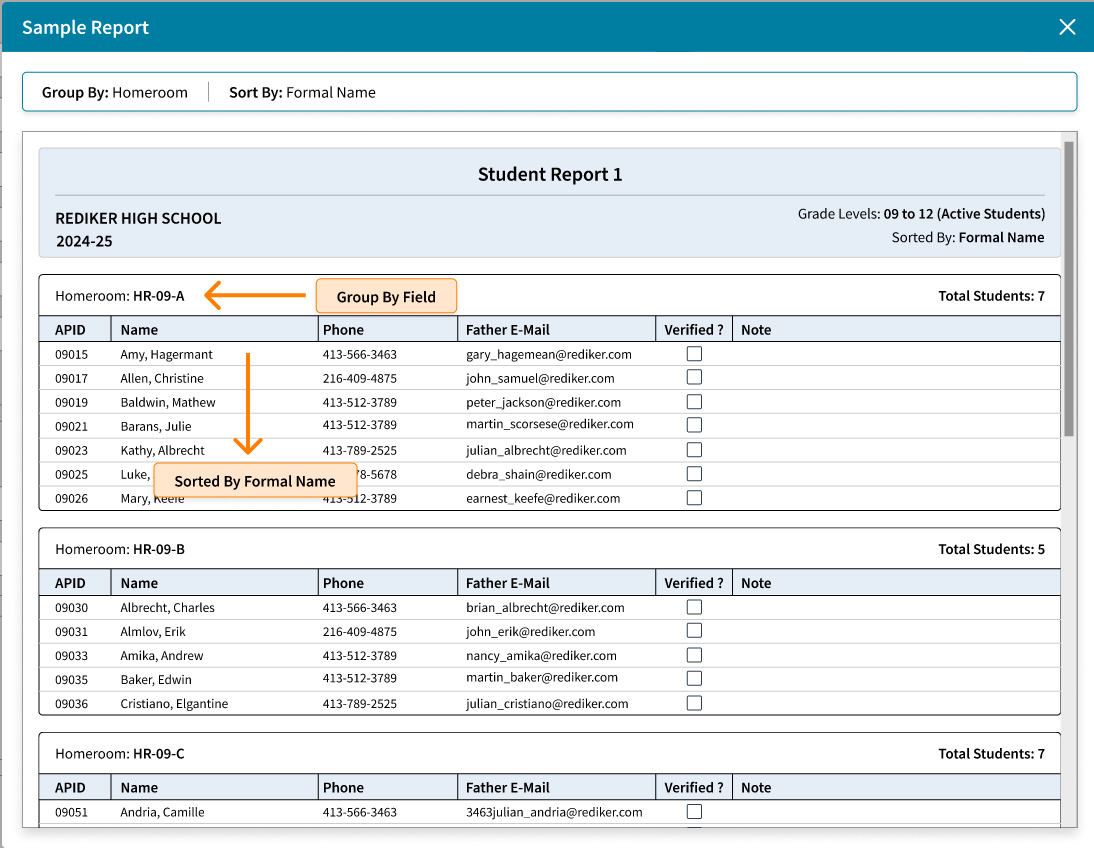
Column Width enter the width in inches. - Select the field to Group By and the field to Sort By. Click the i icon to see an example of how these settings are used in the report.

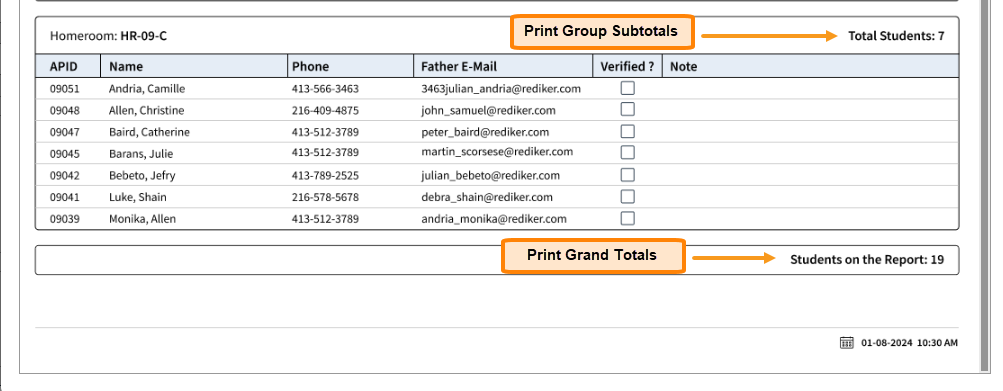
- Totals

- Page Orientation

- Internal Note can be used to include any information or instructions concerning the report. For example, this report is run monthly and sent to the Special Ed Director. The first approximately 50 characters will appear on the Reports table as a reference.
- Share can be used to select Co-owners of the report so they can edit, rename, copy, and run the report. Note: Only the Owner can delete a report.
- Select Students (or Select Staff) includes several methods to select the individuals to be included in the report.

- Generate will open the preview screen so you can print, download, or email the report. Click OK to return to the Reports table.
Create a Totals Only Report
- Create Report select the Student Demographic or Staff Demographic Report Template
- Next select the Report Type: Totals Only
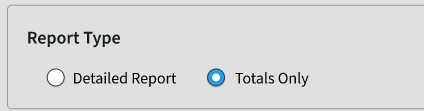
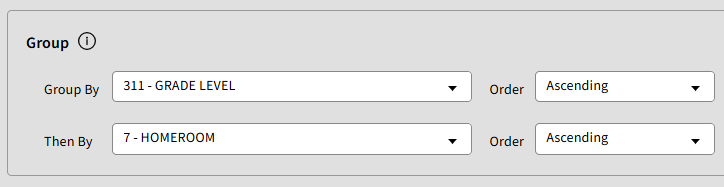
- Select the field to Group By and optionally another field can be selected in Then By
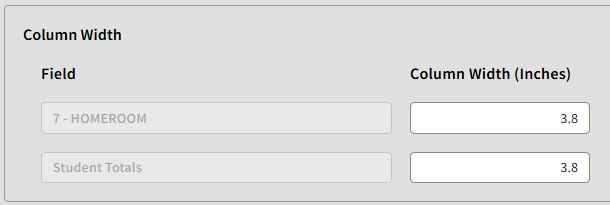
- Select the Column Width to use.
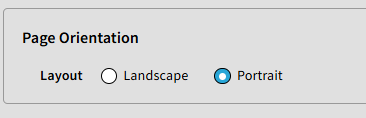
- Set the Page Orientation.
- Internal Note can be used to include any information or instructions concerning the report. For example, this report is run monthly and sent to the Special Ed Director.
- Share can be used to select Co-owners of the report so they can edit, rename, copy, and run the report but only the Owner can delete a report.
- Select Students (or Select Staff) includes several methods to select the individuals to be included in the report.

- Generate will open the preview screen so you can print, download, or email the report. Click OK to see the report you just created in the Reports table.
Reports table
All Reports on the Reports table includes reports you created and those that have been shared to you. My Reports can be selected to see only the reports that you created. To the left of the Report are 3 action icons: Generate, Edit, Copy.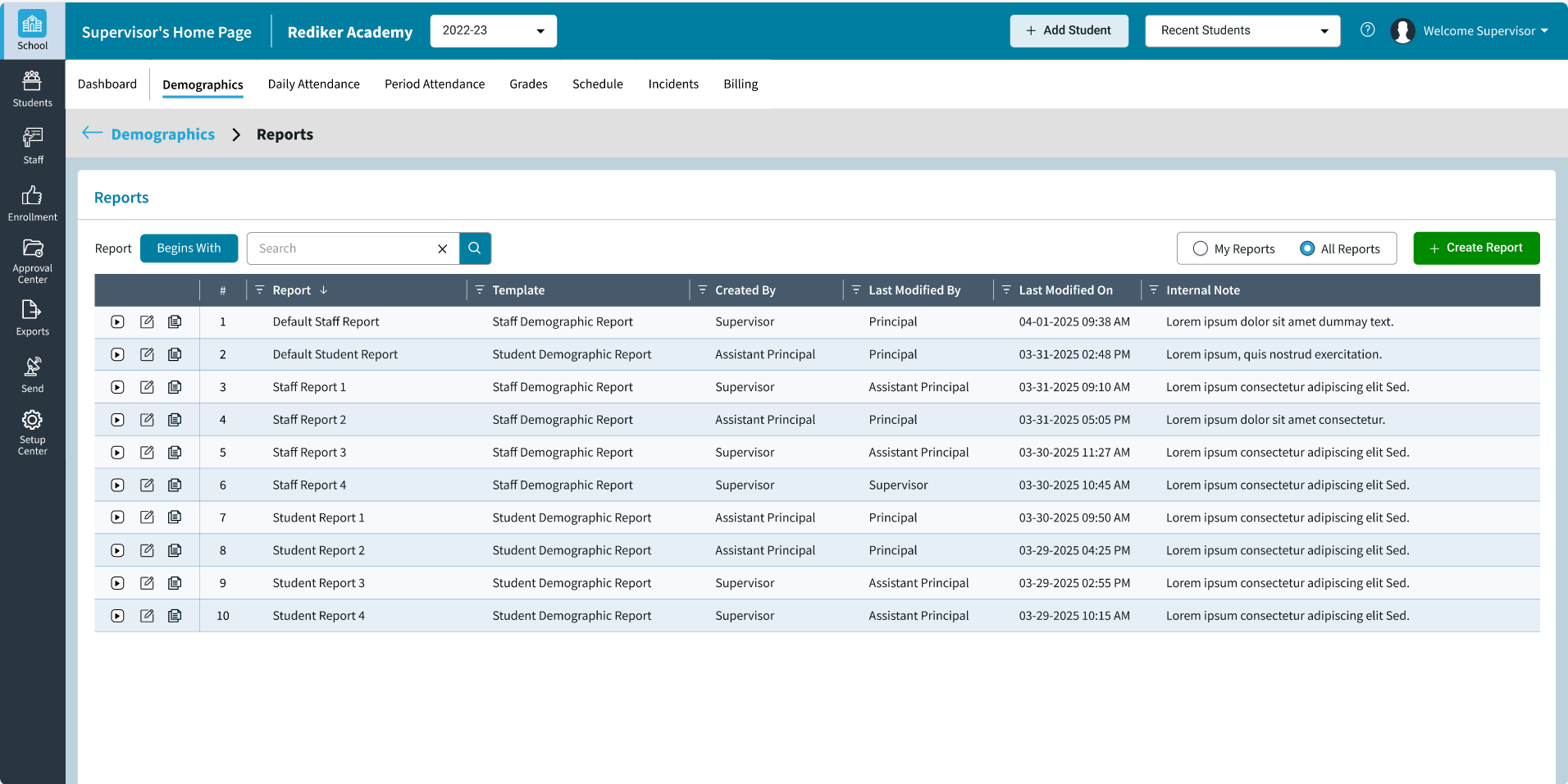
- Generate will open the Report Settings saved previously, click Save & Next to
- Select Students for a Student Demographic Report.
Students can be selected using Grade Level, Saved Views, DB Field(s), Individual Students, Homerooms, or Course/Section. - Select Staff for a Staff Demographic Report.
Staff can be selected using Type, Saved Views, DB Field(s), Individual Staff, Homeroom, or Course/Section.
- Select Students for a Student Demographic Report.
- Edit will allow you to return to edit any settings. There are also options to Delete or Rename the Report. Save As will save a copy of the report.
- Copy is the same as Save As. You can copy the settings and then go back to make edits. You become the owner of the copy of the report.