Contact Forms can be a simple way to engage your visitors. The Contact Form widget allows you to build a simple fillable form. Any Contact Form Widget used on the site will store the responses right on the Dashboard. When you login, before you click on Edit Site, you can find the Form Responses beneath the Statistics. From the here you can select the form from the dropdown and view the responses as well as export them.

Form responses can also be set to trigger an email for New Submission Notifications and can be integrated to populate a Google Sheet.
The Contact Form widget is a "Basic Form Editor" with very basic options. It does not connect to payment gateways, nor does it allow for logic-based questions. If you are looking for more functionality, consider talking with your account manager about adding on our Advanced Form Builder options to your RediSite.
It is highly advisable that you avoid collecting any sensitive information with a Contact Form. You should keep your forms short and simple. Do not use the Contact Form for full-blown applications. Consider using Rediker's Admissions for secure online applications as well as our AdminPlus Online Forms.
Using the Contact Form Widget
Note that all RediSites are typically built with a Contact Us page and a Contact Form widget already deployed on that page. It is recommended you access and edit the existing page/widget.
To add a Contact form to your website:
- In the Widgets panel find the Contact Form Widget
- Drag and drop the widget on the page
- Under Form Items you can:
- Drag and Drop form items in the desired order
- Add Fields
- Configure fields and field types.
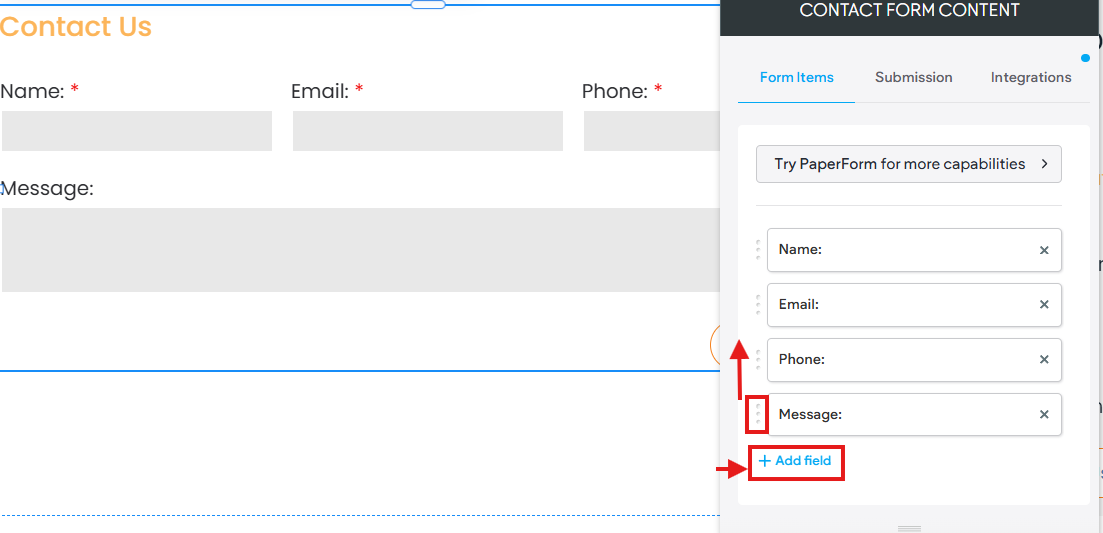
- Add and configure your desired fields.
- When you click on a Field, a panel will slide open the field options. Typical field options include (varies by field type):
- Field Label: The Text Lable/Field Title visible on your Form. For example, Name:, Email:, etc.
- Field Type: Text, Dropdown, Radio Buttons, Check boxes, Files attachment, Date, Time, Long Text, Click to Email, Phone Number, Number, Opt-in, Free Text (great for directions).
- Placeholder: Default text in the field
- Required Field: Makes the field required on your form and will be denoted with a red asterisk.
- Start New Line at this field: Moves this field to a new row/line on your form
- Field Size: Controls the width of this field.
- It is highly recommended that you set up New submission notifications (see below).
- Once you have configured your form, be sure to preview and submit your form to test it.
- Republish your site.
New Submission Notification
It is highly recommended that you configure each Contact Form widget with an email for new submission notifications. This ensures you get an email each time a form is submitted and can respond quickly.
- In the Editor open the Contact Form widget options by clicking on the form.
- Choose Submission then click on New submission notification
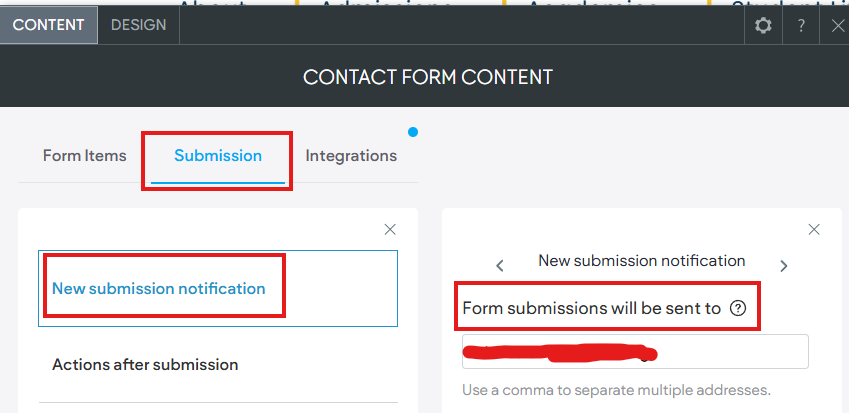
- Be sure to enter an email into the field. You can add more than one email using a comma.
- Republish the site and test your form to ensure you are receiving the email submission notifications.
Integrations: Google Sheets
The Contact Form widget can also be configured to populate submissions into a Google Sheet. A great feature when you need someone else to have access to Form Responses but do not want to give them access to the website editor.
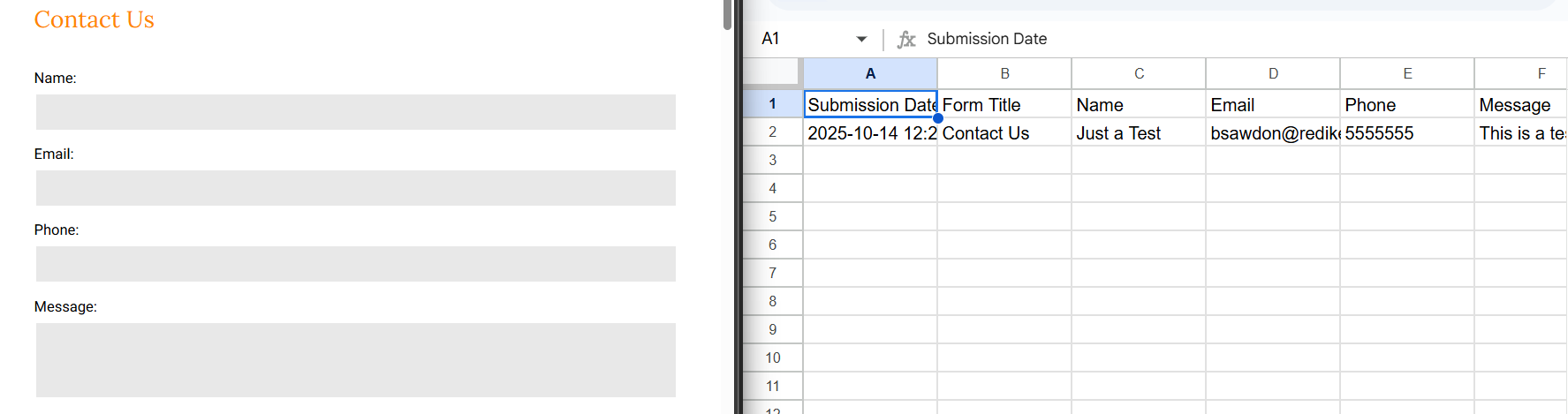
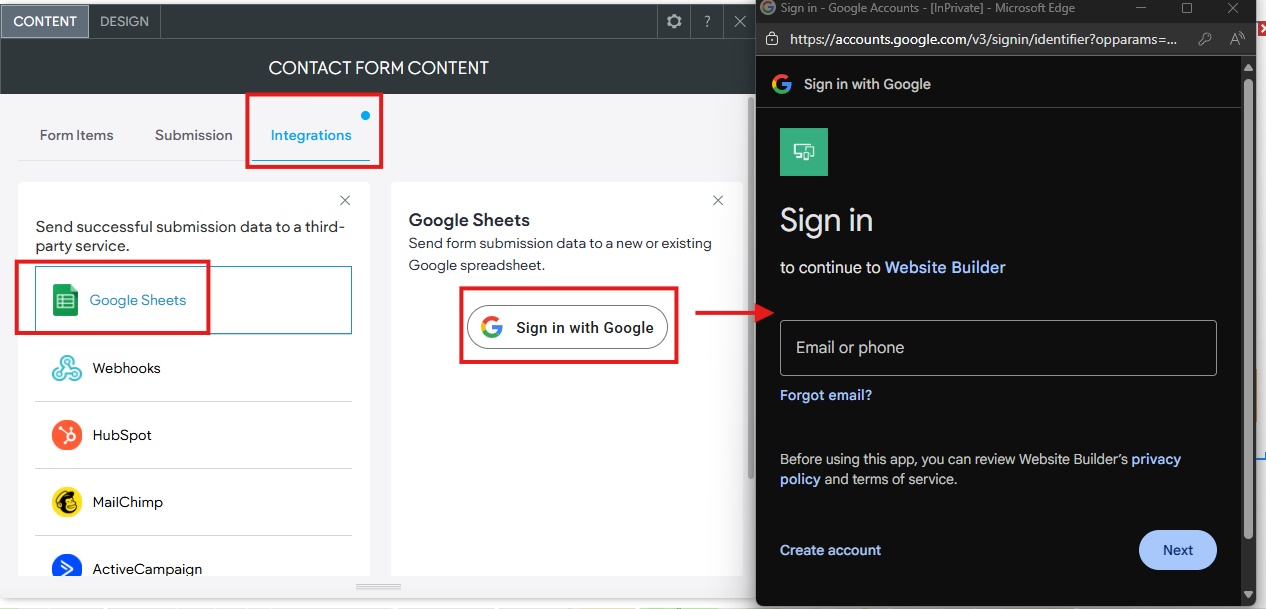
- In the Contact Form widget options under Integrations choose Google Sheets
- Click Sign in with Google
- Follow the prompts to sign in and give the Website Builder permission to connect with and talk to your Google Sheets
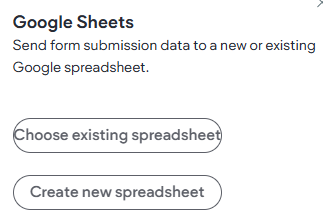
- Once you have signed in with your Google Account the widget will give you the option to Choose Existing Spreadsheet or to Create New Spreadsheet.
- Be sure to republish and test your form, then review your spreadsheet.
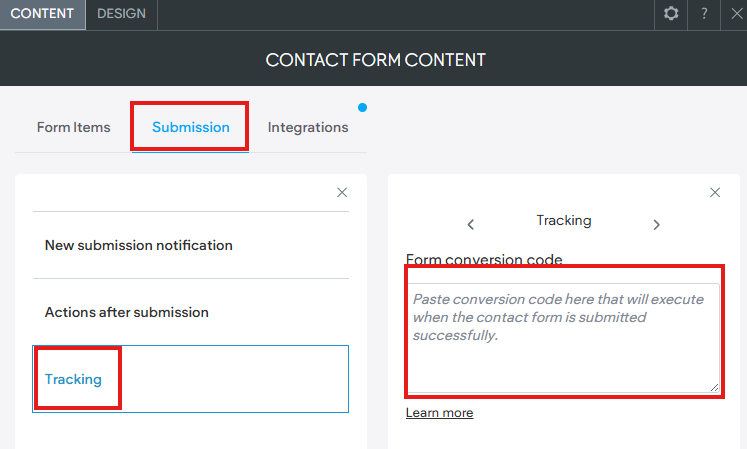
Tracking
The form also provides a text field for tracking your form interactions with a Form Conversion Code. This is a code that measures interactions with the website and specifically this form. It helps track conversions and how those interactions are helping to meet goals you have setup in your analytics tool like Google Analytics and Google Tag Manager.