These tables are custom fields that can be used to add additional information to an Incident. For example, Victim Name allows another student's name to be selected and added on to an incident, which is helpful when documenting potential targeting in a suspected bullying situation. A school with special policies may find these custom tables extraordinarily helpful. This feature can also be used to add additional remarks that are more private than the default Comment field on an incident.
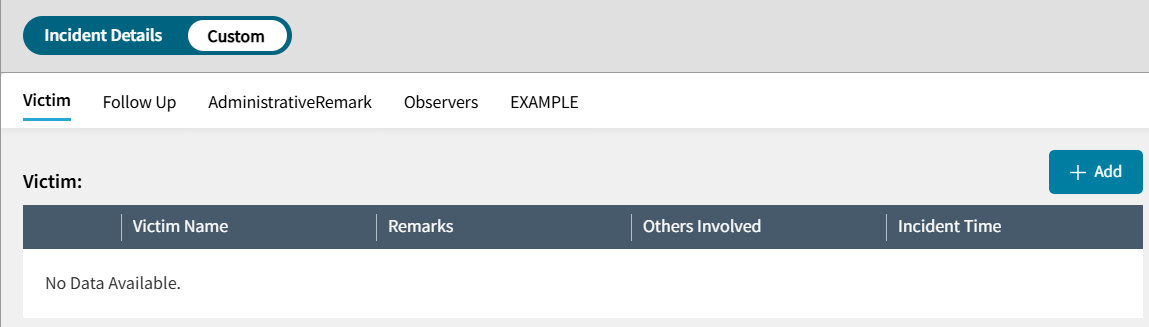
Multiple tables may be selected and used on a single Incident write up.
Please note that these fields are only available in AdminPlus, teachers submitting incidents from PlusPortals will not have access to use these custom tables.
TABLE OF CONTENTS
Accessing Tables
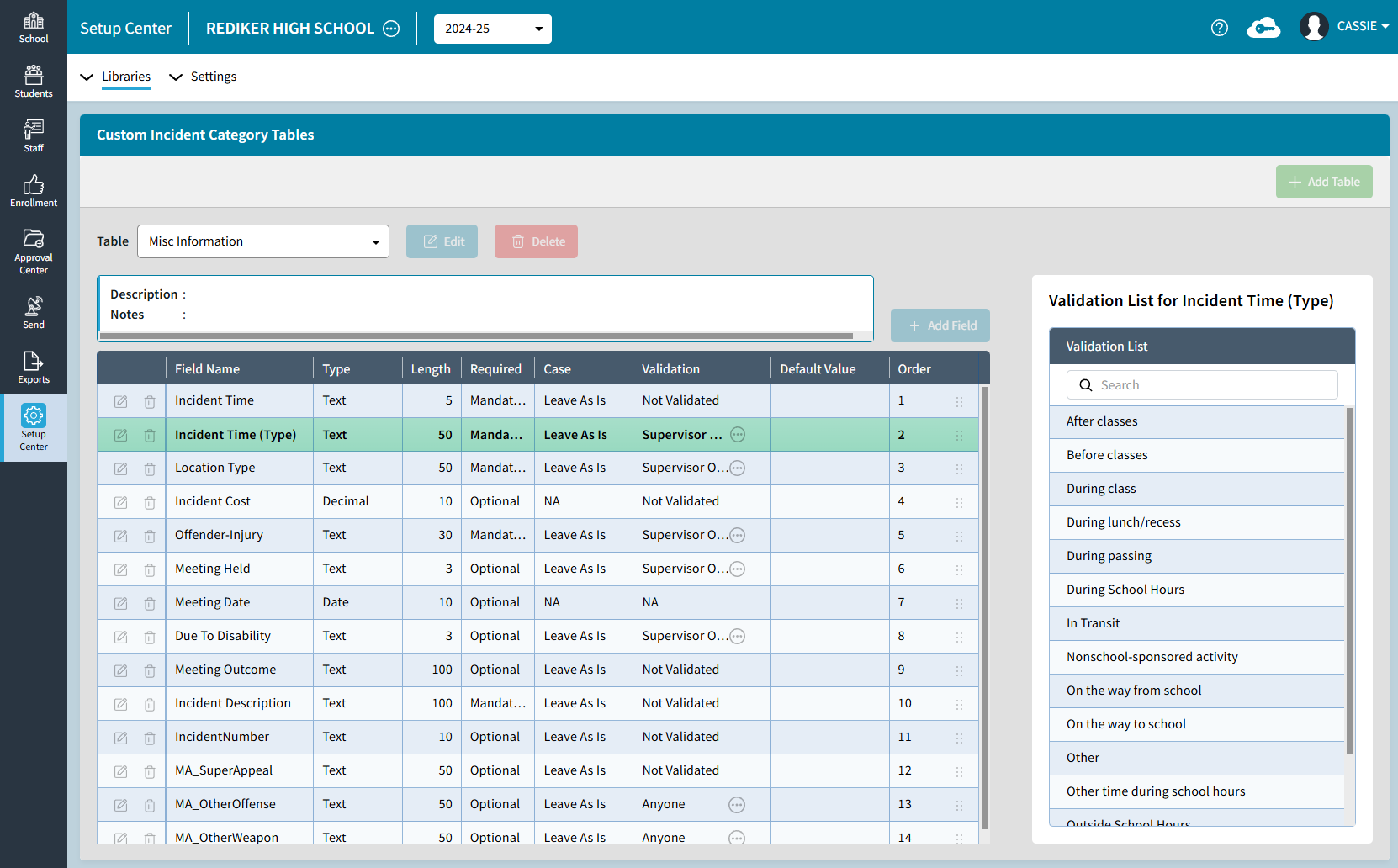
Users can go to Setup Center > Libraries to view and edit Custom Incident Category Tables. If a User Defined Discipline Category Table was created in classic, they will be visible here as well.
Adding, Editing, and Deleting Tables
Editing permission must be set in classic in order to add or edit these tables in AdminPlus.com. Only the Supervisor user will have the option to Add, Edit, and Delete User Defined Discipline Category Tables. For all other users, these options will be grayed out.
Editing an Existing Table
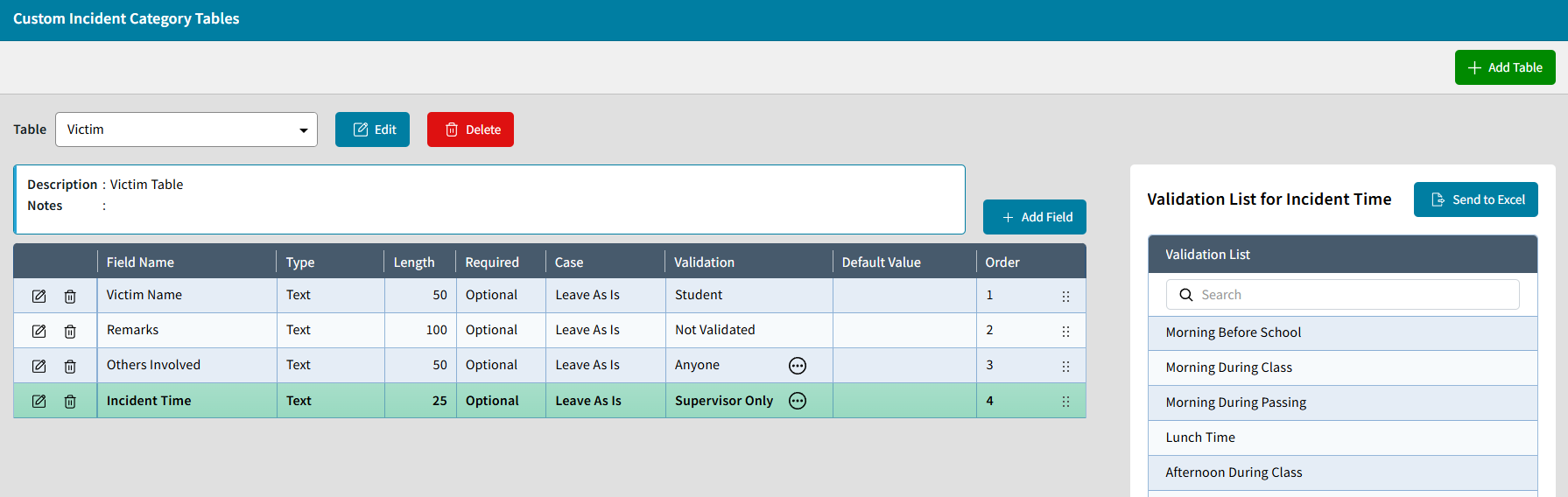
- Select a Table from the Table drop-down list

- Choose the Edit button next to the table drop-down to update the Table's Name or Description/Notes.
- Select a Field row to view the Validation List on the right panel.
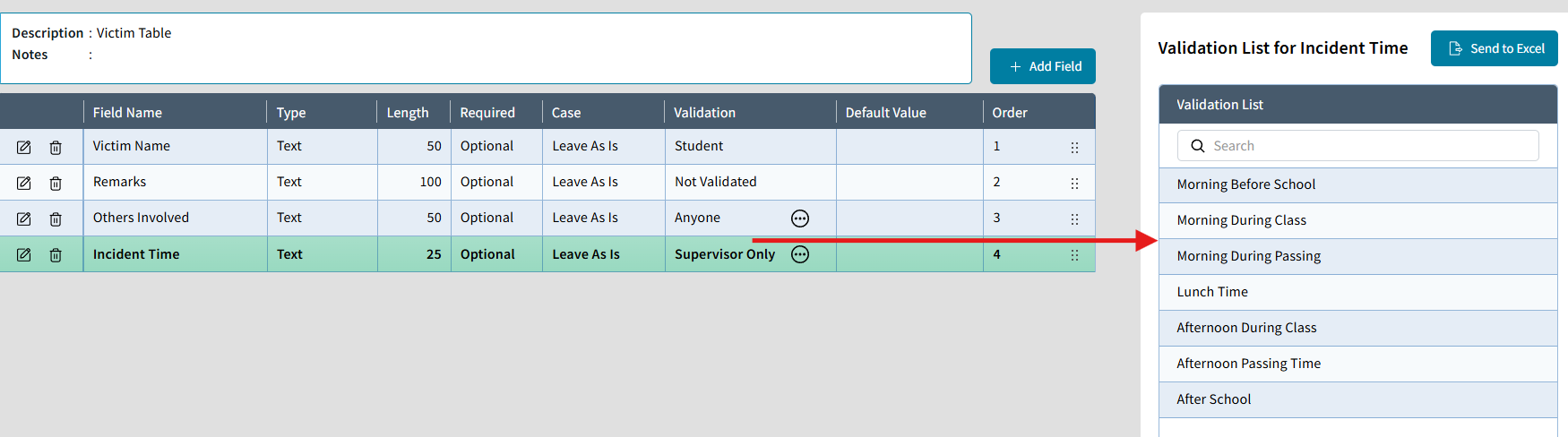
- Click on the Edit icon (far left on field row) for a given field to open the Edit Field popup and update the field properties. See Field Property notes below.

- Click the Delete icon to remove a field from the table.
- Click on +Add Field to add a new field to the selected table. See Field Property notes below.

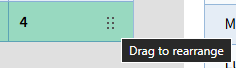
- Drag a field row using "Dots" icon (on the far righthand side of the row) to reorder the fields.
Adding a New Table
- Click on +Add a Table (green button in upper right).
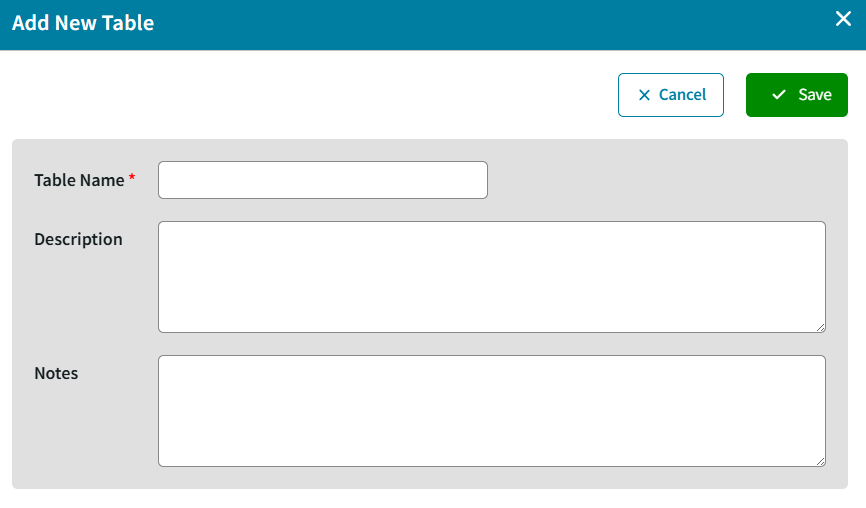
- You will be first prompted to input a required Table Name (20-characters) and optional Description/Notes.
- Click Save
- The table should now be selected in the Table drop-down list with a default Field 1 already created
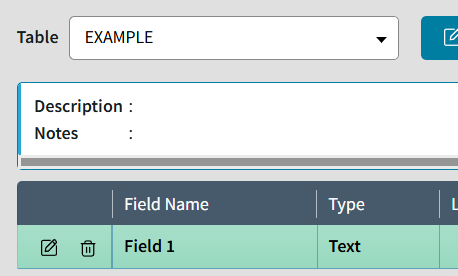
- Click the edit icon for Field 1 and update the Field Name and other field properties are needed. See notes below for more details
- Click Save.
- Add any additional table fields and configure them as needed.
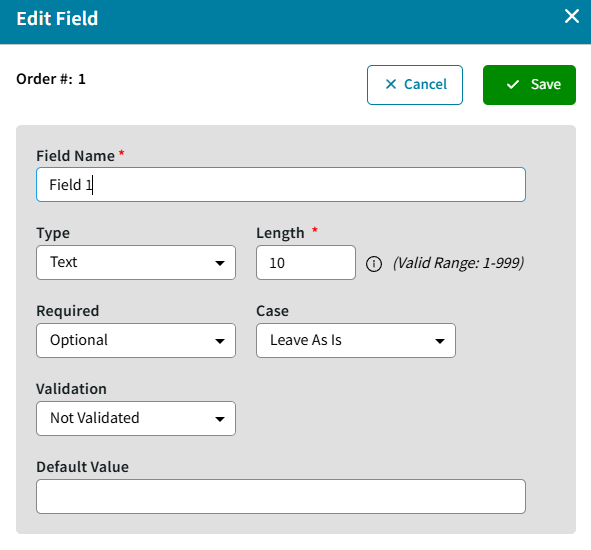
Field Properties
Name:

- Name of the Field (required)
- 20-character field to identify what the field is.
Type:
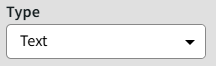
- Text- Sets the Field to be populated with Text/Alpha Characters
- Integer- Field is to be populated with a whole number
- Decimal- Field will hold a number with decimal
- Date- The field will only accept a date
- Note- Sets the field to have a popup note field for longer notes.
Length:
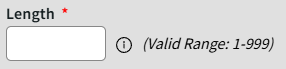
- Sets the number of characters (max) that the field will hold (is allowed).
- This impacts Text, Integer, and Decimal Field Types.
Required:
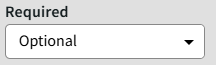
- Sets the field to be either mandatory or optional (default) when filling out an incident.
Case:
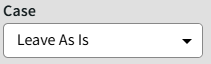
- Sets the text case for the field (affects only the Text Field type)
- Leave As Is- However the data is entered
- Sentence- Capitalizes the first letter only
- Lower- Keeps all characters as lower case
- Upper- Makes all characters enter as upper case
- Title- Capitalizes the first letter of each word.
Validation:
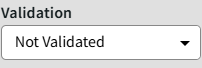
- Not Validated- Allows the user to enter any value (based on field type
- Supervisor- Allows the user to only pick options from a validated list set by the supervisor
- Anyone- Allows user to either pick from a validated list or enter a new value
- Student- Provides a field to pick from existing student names
- Staff- Provides a field to pick from existing staff names
Default Value: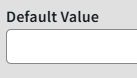
- Value to place in the field by default when applying this table to an incident
Deleting a Table
- Select a Table from the Table drop-down list
- Click the red Delete button

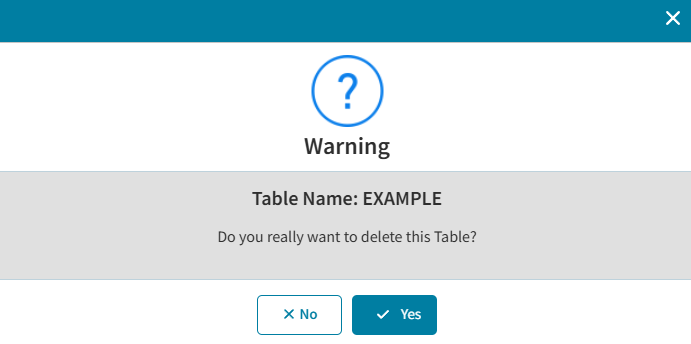
- You will then be prompted to confirm that you really want to delete this Table. Note the prompt will also display the currently selected Table Name.
- Choose Yes to proceed with deleting the table.
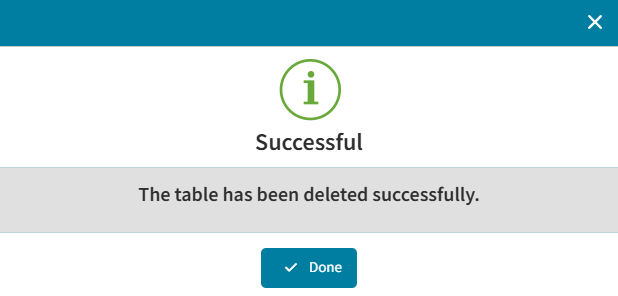
- If table is unused and can be deleted, you will receivedd a Success popup indicating the table has been deleted.
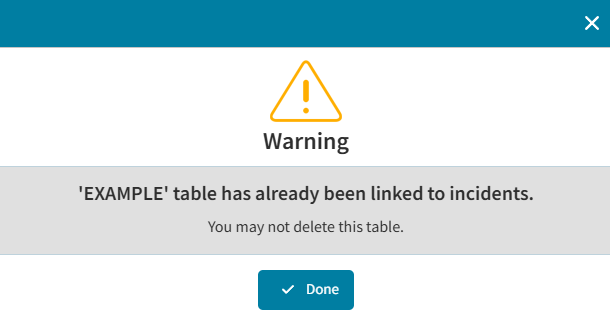
You cannot delete a table that has already been used and linked to any incidents. Meaning if an incident was created and the custom table was used to input data for that incident, then the table cannot be deleted. This is done in order to protect your data. A popup warning will indicate as such.