
Approval Center is used to view and manage incoming data. Each type has a widget that displays the number of records in each status, click on the number to go to the corresponding tab.
Approval Center for Admissions requires edit in AdminPlus.com for Enrollment, Demographics, Contacts, SuperDB, and Portfolio. If your school is unable to switch to edit for all 5 modules, then all 5 modules should be set to edit in classic.
If your school is using classic AdmissionsPlus Pro, then continue to edit in classic.
Admissions
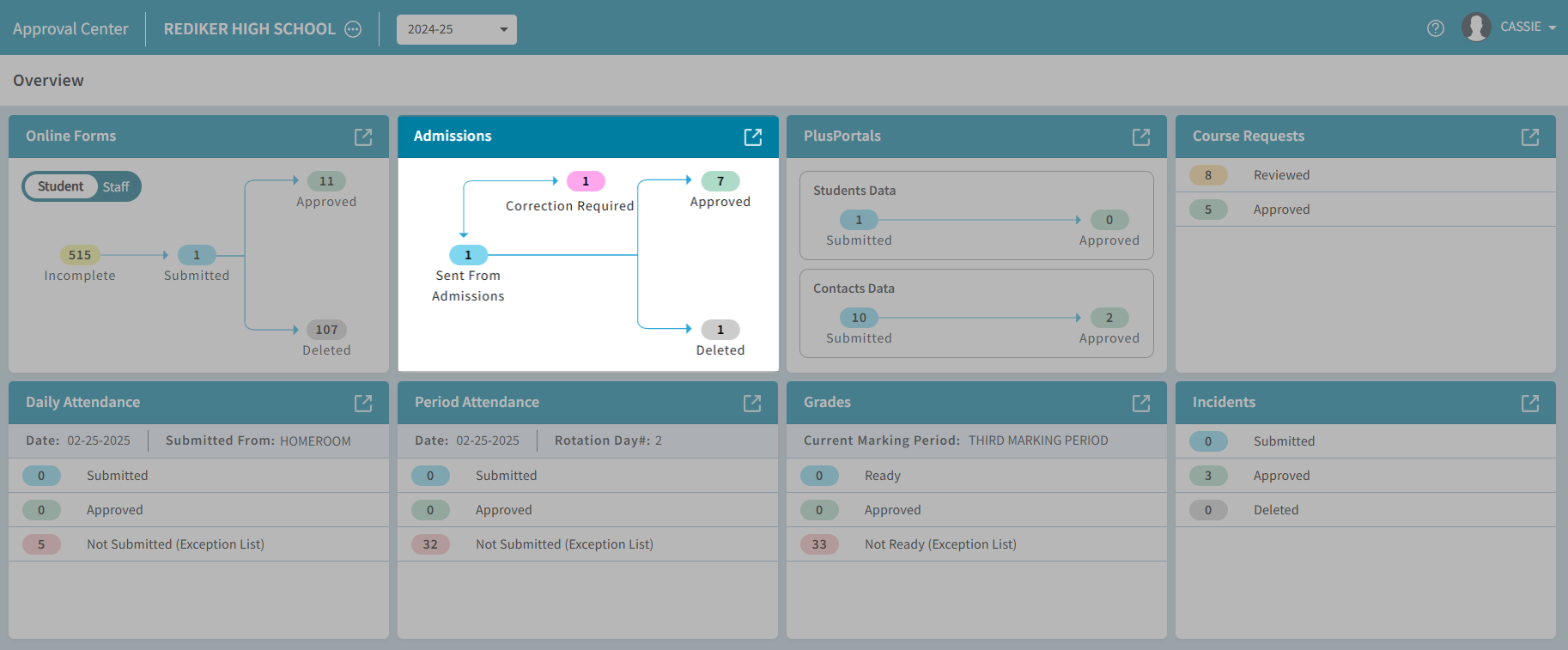
The diagram and table below describe the tasks you can perform from the Approval Center for Admissions. Each tab has a similar layout. The left side lists the students, and the right side shows the information for the selected student.
When students are received from Admissions, AdminPlus.com checks if the student record already exists in the system by verifying the First Name, Last Name, and Date of Birth.
| Admissions | |
|---|---|
A | Admissions: Prospects sent from Admissions can be reviewed in the Enrollment Center. In the Receive from Admissions widget, the number of Students Sent from Admissions, Corrections Required, Approved, and Deleted forms are displayed. Select  to review the student forms to review the student forms |
Admissions
To send Prospects from Admissions to the Receive from Admissions in AdminPlus.com, you must be sure the years are mapped in Admissions. For more information about this, please see Set Up AdmissionsPlus To Send Prospects to AdminPlus
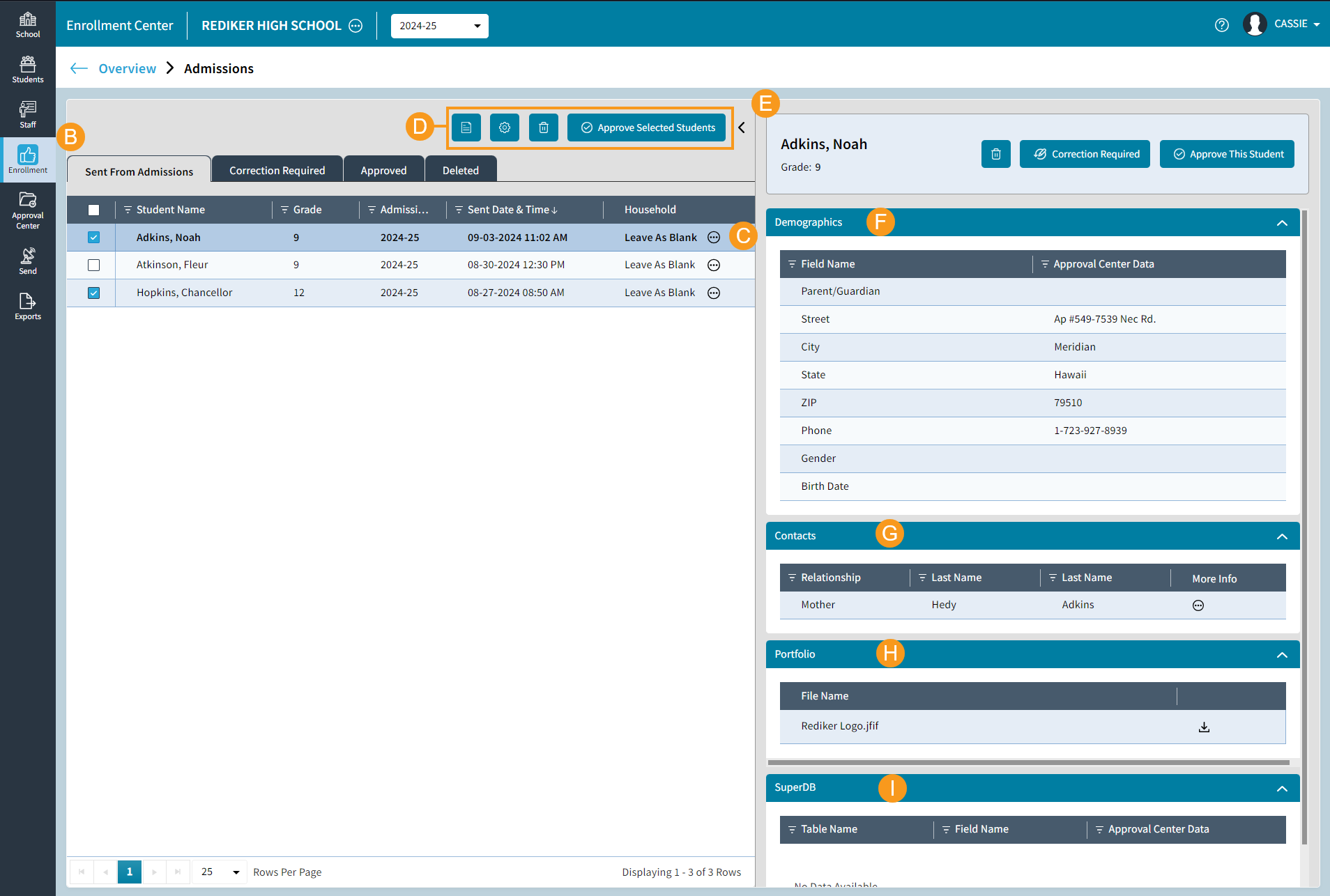
From Admissions tile click expand to see the detail; Sent from Admissions, Correction Required, Approved, and Deleted tabs.
Sent from Admissions
| Sent from Admissions | |
|---|---|
B | Sent from Admissions tab is where students sent from Admissions will appear. |
C | Select  to assign a Household ID to the student prior to receiving their form. The Assign Household ID window will open. to assign a Household ID to the student prior to receiving their form. The Assign Household ID window will open.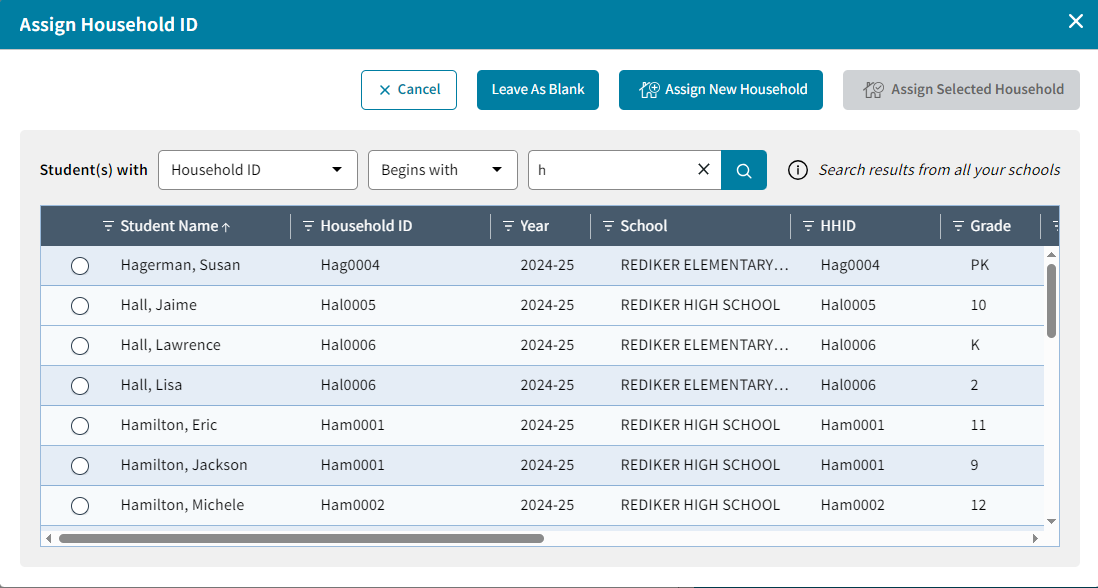
If the Household the student should belong in does not appear in the list, you can choose to search on a different last name or field. |
D | Along the top you can View the log, change the Settings, Delete Students sent from Admissions, or Approve Selected Students.
|
E | Student Name and Grade Level are displayed here. Choose to Delete Student, set as Correction Required, or Approve This Student. |
F | Demographics: Student demographic data is displayed here. View and confirm data is correct |
G | Contacts: Contacts associated with this student is listed here. |
H | Portfolio: Any items sent from Admissions, such as a student's Birth Certificate, will appear here. |
I | SuperDB: If the student has any data entered into a SuperDB Table, the data will display here. If no data is sent, No Data Available will appear. |
 : Select to view previous actions. The Logs will be listed. The Action, Number of Students Received, the User who completed the action, and the Date this was completed will be listed. Highlight the log to view and select View Log to download the Excel file.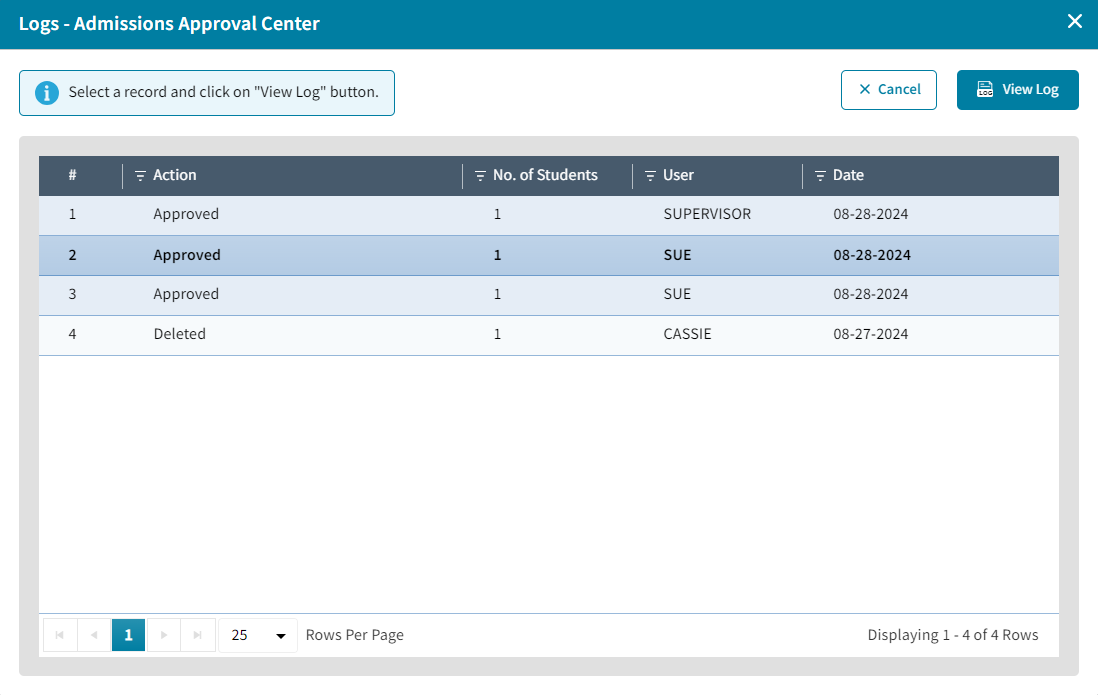
 : Select to update Approval Center: Admission Settings.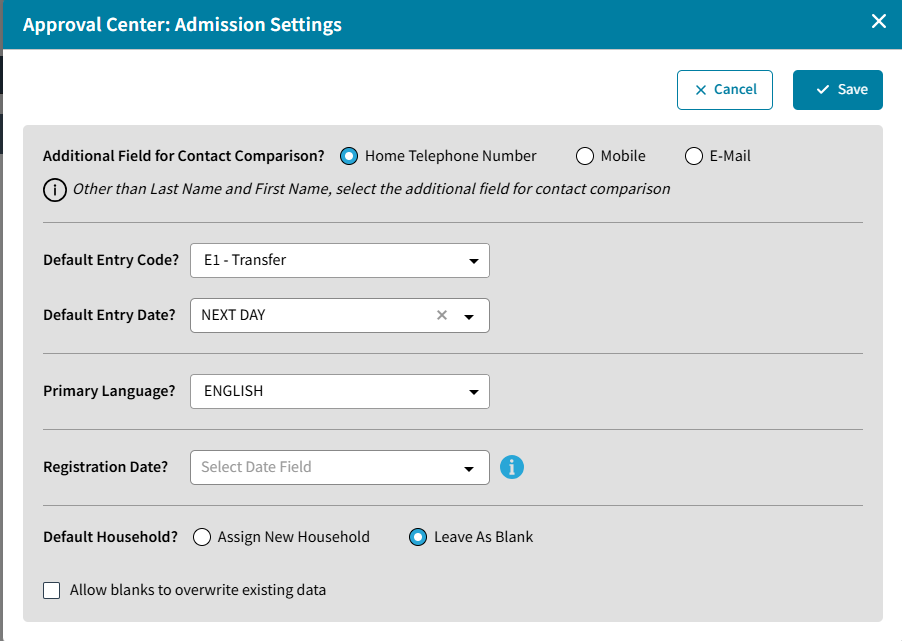
 : Select to Delete the selected Students.
 : Select to Approve Selected Students.
Correction Required
| Correction Required | |
|---|---|
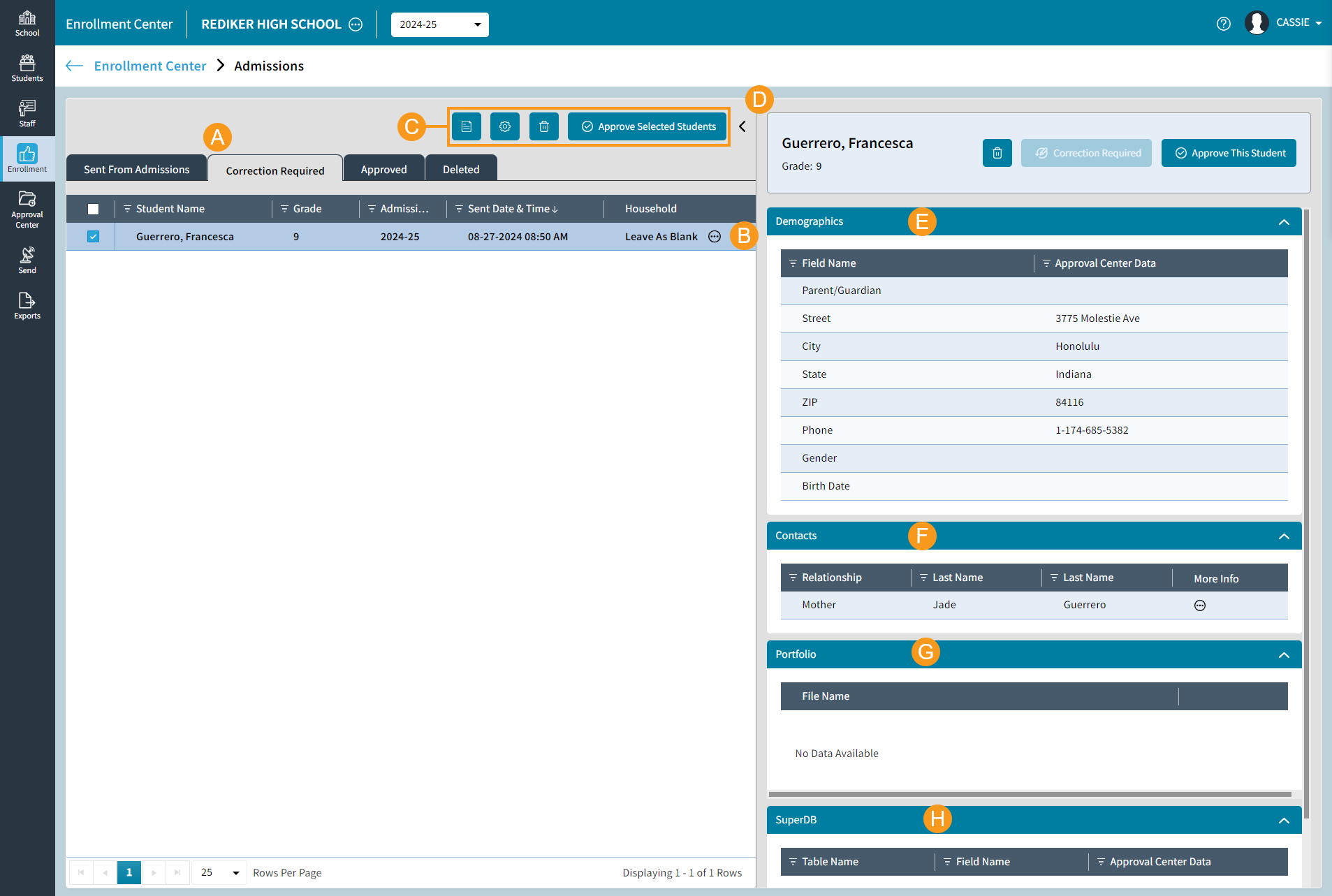
A | Correction Required tab displays students where a correction is required in Admissions. Any corrections can be made, then the student can be sent back to the Sent to Admissions holding bin. |
B | Select to assign a Household ID to the student prior to receiving their form. The Assign Household ID window will open.
If the Household the student should belong in does not appear in the list, you can choose to search on a different last name or field. |
C | Along the top you can View the log, change the Settings, Delete Students sent from Admissions, or Approve Selected Students.
|
D | Student Name and Grade Level are displayed here. Choose to Delete Student or Approve This Student. Correction Required will be greyed out. |
E | Demographics: Student demographic data is displayed here. View and confirm data is correct |
F | Contacts: Contacts associated with this student is listed here. |
G | Portfolio: Any items sent from Admissions, such as a student's Birth Certificate, will appear here. If no data is sent, No Data Available will appear. |
H | SuperDB: If the student has any data entered into a SuperDB Table, the data will display here. If no data is sent, No Data Available will appear. |
Approved
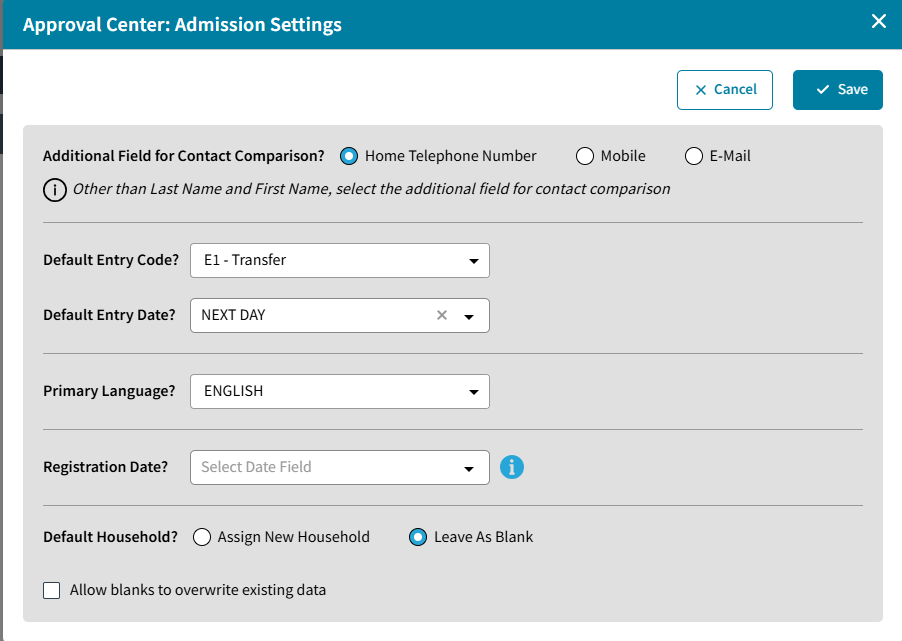
The Approved tab is similar to Sent from Admissions and Correction Required. Here you can view students whose forms were previously received (approved).
Deleted
The Deleted tab displays student forms that were deleted.