
TABLE OF CONTENTS
- Student Demographic Import
- Staff Demographic Import
- SuperDB Import for Students or Staff
- Generic SuperDB Import
- Student Contacts Import
Student Demographics Import
Student Demographic Import allows you to update existing student data using a CSV (Comma-delimited) or TXT (Tab-delimited) file. Before initiating the import process, ensure you have a CSV or TXT file containing all the necessary student data for import. Please ensure there is a Unique Identifier, such as the students Unique ID, which is unique and unchanging to all students.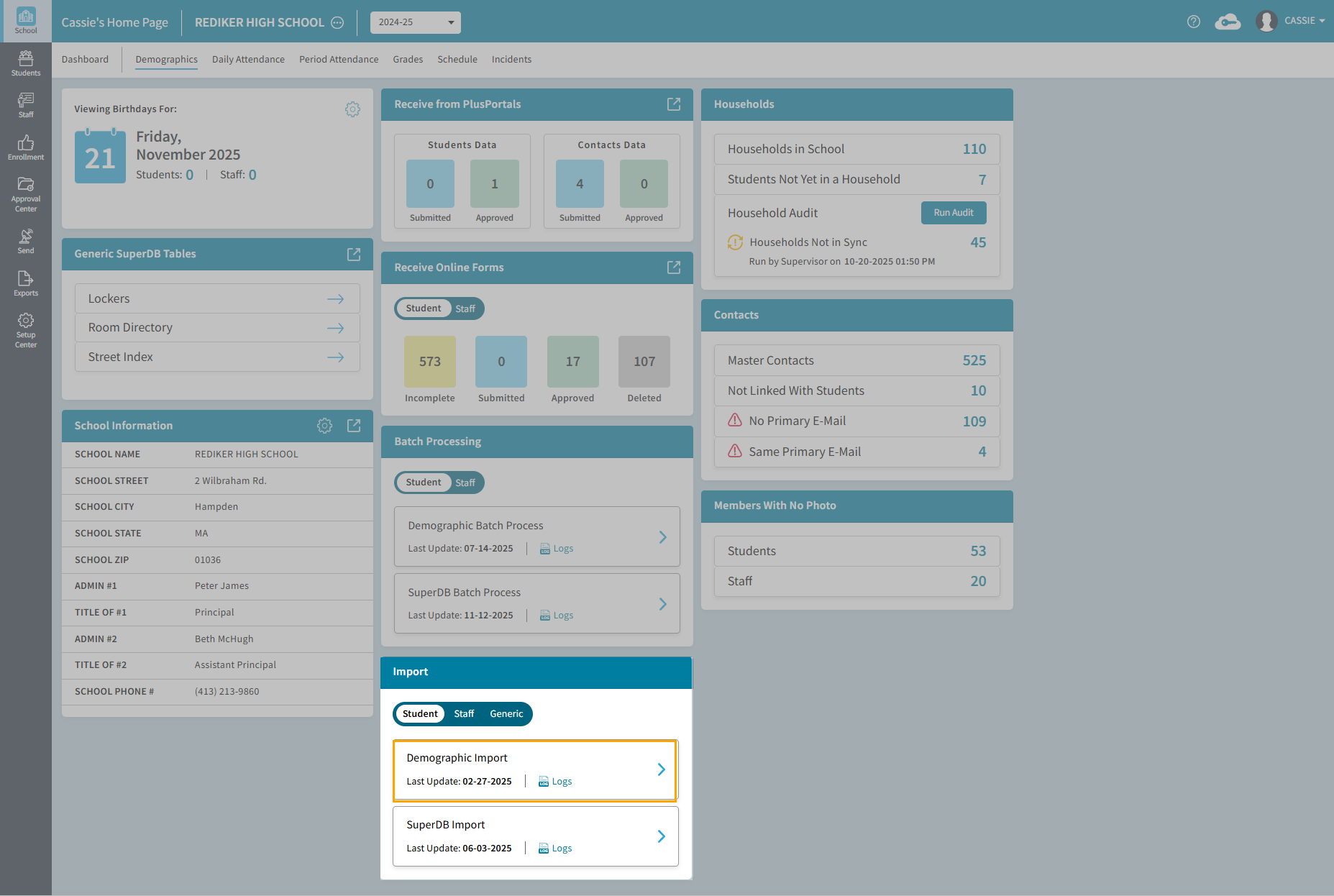
To begin the process, navigate to the School > Demographics Dashboard. Under Import, select Student > Demographic Import.
- If this is the first time doing an import, select
 . If an Import has previously been completed and a Template has been saved, choose a Template from the list.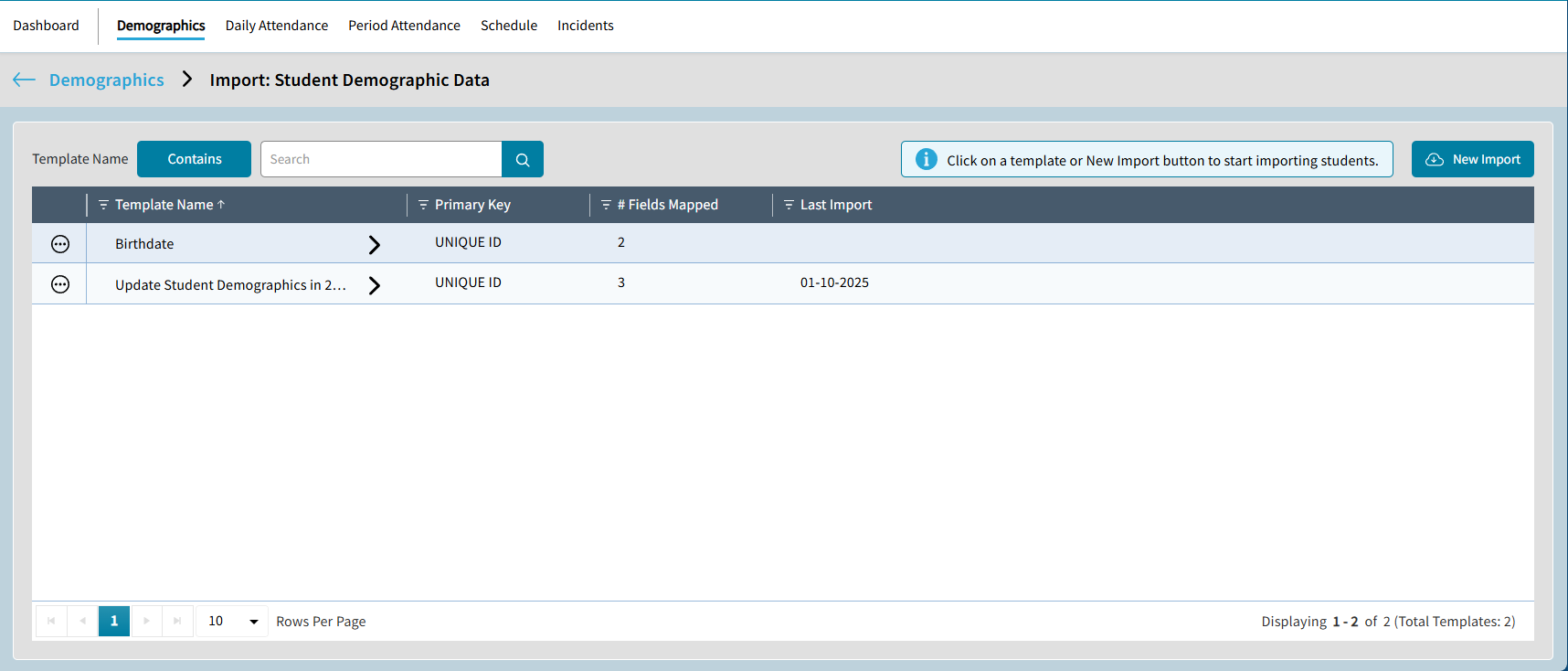
- The Select File and Map Fields window opens. Here you can select a file, map the file fields to the AdminPlus.com Fields and save this as a template.
Only the Primary Key field is Mandatory to map. Any other field is optional.Select File and Map Fields A- Select File: Click
 to select the CSV file containing student data.
 - Map Primary Key to Identify Students: Map the Primary Key from the file to the matching field in AdminPlus. This will ensure the data is updated for the correct student.
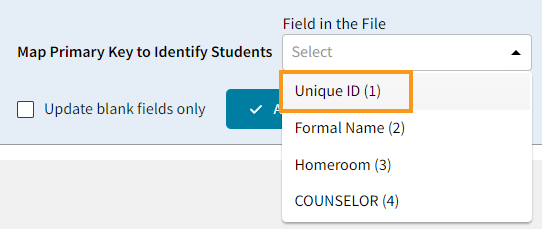
- In the Field in the File dropdown, select which column will be used as the Unique Identifier. In the example below, we have selected Unique ID.
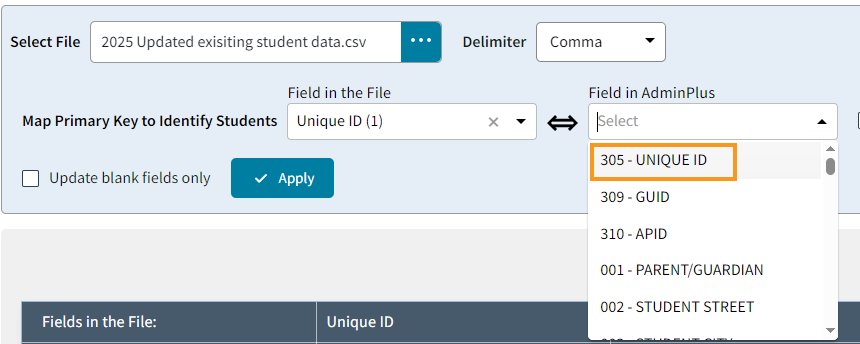
- In the Field in AdminPlus dropdown, select the corresponding field:
- Allow blanks to overwrite existing data: When this option is selected, if the field is blank, and the student as existing data in AdminPlus, the data will be overwritten.
- Update blank fields only:
 : Select Apply after choosing the fields and to apply your settings. The Primary Key Field will be mapped below.
BMap Fields: Map the data from the file to the corresponding fields in AdminPlus. Be sure to map each field accurately to ensure the data is imported into the correct data base fields. The name of the Fields in the File are listed along the top. Below on the Map To line, select
 to map the data column to the correct AdminPlus Data Base field. The Select a Field dialog box will open. Use the Search bar to look for the field or scroll. Click the field name and choose Select. Continue this to map all fields needed in the file. It is not necessary to map all columns. If any column in the file exists that does not need to be imported, the column can remain as Not Mapped. Scroll to the right along the bottom to view additional field columns.
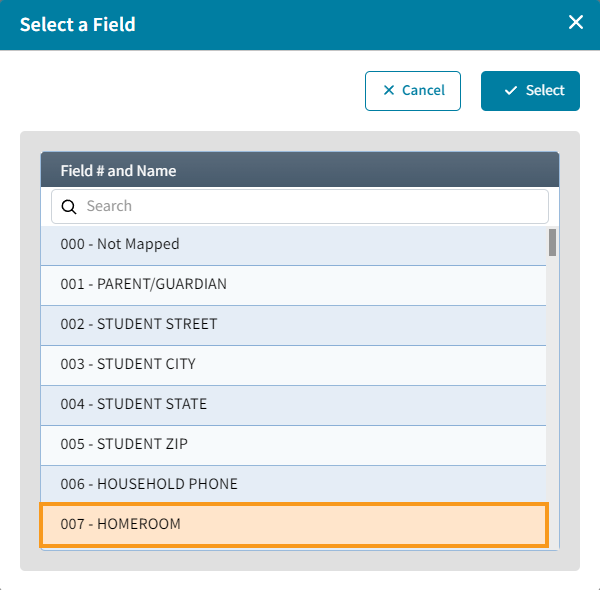 C
CTo use this for another import, select Save as Template. This will save the field mappings and selecting settings. The Template will appear on the Import: Student Demographic Data window: 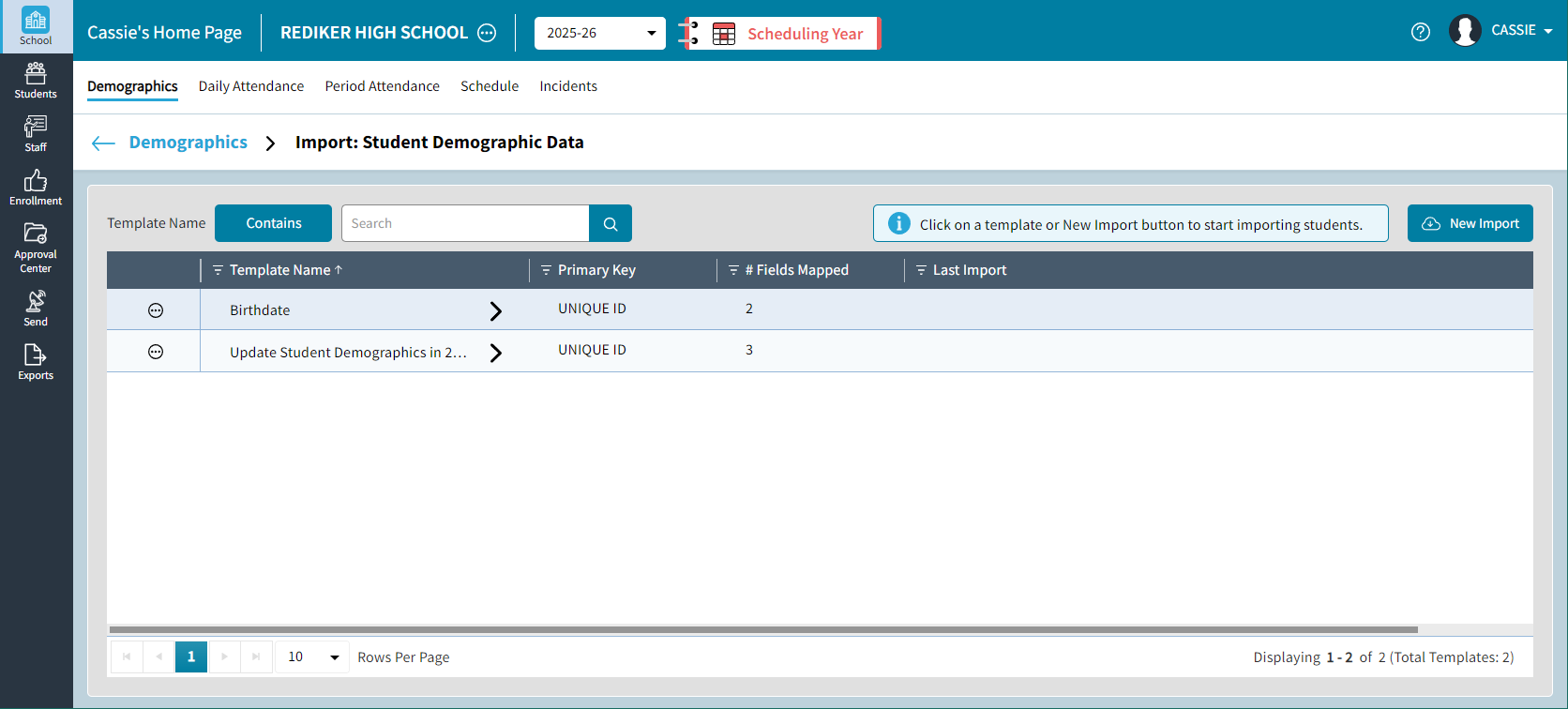 D
D- Click
 to cancel the import process. Your progress will not be saved.
 - Click
 to continue.
- Select File: Click
- After clicking Next, the Analyze The File/Trial Run window will open. Here you will see the test results run prior to completing the import. In the example import below the following test results will display:
- Number of students updated. Select View Details to see which students.
- Number of students updated, along with why. E.g.: Primary Key is blank.
- If there is any additional information as to why data could not be imported, it will be listed here, and the reason can be viewed by selecting View Details.
- The number of fields not mapped. Select View Details to see which fields.
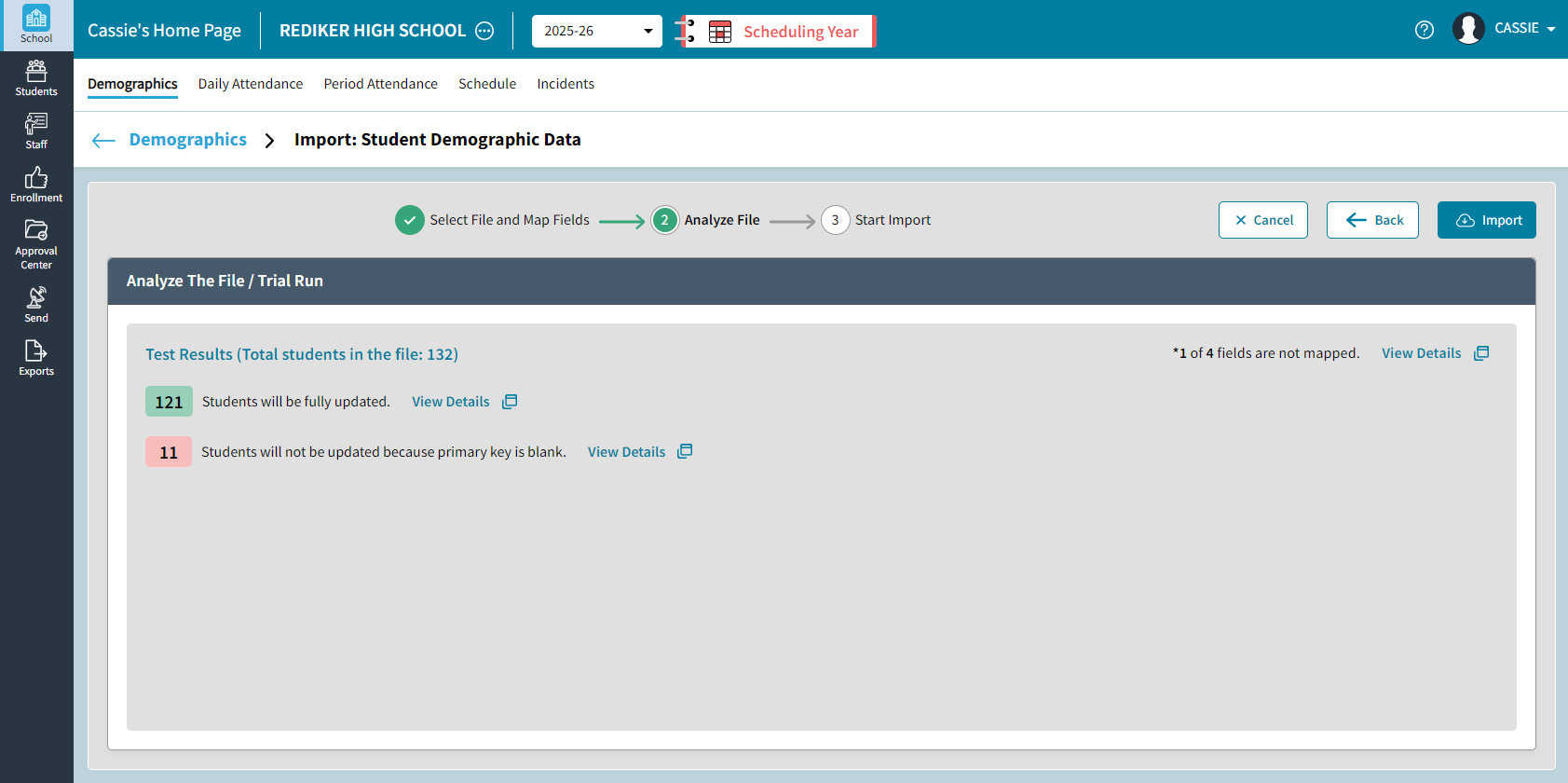
- Select Import if the Test Results are correct and the data is ready to be imported.
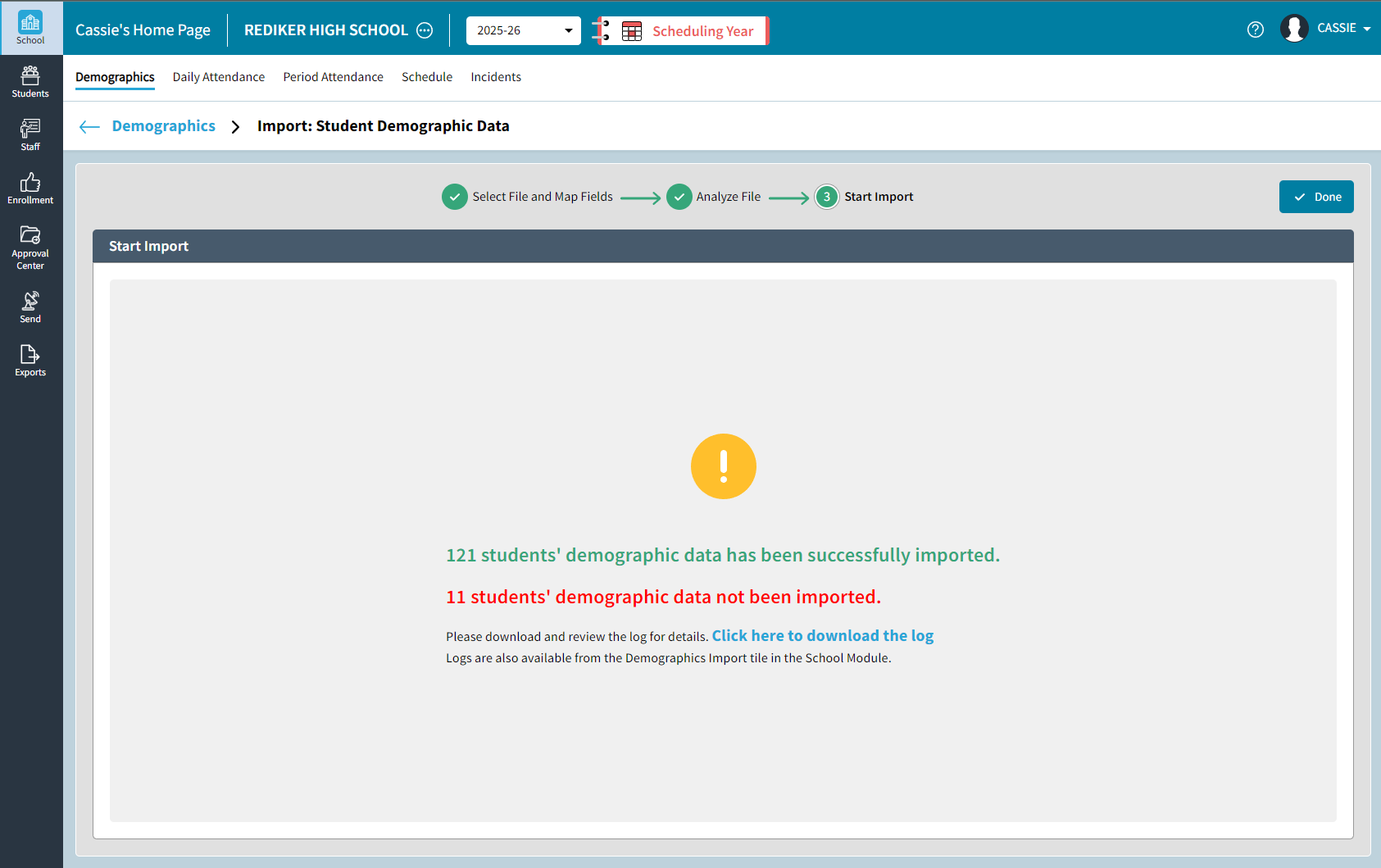
- You will receive a message once the import is completed. Select Click here to download log to view the log in excel. To view the log at a later date, it is also available to view under School > Demographics > Import.
Staff Demographic Import
Staff Demographic Import allows you to update existing staff data using a CSV (Comma-delimited) file. Before initiating the import process, ensure you have prepared an Excel file and saved it as a CSV containing all the necessary staff data for import. Please ensure there is a Unique Identifier, such as the staff Unique ID, which is unique and unchanging to all staff.
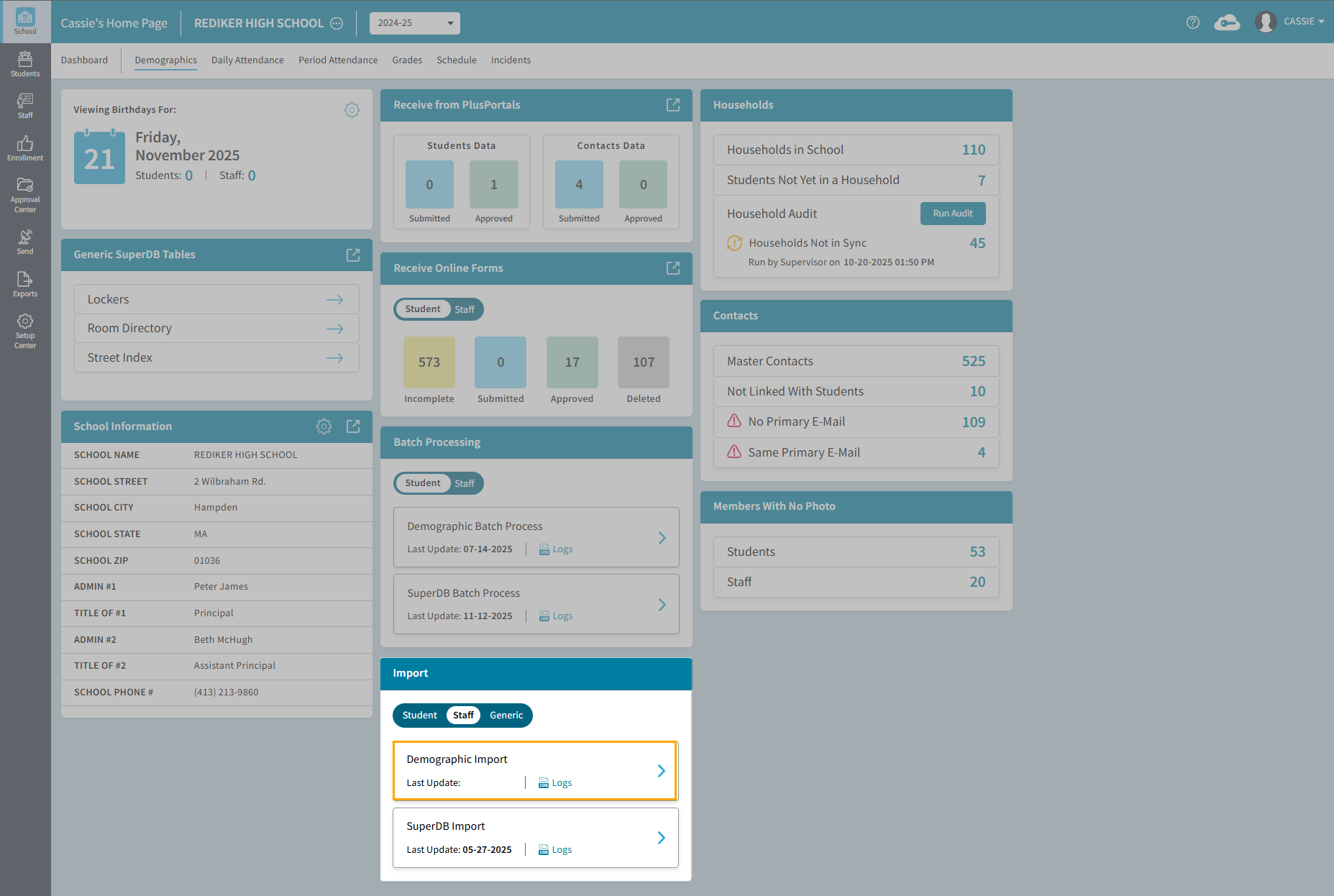
To begin the process, navigate to the School > Demographics Dashboard. Under Import, select Staff > Demographic Import. The Import: Staff Demographic Data window opens.
- If this is the first time doing an import, select . If an Import as previously been completed and a Template has been saved, choose a Template from the list.
- The Select File and Map Fields window opens. Here you can select a file, map the file fields to the AdminPlus.com Fields and save this as a template.
Only the Primary Key field is Mandatory to map. Any other field is optional.Select File and Map Fields A- Select File: Click to select the CSV file containing staff data.
- Map Primary Key to Identify Staff: Map the Primary Key from the file to the matching field in AdminPlus. This will ensure the data is updated for the correct staff.
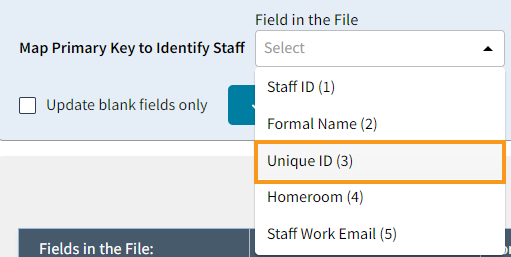
- In the Field in the File dropdown, select which column will be used as the Unique Identifier. In the example below, we have selected Unique ID.
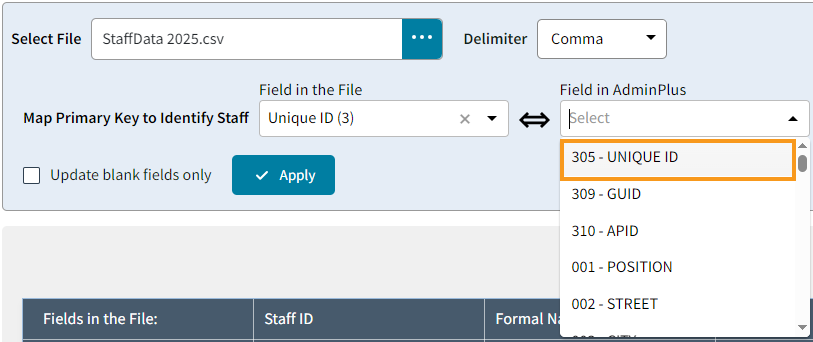
- In the Field in AdminPlus dropdown, select the correspondingding field:
- Allow blanks to overwrite existing data: When this option is selected, if the field is blank, and the staff as existing data in AdminPlus, the data will be overwritten.
- Update blank fields only:
- : Select Apply after choosing the fields and to apply your settings. The Primary Key Field will be mapped below.
BMap Fields: Map the data from the file to the corresponding fields in AdminPlus. Be sure to map each field accurately to ensure the data is imported into the correct data base fields. The name of the Fields in the File are listed along the top. Below on the Map To line, select
to map the data column to the correct AdminPlus Data Base field. The Select a Field dialog box will open. Use the Search bar to look for the field or scroll. Click the field name and choose Select. Continue this to map all fields needed in the file. It is not necessary to map all columns. If any column in the file exists that does not need to be imported, the column can remain as Not Mapped. Scroll to the right along the bottom to view additional field columns.CTo use this for again for another import, select Save as Template. This will save the field mappings and selecting settings. The Template will appear on the Import: Staff Demographic Data window: 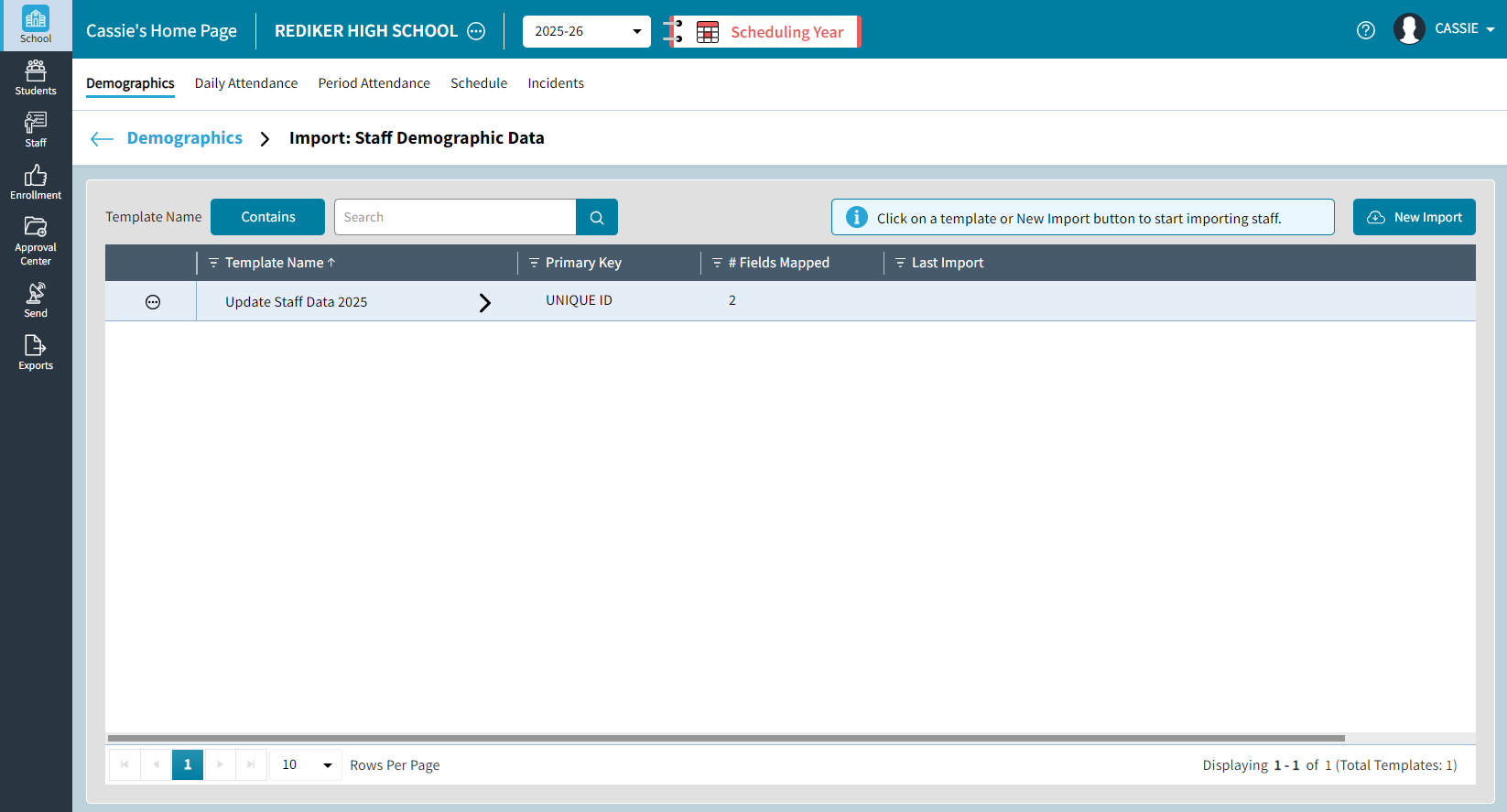 D
D- Clickto cancel the import process. Your progress will not be saved.
- Click to continue.
- Select File: Click
- After clicking Next, the Analyze The File/Trial Run window will open. Here you will see the test results run prior to completing the import. In the example import below the following test results will display:
- How many staff will be updated. Select View Details to see which staff.
- How many staff will not be updated, along with why. E.g.: Multiple matching records found for primary key.
- If there is any additional information as to why data could not be imported, such as errors. Select View Details for more information
- The number of fields not mapped is also listed. Select View Details to see which fields.
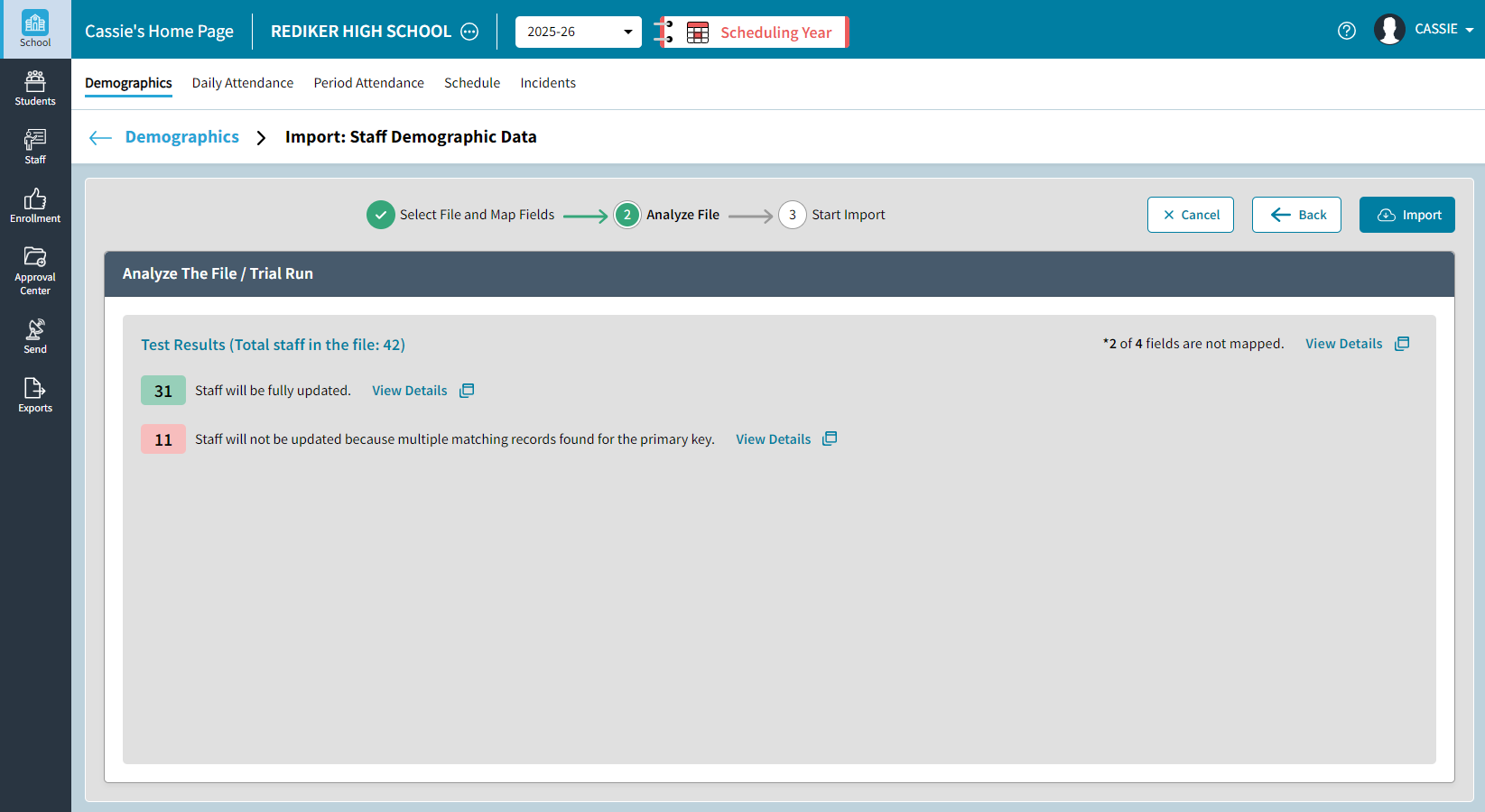
- Select Import if the Test Results are correct and the data is ready to be imported.
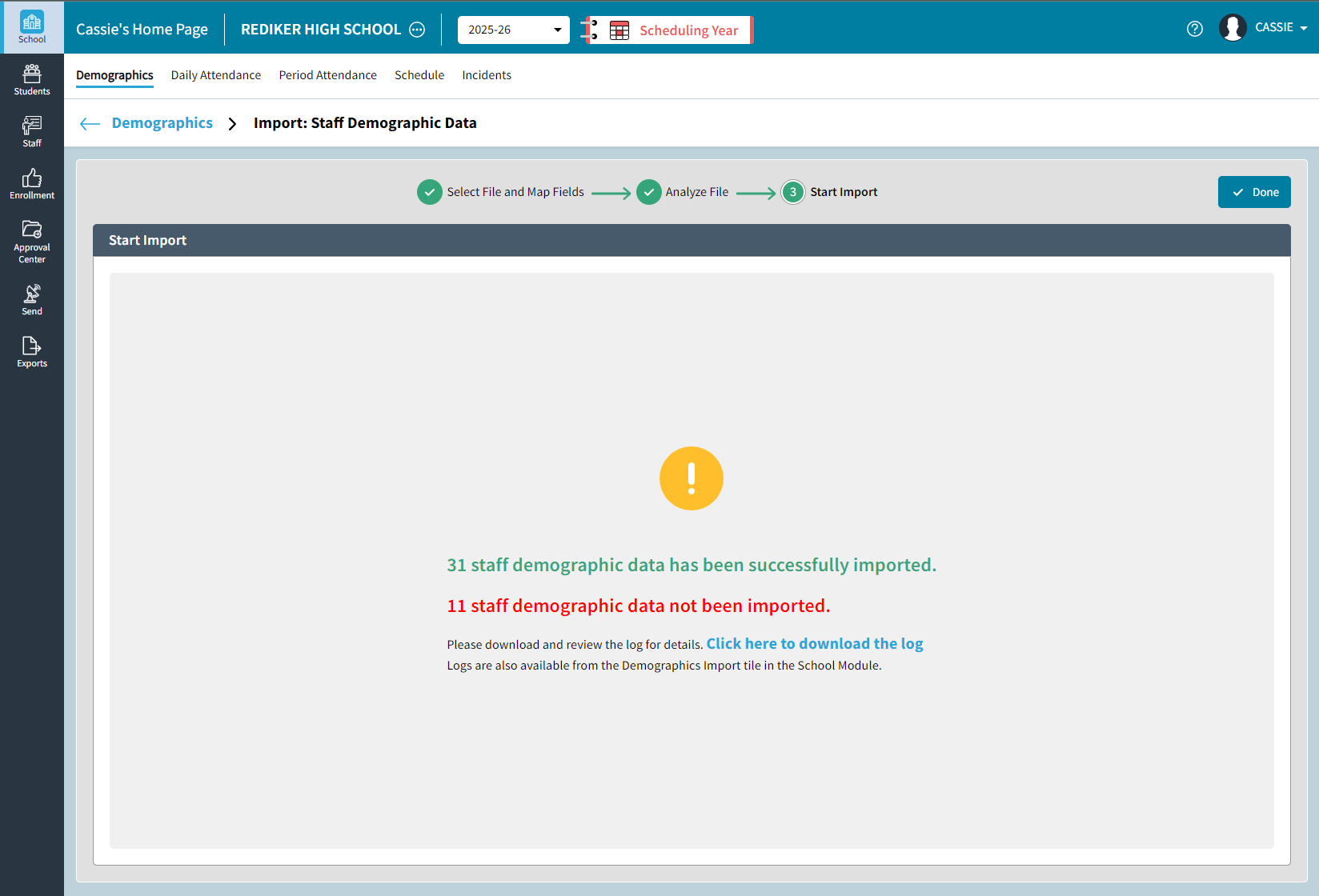
- You will receive a message once the import is complete. Select Click here to download log to view the log in excel. To view the log at a later date, it is also available to view under School > Demographics > Import.
SuperDB Import for Students or Staff
The SuperDB Import allows you to update existing SuperDB tables using a CSV (Comma-delimited) or TXT (Tab-delimited) file. Before initiating the import process, ensure you have a CSV or TXT file containing all the necessary data for import to either Student SuperDB or Staff SuperDB tables. Please ensure there is a Unique Identifier, such as the Unique ID, which is unique and unchanging.
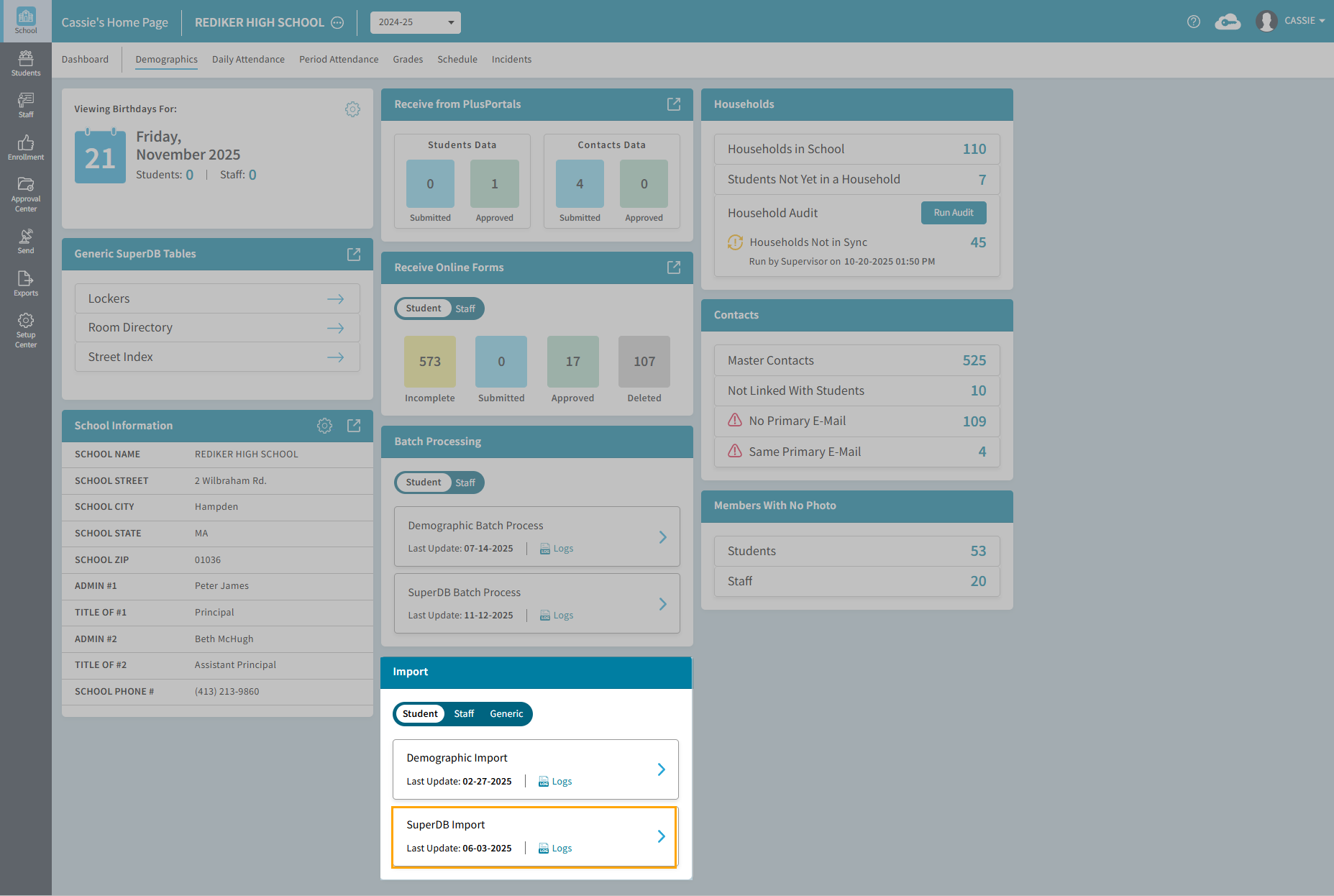
To begin the process, navigate to the School > Demographics Dashboard. Under Import, select SuperDB Import. If importing to a Staff SuperDB Table, toggle to Staff to open Import: Staff SuperDB. The Import: Student SuperDB window opens.
- If this is the first time doing an import, select . If an Import as previously been completed and a Template has been saved, choose a Template from the list.
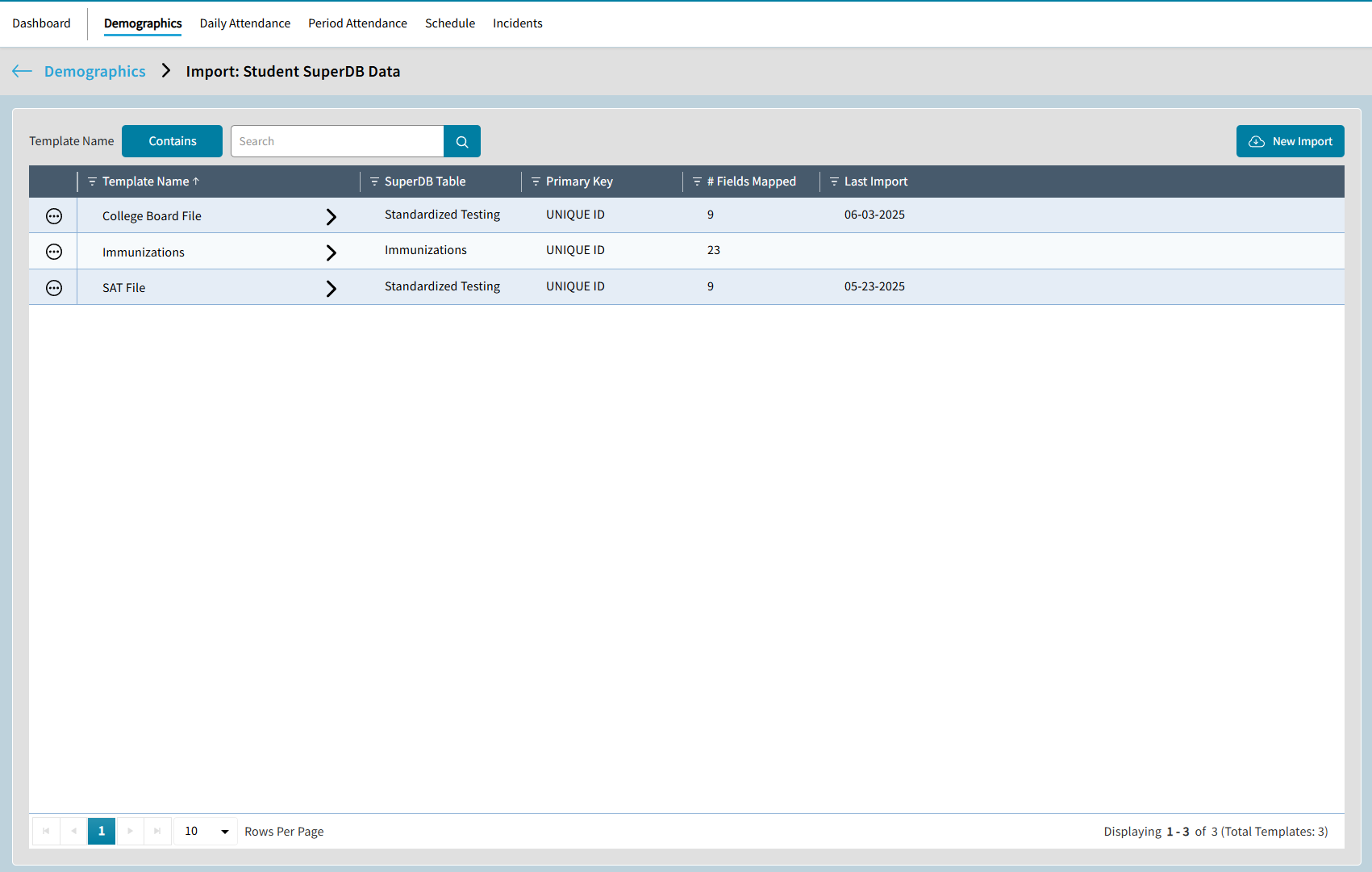
Select
 to edit, delete, rename, or use Save As to save a copy of an Existing templates. Select View Log to see the logs for the specific template.
 - The Import: Student SuperDB Data window opens. Here you can select a file, map the file fields to the AdminPlus.com Fields and save this as a template.
Only the Primary Key field is Mandatory to map. Any other field is optional.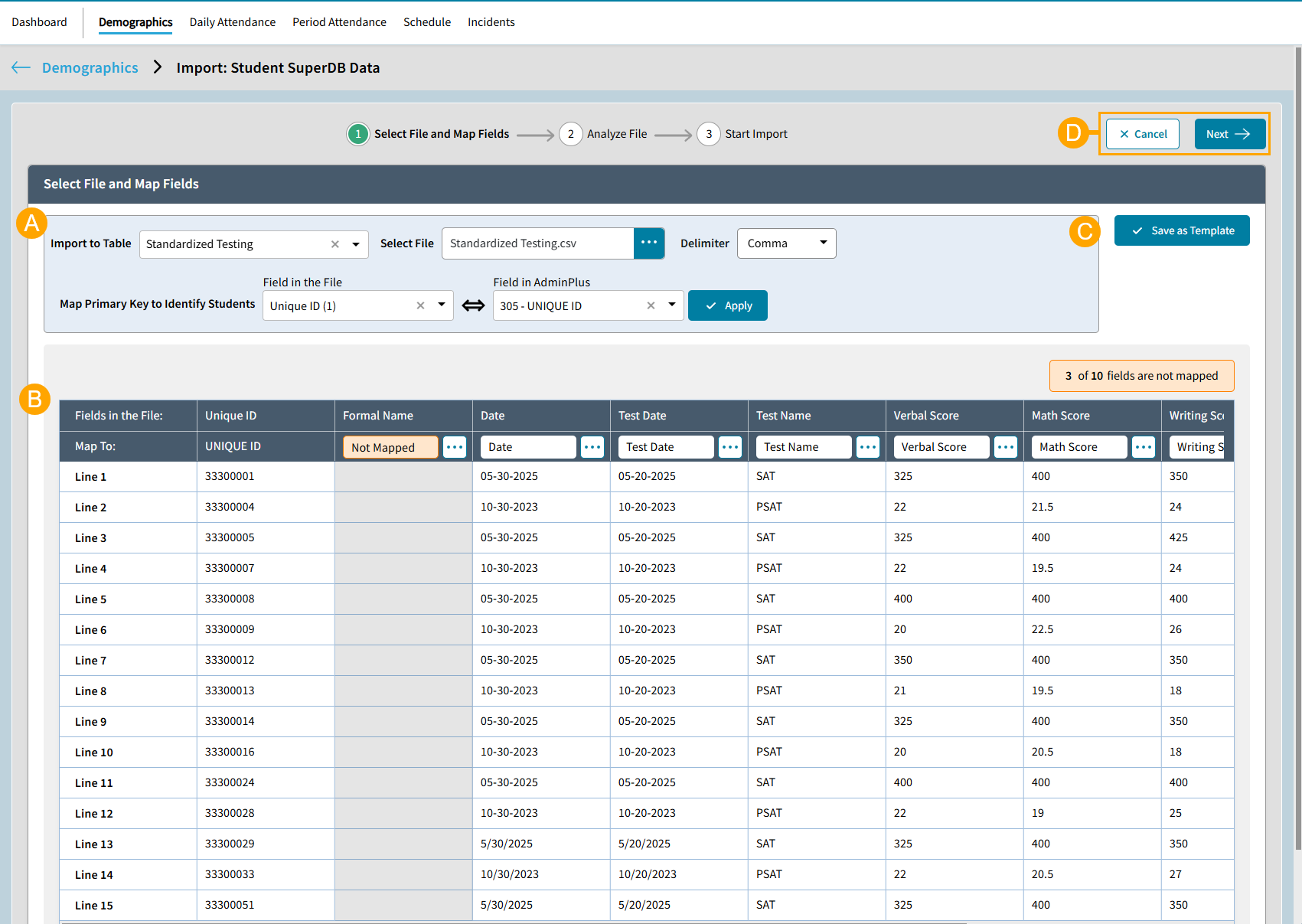
Select File and Map Fields A- Import to Table: Select the table you want to import data to.
- Select File: Click to select the CSV or TXT file containing student data.
- Map Primary Key to Identify Students: Map the Primary Key from the file to the matching field in AdminPlus. This will ensure the data is updated for the correct student.
- Delimiter: Choose from Comma or Tab. Once a file is selected, this may automatically populate.
- Map Primary Key to Identify Students: In the Field in the File dropdown, select which column will be used as the Unique Identifier. In the example below, we have selected Unique ID.
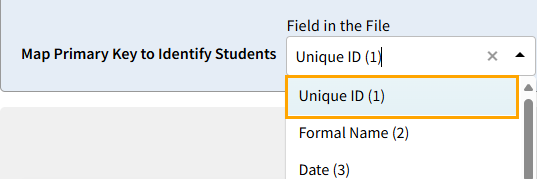
- In the Field in AdminPlus dropdown, select the corresponding field:
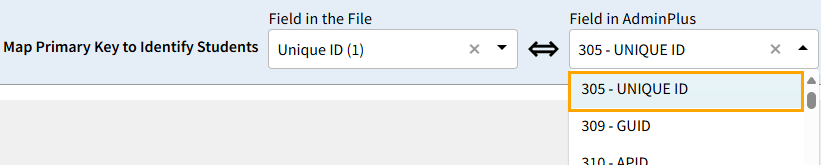
- : Select Apply after choosing the fields and to apply your settings. The Primary Key Field will be mapped below.
BMap Fields: Map the data from the file to the corresponding fields in the SuperDB Table. Be sure to map each field accurately to ensure the data is imported into the correct SuperDB fields. The name of the Fields in the File are listed along the top. Below on the Map To line, select
to map the data column to the correct SuperDB field. The Select a Field dialog box will open. Use the Search bar to look for the field or scroll. Click the field name and choose Select. Continue this to map all fields needed in the file. It is not necessary to map all columns. If any column in the file exists that does not need to be imported, the column can remain as Not Mapped. Scroll to the right along the bottom to view additional field columns.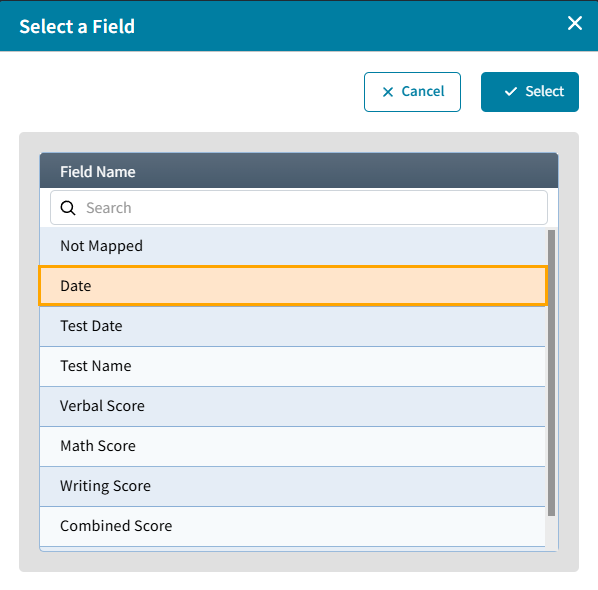 C
CTo use this for another import, select Save as Template. This will save the field mappings and selecting settings. 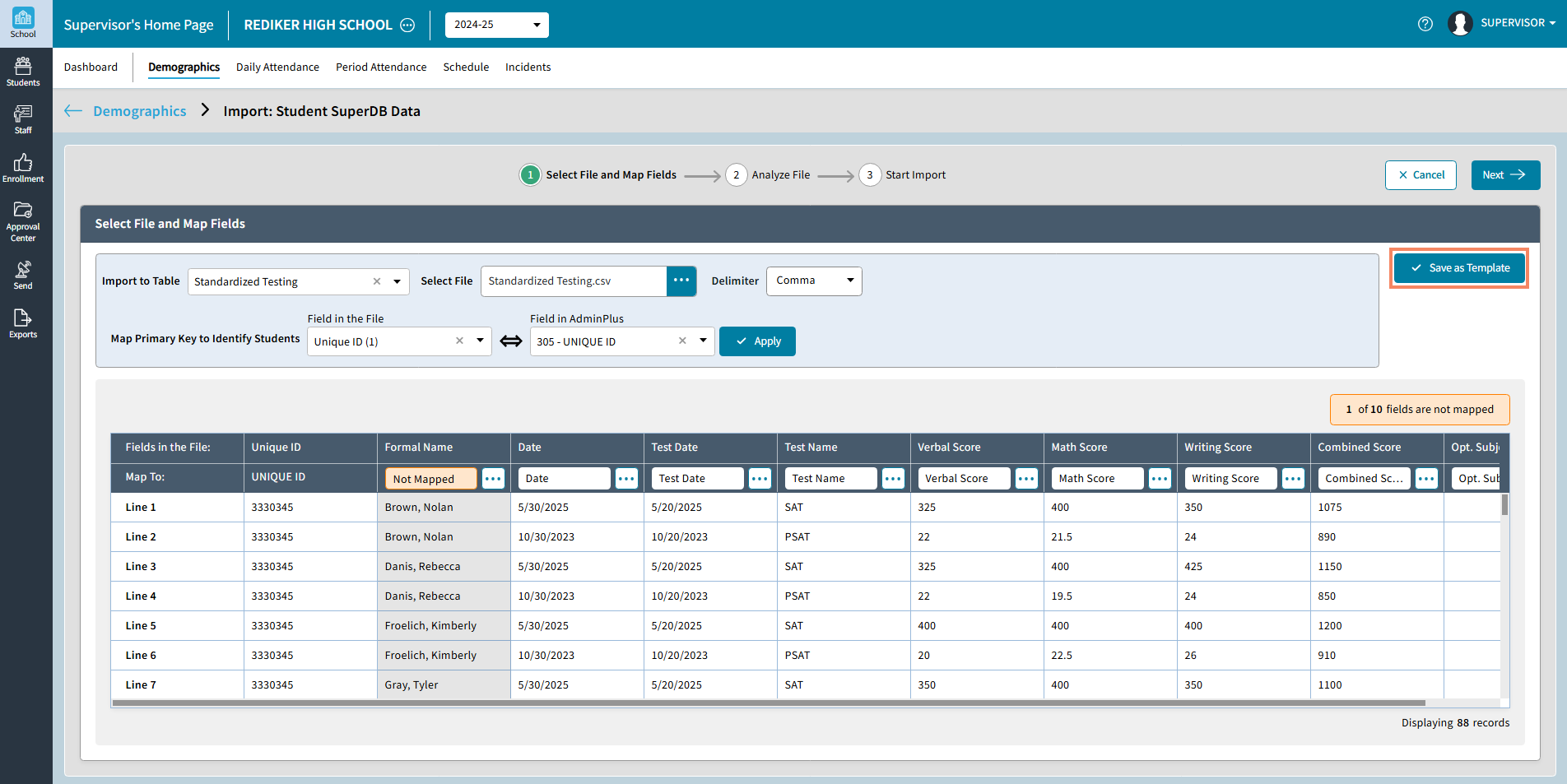 The Template will appear on the Import: SuperDB Import windowD
- Clickto cancel the import process. Your progress will not be saved.
- Click to continue.
- After clicking Next, the Analyze File window will open. Here you will see the test results run prior to completing the import. In the example import below the following test results will display:
- Number of SuperDB records will be fully imported. Select View Details to see File Line Number, student's first Name, Last Name, APID, and Grade Level
- Number of SuperDB records will not be imported because no matching active students were found for the Primary Key. Select View Details to see File Line Numbers and primary key that did not find a match.
- Number of SuperDB records will not be imported due to field errors. Select View Details to see File Line number, Remarks, Student's First Name, Last Name, APID, and file data that had field errors.
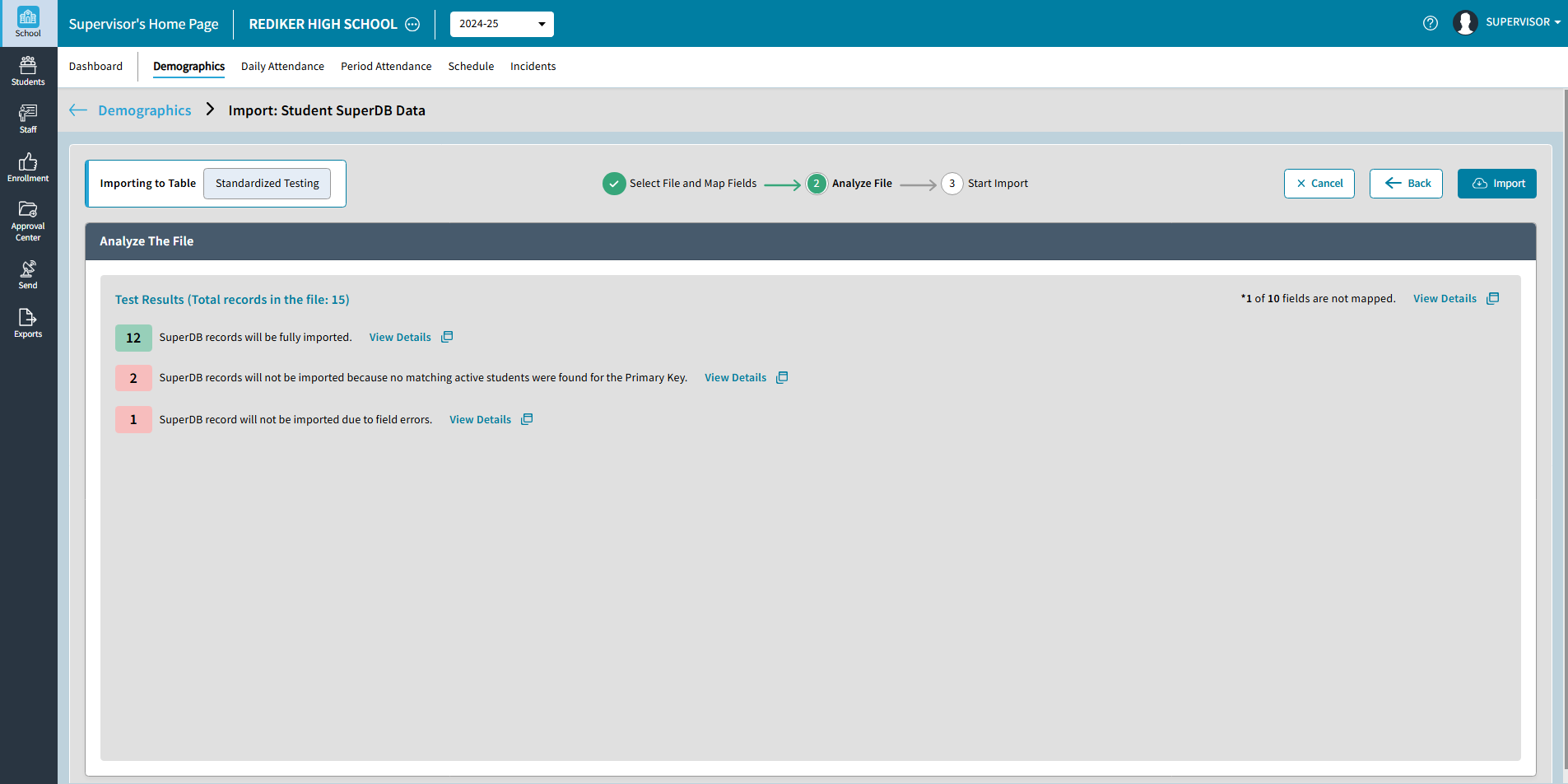
- Select Import if the Test Results are correct and the data is ready to be imported.
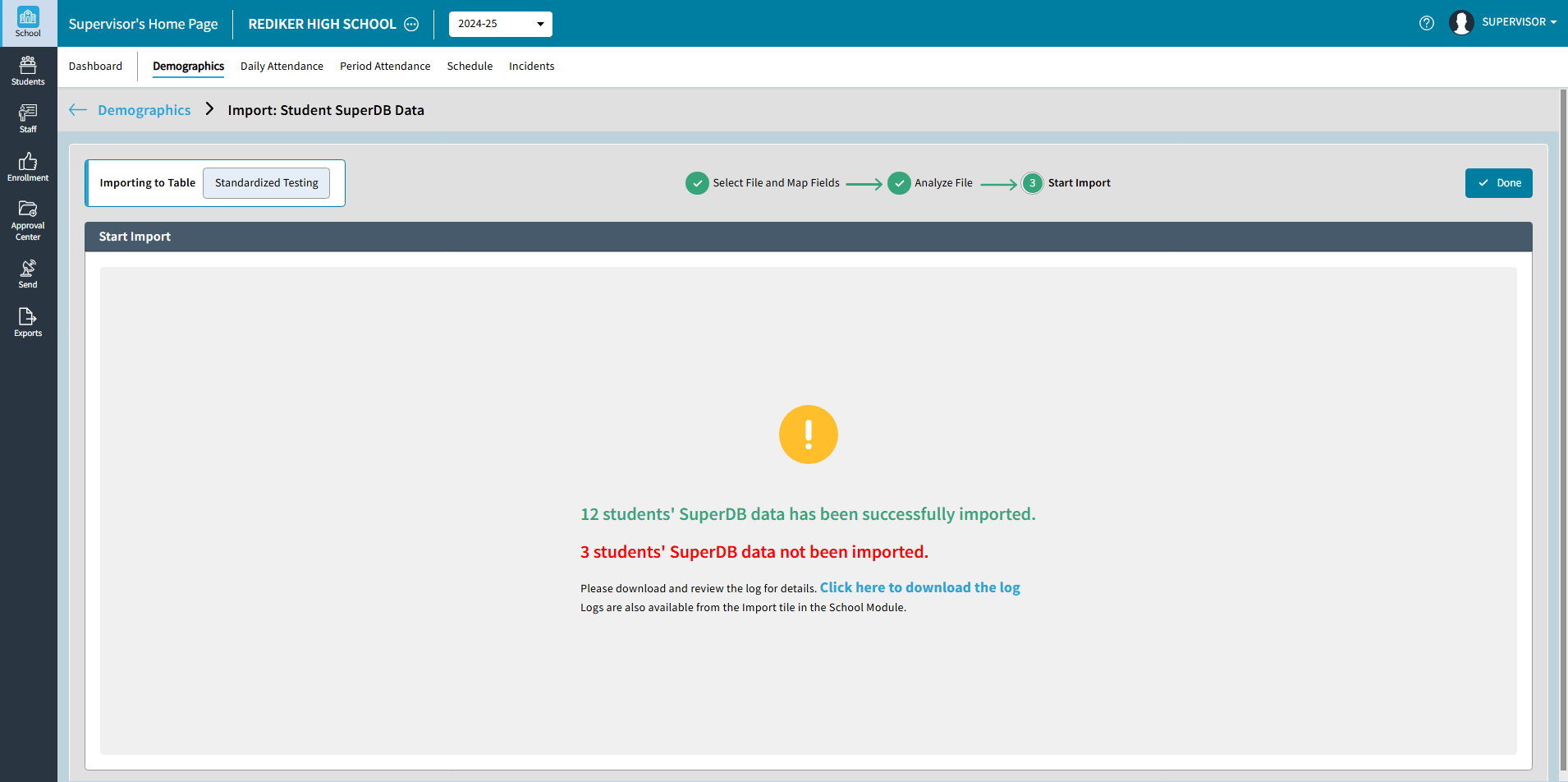
- You will receive a message once the import is completed. Select Click here to download the log to view the log in Excel. To view the log at a later date, it is also available to view under School > Demographics > Import > SuperDB Import
Generic SuperDB Import
The Generic SuperDB Import allows you to update an existing generic SuperDB table using a CSV (Comma-delimited) or TXT (Tab-delimited) file. Before initiating the import process, ensure you have a CSV or TXT file containing all the necessary data for import.
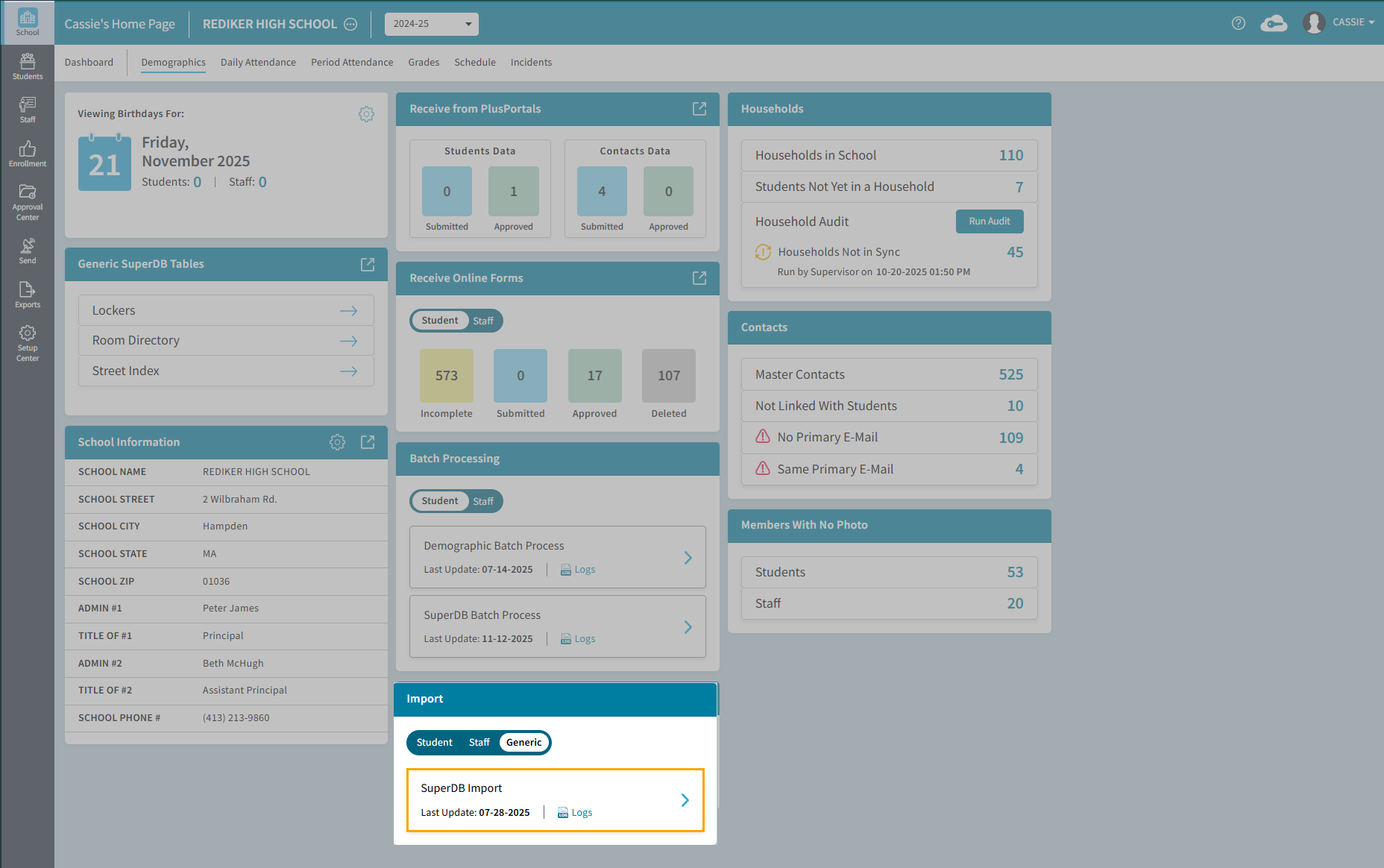
To begin the process, navigate to the School > Demographics Dashboard. On the Import tile, select Generic, then click on SuperDB Import
- If this is the first time doing an import, select . If an Import as previously been completed and a Template has been saved, choose a Template from the list.
- The Select File and Map Fields window opens. Here you can select a file, map the file fields to the Generic Super DB Fields and save this as a template.
Note: The Select File and Map Fields window is slightly different depending on if New Import or Template was selected.
New Import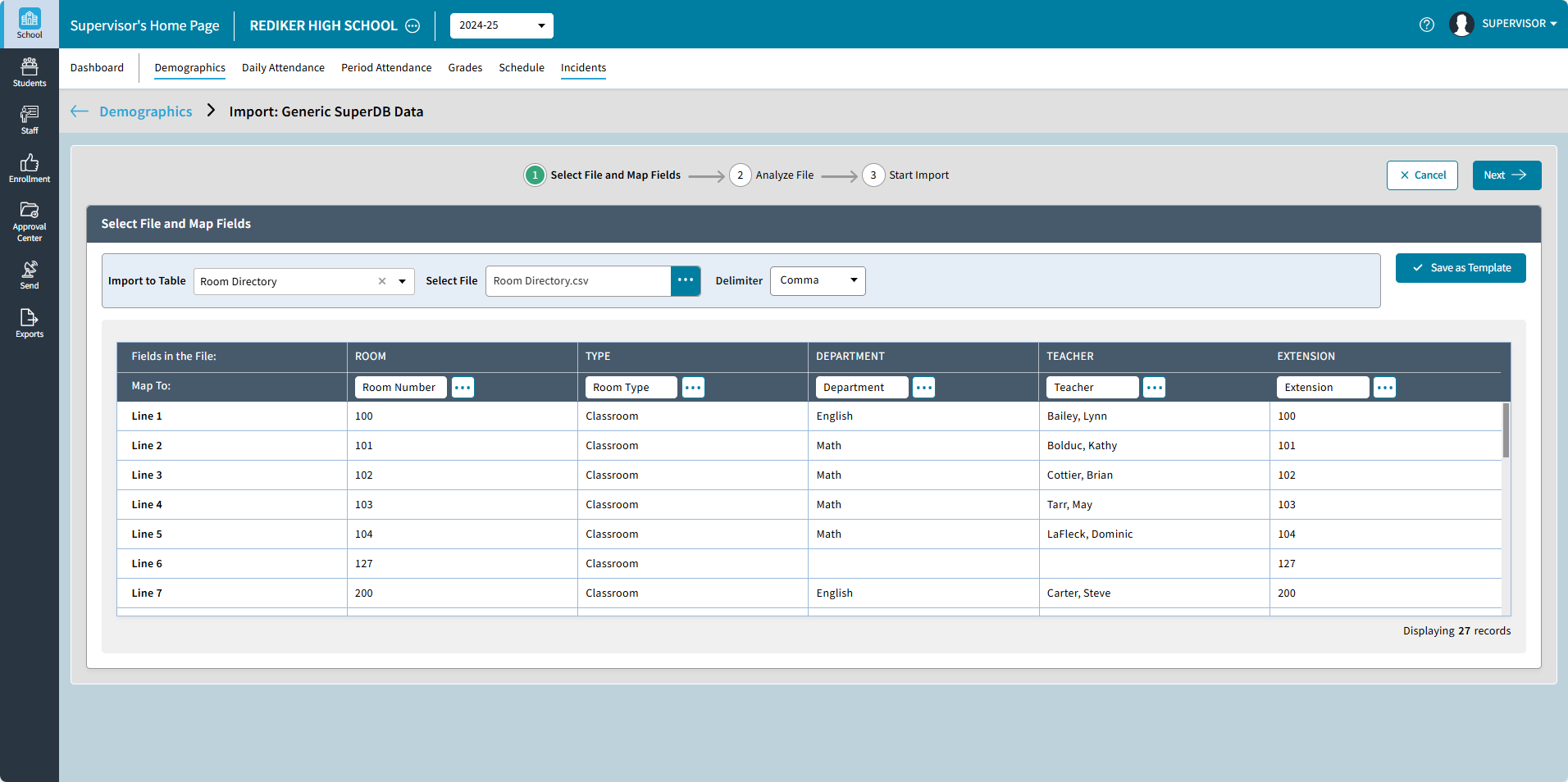
From Template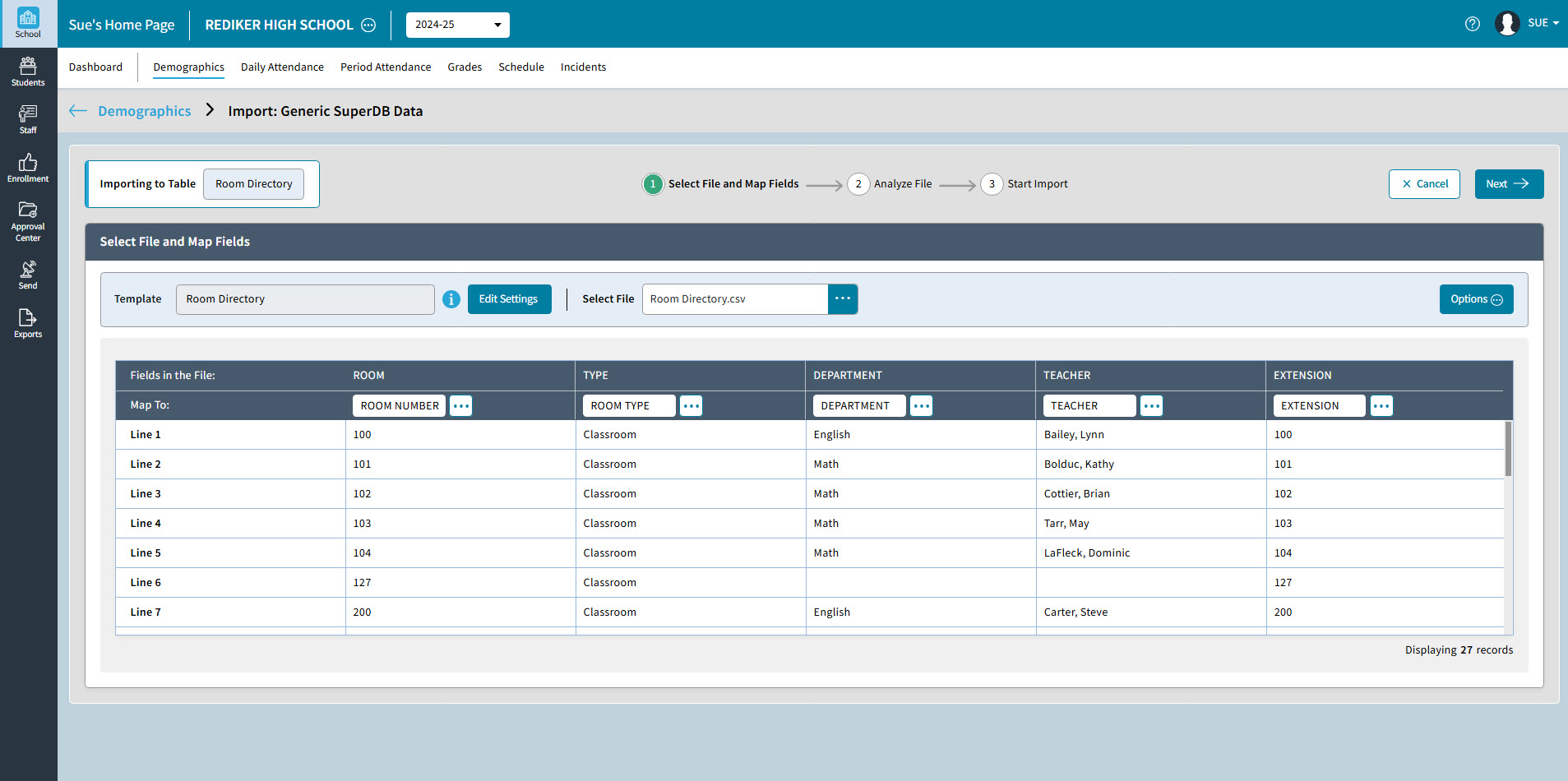
Select File and Map Fields A- Import to Table: Select the Generic SuperDB table.
- Select File: Click to select the CSV or TXT file containing the data to be imported.
BMap Fields: Map the data from the file to the corresponding fields in the SuperDB table. Be sure to map each field accurately to ensure the data is imported into the correct SupeDB fields. The name of the Fields in the File are listed along the top. Below on the Map To line, select
to map the data column to the correct Generic SuperDB field. The Select a Field dialog box will open. Use the Search bar to look for the field or scroll. Click the field name and choose Select. Continue this to map all fields needed in the file. It is not necessary to map all columns. If any column in the file exists that does not need to be imported, the column can remain as Not Mapped. Scroll to the right along the bottom to view additional field columns.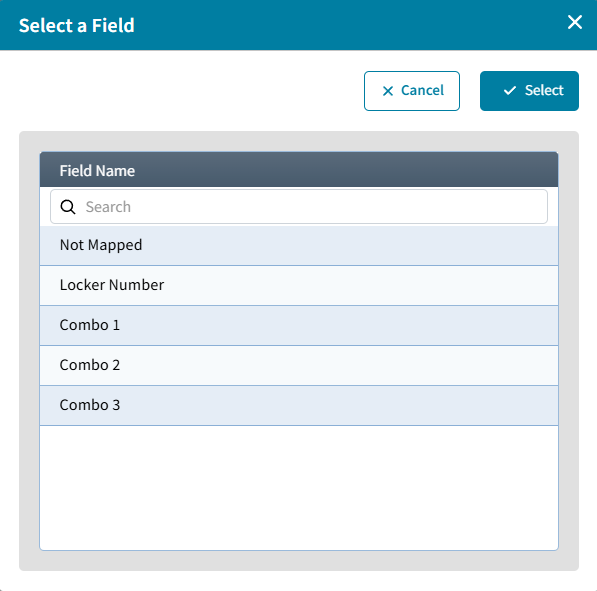 C
CTo use this for another import, select Save as Template. This will save the field mappings and selecting settings. The Template will appear on the Import: Generic SuperDB Data window: 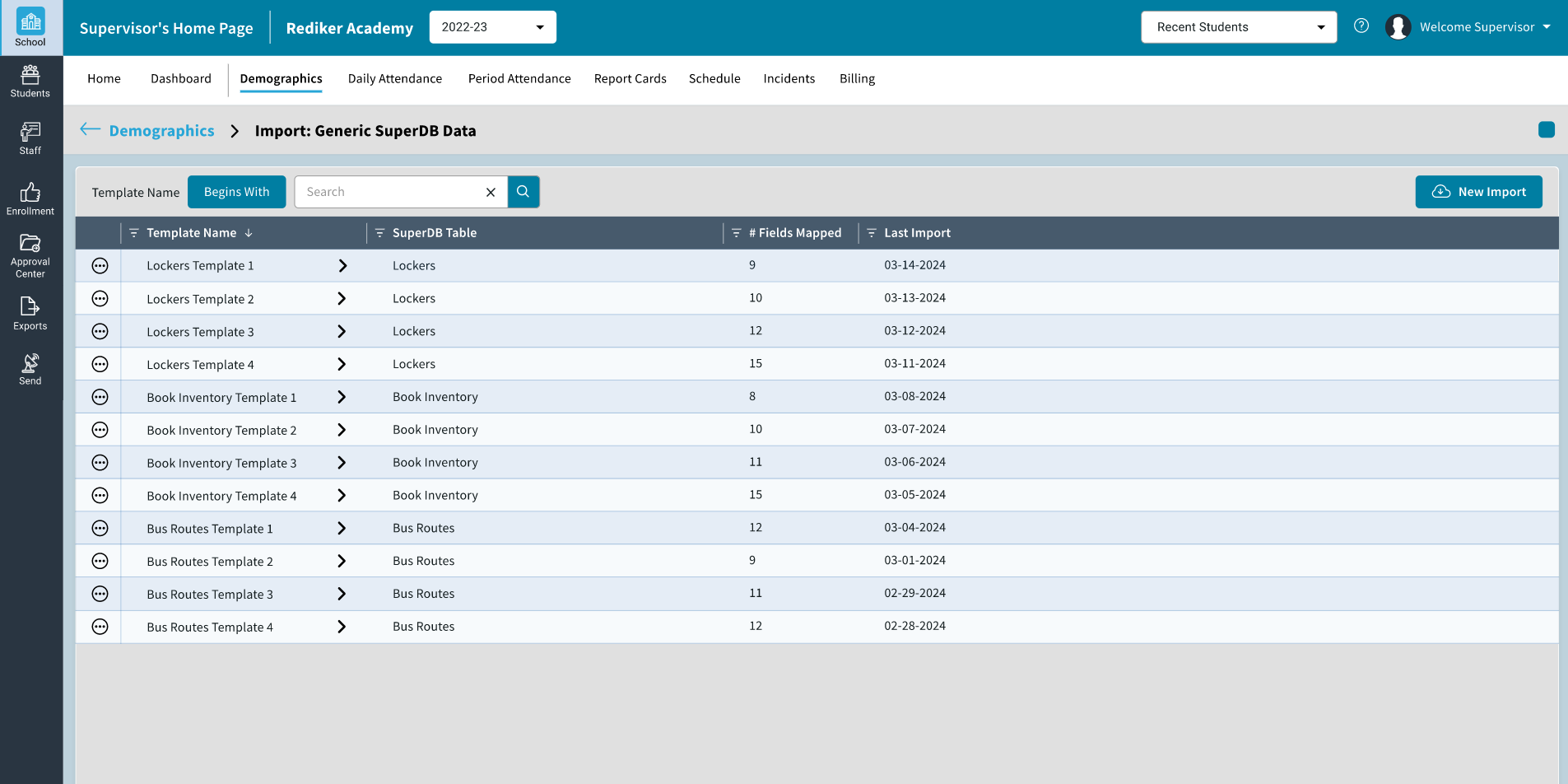 D
D- Clickto cancel the import process. Your progress will not be saved.
- Click to continue.
- After clicking Next, the Analyze The File/Trial Run window will open. Here you will see the test results run prior to completing the import. In the example import below the following test results will display:
- Number of rows updated. Select View Details to see which rows
- If there is any additional information as to why data could not be imported, it will be listed here, and the reason can be viewed by selecting View Details.
- The number of fields not mapped. Select View Details to see which fields.
- Select Import if the Test Results are correct and the data is ready to be imported.
- You will receive a message once the import is completed. Select Click here to download log to view the log in excel. To view the log at a later date, it is also available to view under School > Demographics > Import > Generic.
Student Contacts Import
The Student Contacts Import allows the AdminPlus Supervisor to add student contacts or update existing student contact using a CSV (Comma-delimited) or TXT (Tab-delimited) file. Before initiating the import process, ensure you have a CSV or TXT file containing all the necessary student contact data for import. Please ensure there is a Unique Identifier, such as the students Unique ID, which is unique and unchanging to all students.
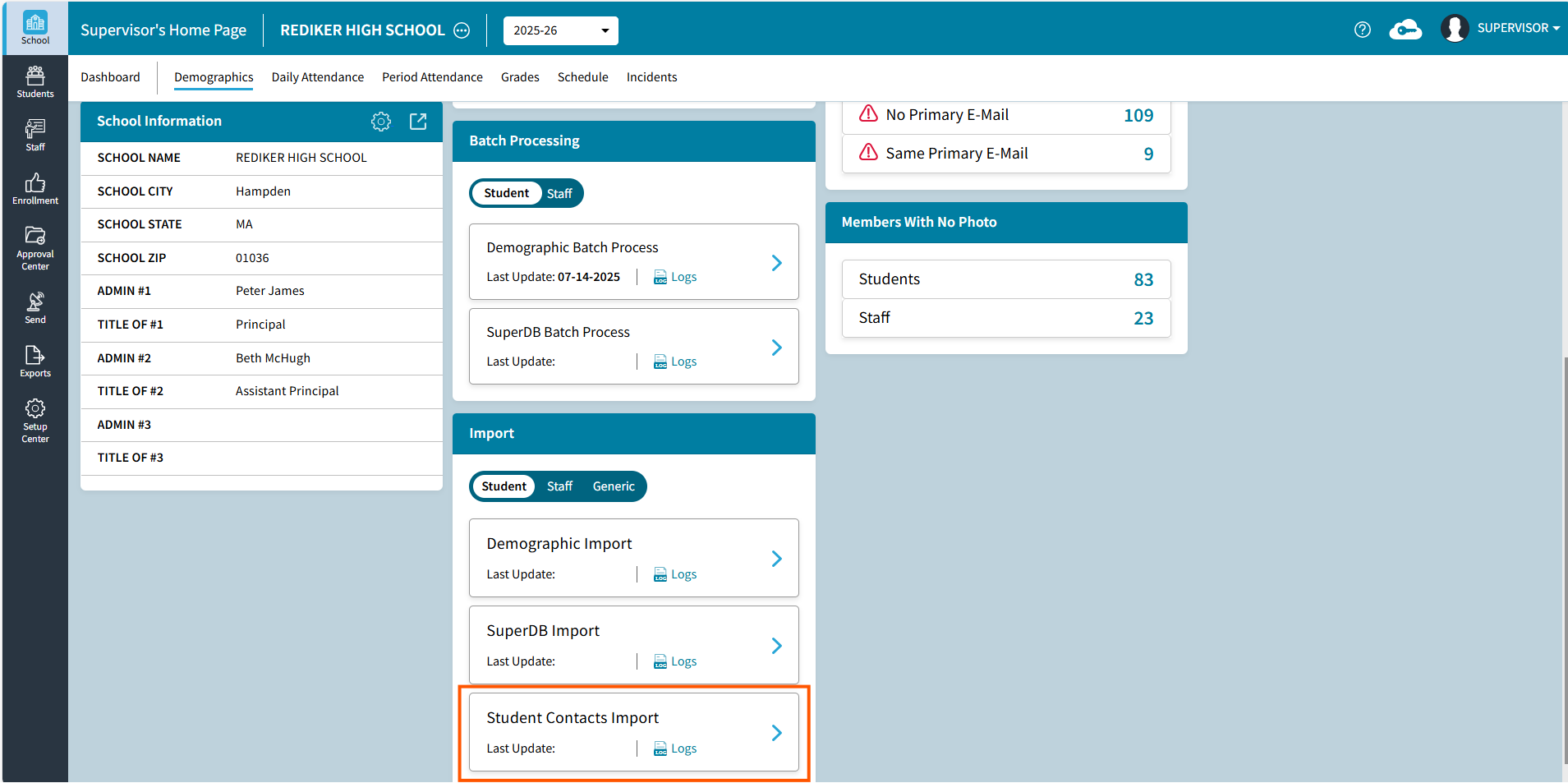
To begin the process, navigate to the School > Demographics Dashboard. Under Import, select Student Contacts Import.
- If this is the first time doing an import, select . If an Import as previously been completed and a Template has been saved, choose a Template from the list.
Selectto Rename, Delete, or select View Log to see the logs for the specific template.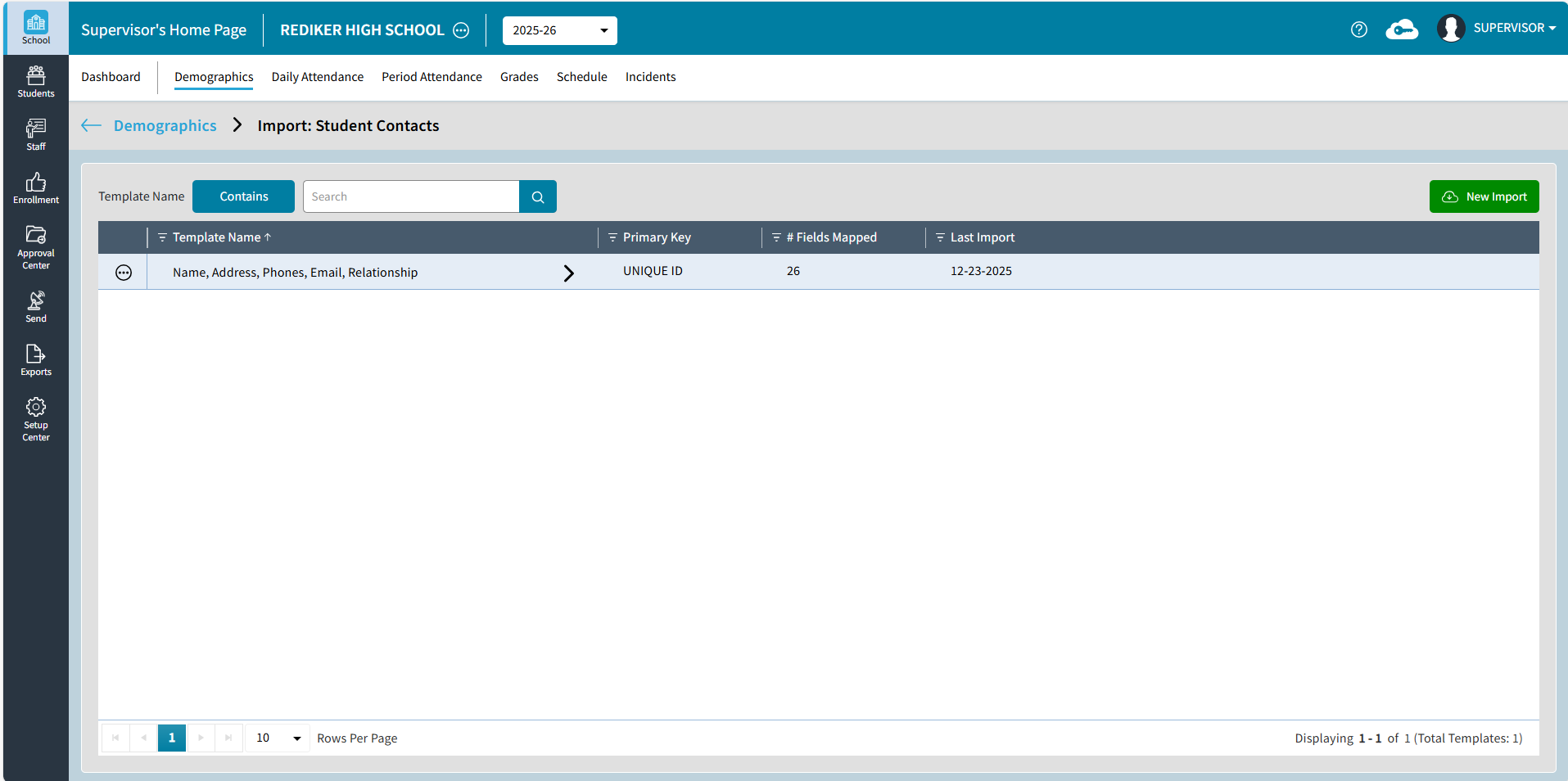
- The Import: Student Contacts window opens. Here you can select a file and define the settings.
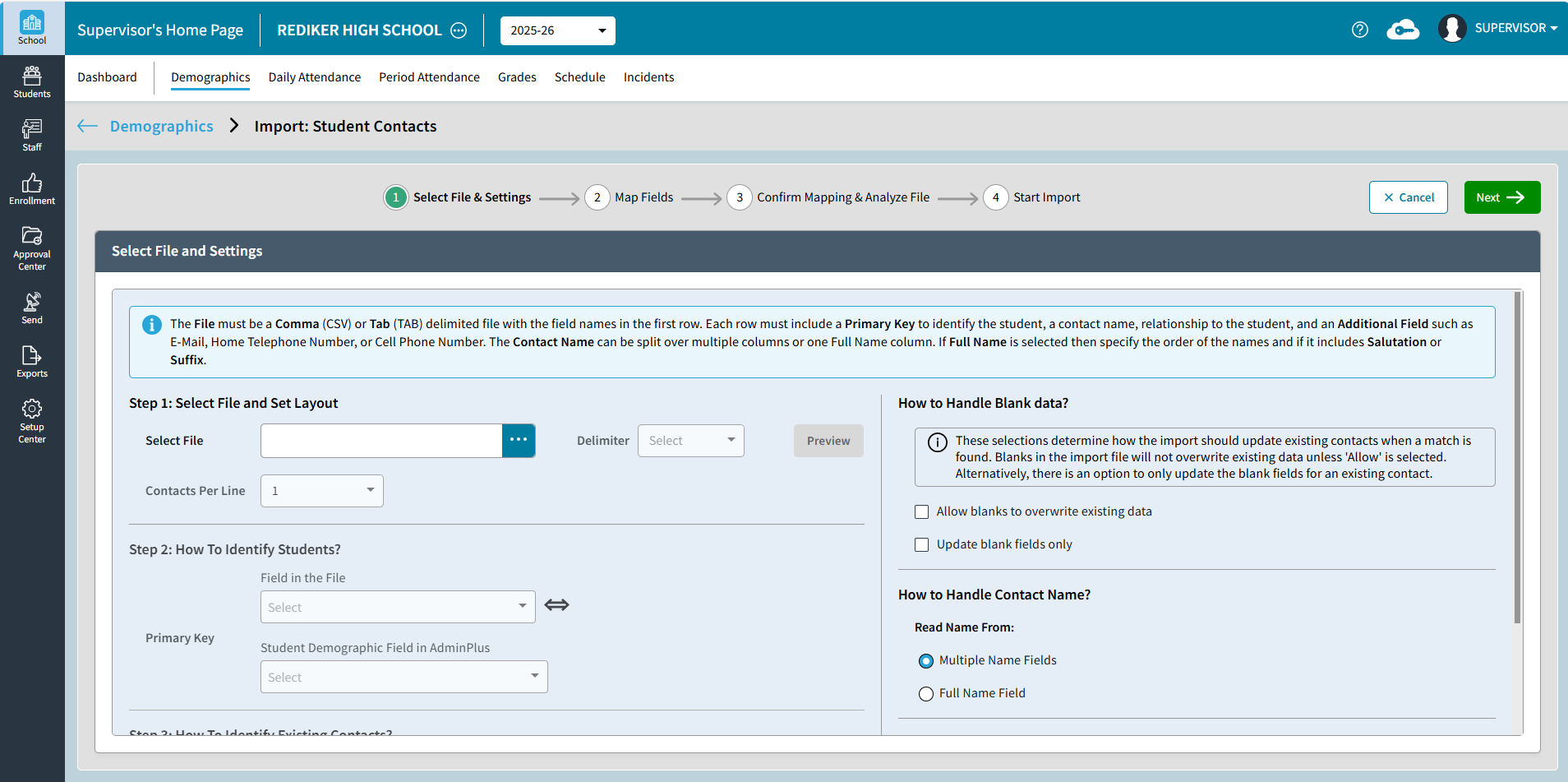 Step 1: Select File and Set Layout - click the ellipsis to browse to the location of the file - only csv or txt files will be shown. Once the file is selected the Delimiter type (Comma, or Tab) will display. Select the number of Contacts per line. Up to 9 contacts are allowed per line. Preview can be used to see the file contents.
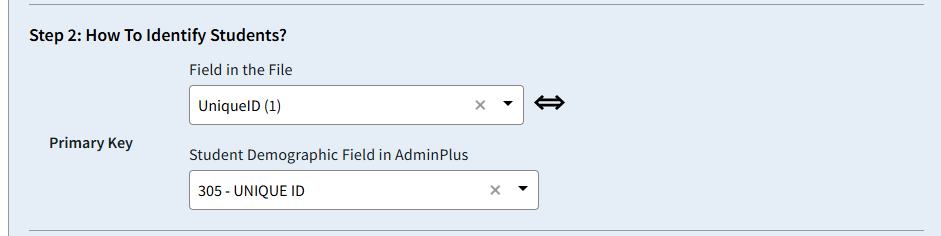
 Step 2: How to Identify Students? Select the field in the file and the Student Demographic Field in AdminPlus.
 Step 3: How to Identify Existing Contacts? The First Name, Last Name, and an Additional Field (E-Mail, Home Telephone Number, Mobile) will be used to determine if the import should update an existing contact or add a new contact. A new contact will not be added if the email matches an existing contact.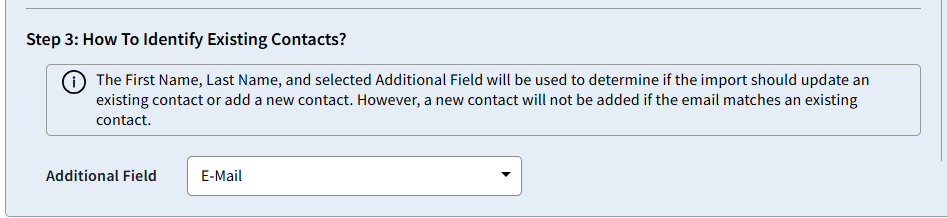
How to Handle Blank data? These selections are optional based on your preference for how existing contact records should be updated. Allow blanks to overwrite existing data or the reverse Update blank fields only. If neither is selected, then the existing contact will be updated with values from the imports. If the import includes blank fields the contacts current field value will remain.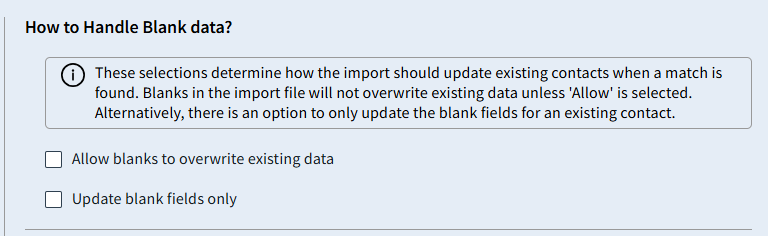
How to Handle Contact Name? This determines the name fields available to map on the next screen.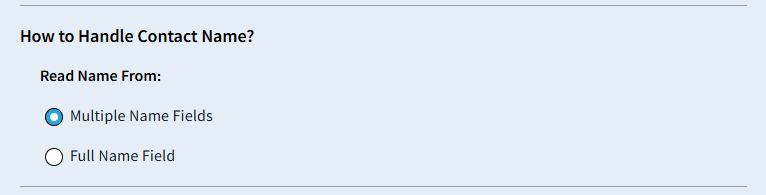
Default Local Field Rights displays the Local Field Rights by Relationship set by your School.
- Next
Map Fields: Map the data from the file to the corresponding contact fields in AdminPlus. Be sure to map each field accurately to ensure the data is imported into the correct contact fields.- Which Contact will include Not Selected and Contact if Contact Per Line is set to 1. If on the previous screen Contact Per Line is more than 1 then the Contact and number will appear in the dropdown (ie., Contact 1, Contact 2, etc.). Contact must be selected in order to Map the fields. Click Back if you need to change Contacts Per Line number.
Note: Contact 1 will be set as the Primary. However, if a student is listed more than once and has more than one Contact 1 then Primary will be set based on relationship priority (1. Father, 2. Mother, 3. First available contact) - Fields in the File displays the file field names
- Map To Unique ID will already be mapped based on your selection on the previous screen. Click Back if you need to change How to Identify Students?
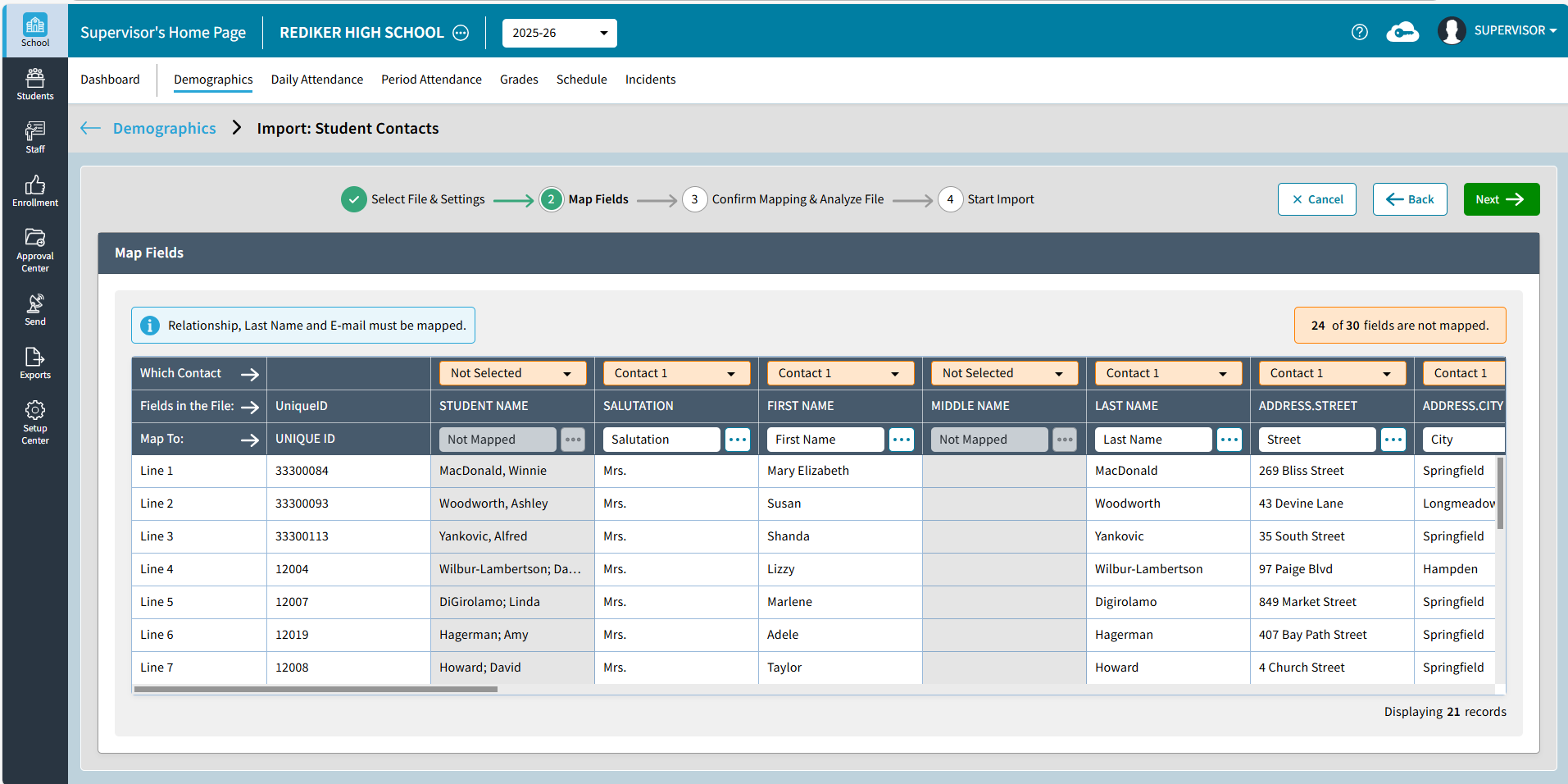
Selectto map the Contact Global and Local Fields. Contact Global Name fields (Salutation, First Name, Middle Name, Last Name, Suffix) will be listed if Multiple Name Fields was selected on the Previous screen. Click Back if you need to change How to Handle Contact Name? setting.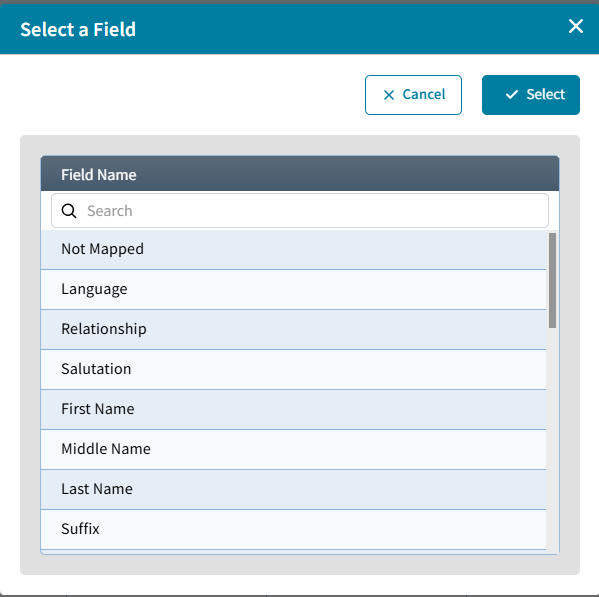 Use the Search bar to look for the field or scroll. Click the field name and choose Select. Continue this to map all fields needed in the file. It is not necessary to map all columns. If any column in the file exists that does not need to be imported, the column can remain as Not Mapped. Scroll to the right along the bottom to view additional field columns.
- Which Contact will include Not Selected and Contact if Contact Per Line is set to 1. If on the previous screen Contact Per Line is more than 1 then the Contact and number will appear in the dropdown (ie., Contact 1, Contact 2, etc.). Contact must be selected in order to Map the fields. Click Back if you need to change Contacts Per Line number.
- Next
Review the mapping to be sure everything is mapped correctly then select Confirm Mapping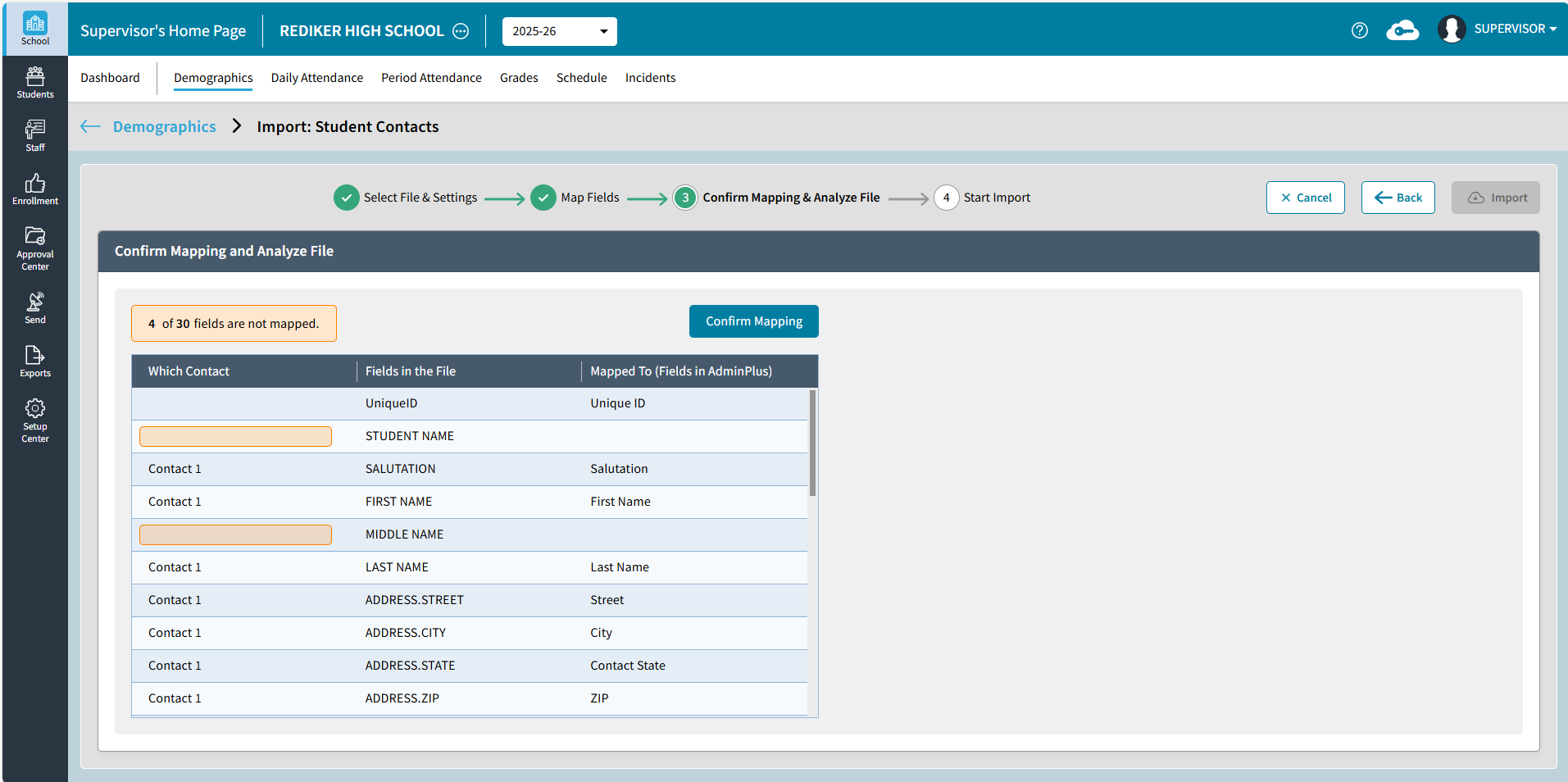
- On the right you will see the Test Results run prior to completing the import. In the example import below the following test results will display
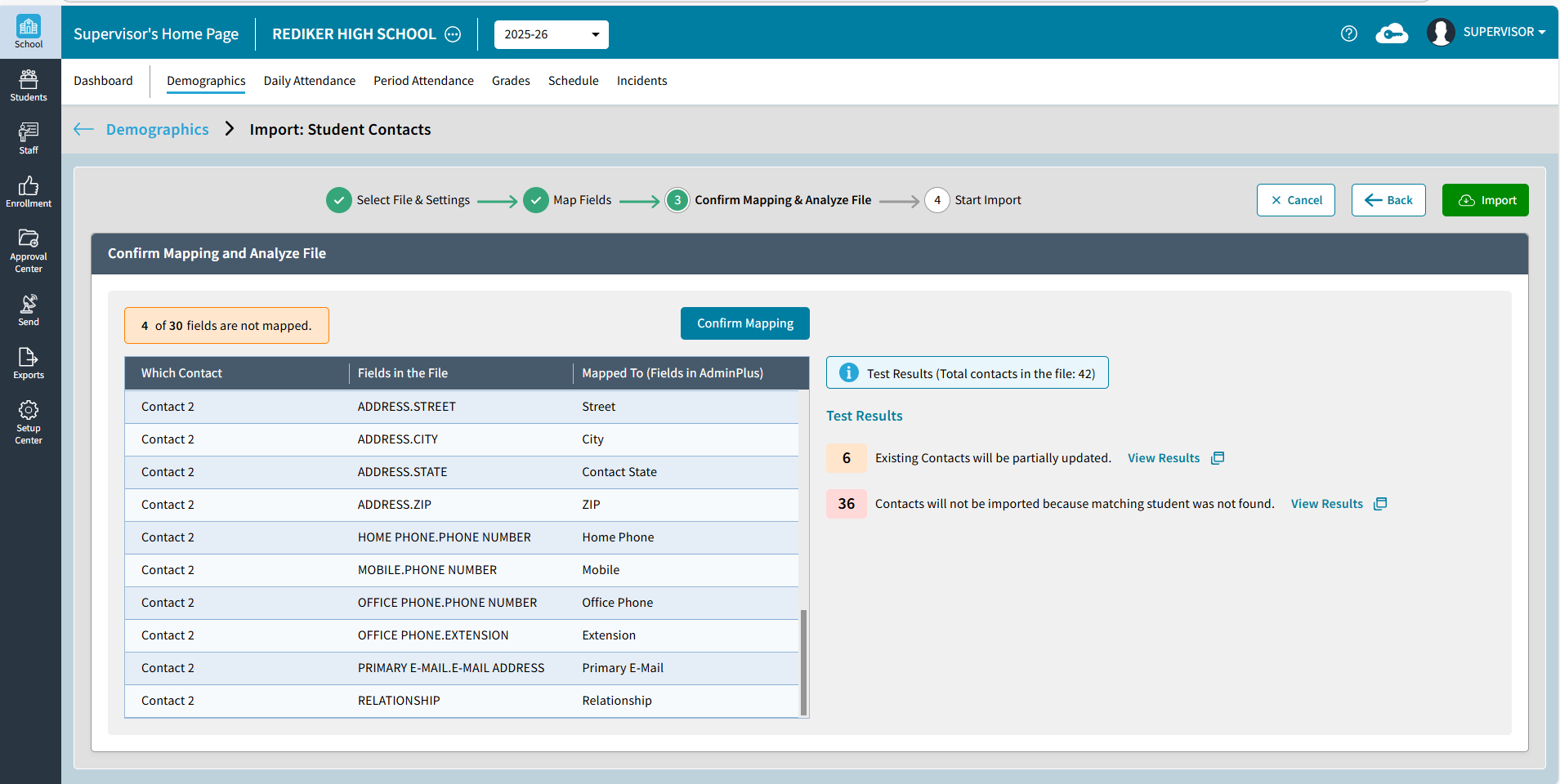
- Information Test Results (Total contacts in the file)
- How many Existing Contacts will be partially updated. View Results will list the detail that will not be imported, scroll all the way to the right to see Remarks (ie. Invalid Home Phone, Invalid Mobile, Invalid E-mail).
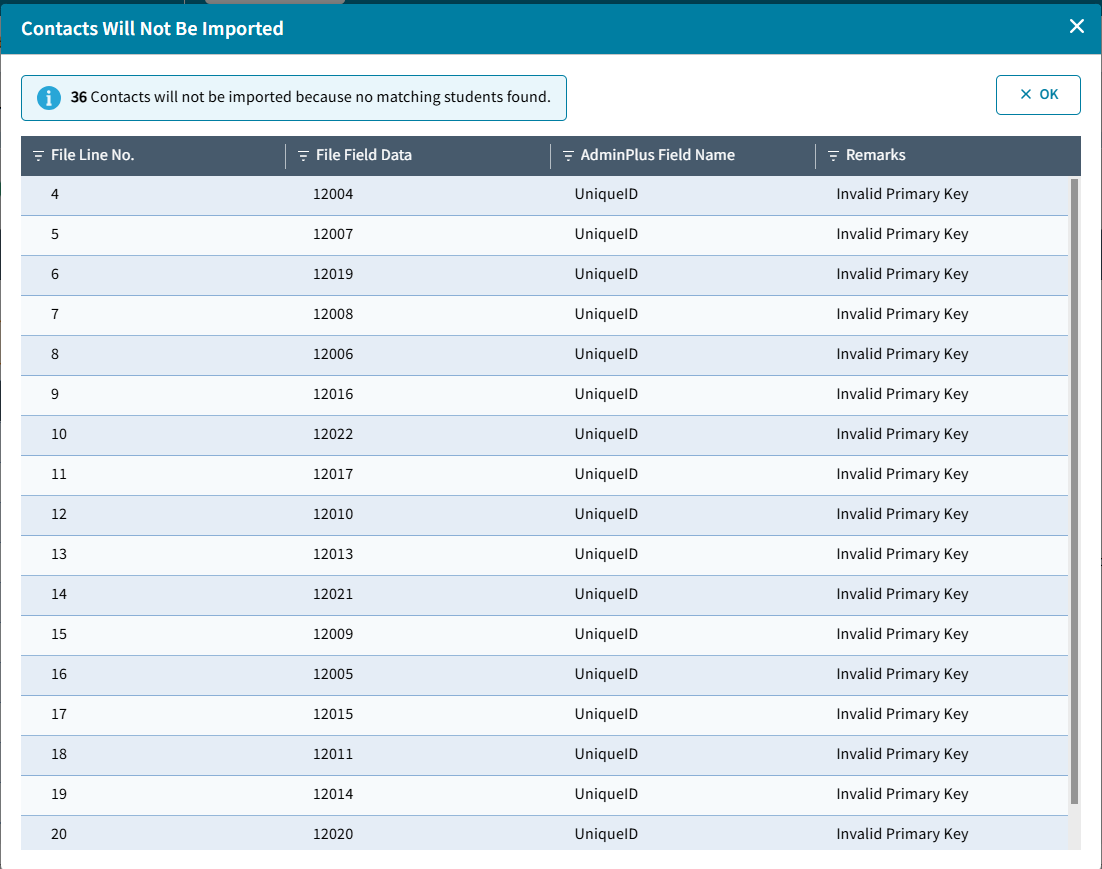
- How many Contacts will not be imported because matching student was not found. View Results will list the File Field values and Admin Plus Field Name
- Import
Import will process the file. You will get a confirmation message and if you edited a template, you will be prompted to either Save Template or Save Template As to create a new template.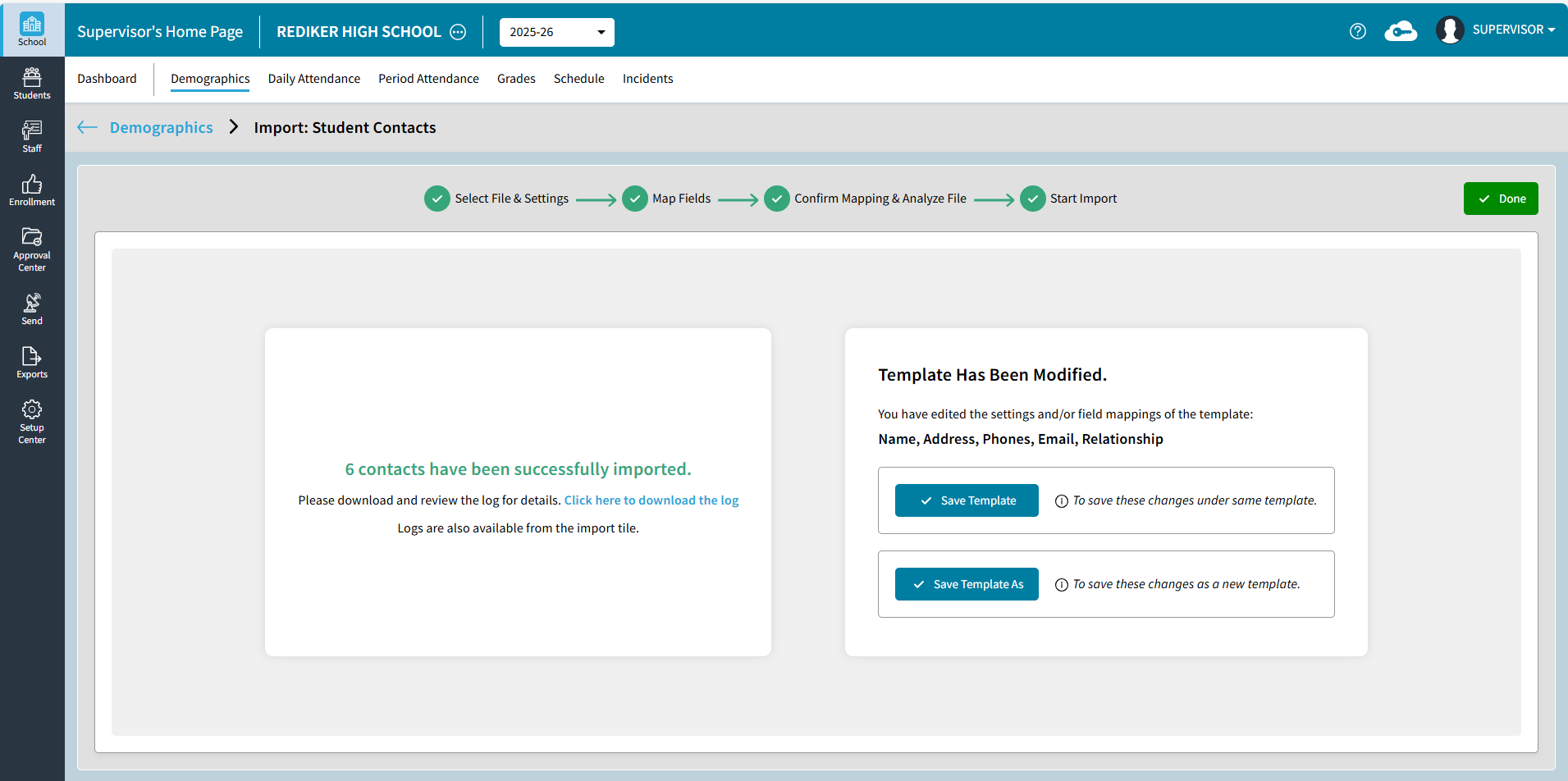
- Student Contacts Import Log can be downloaded from this screen, from the Template List, or Logs under Student Contacts Import on the School > Demographics > Import Tile.
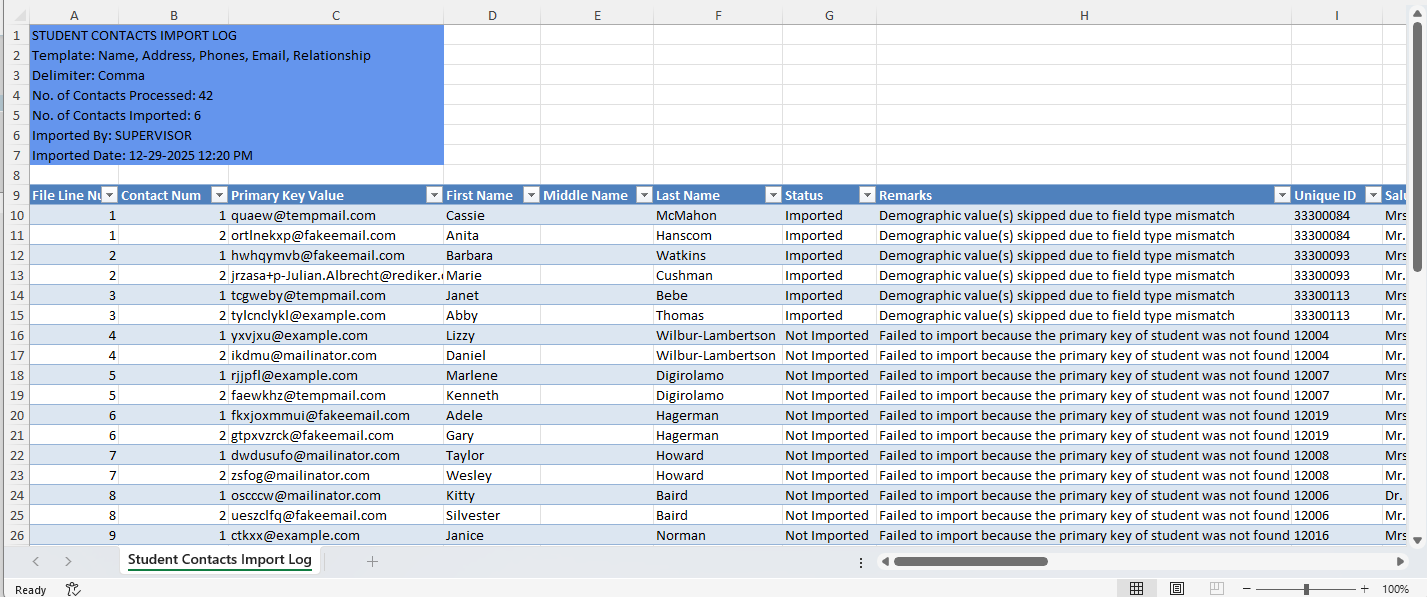
- Student Contacts Import Log can be downloaded from this screen, from the Template List, or Logs under Student Contacts Import on the School > Demographics > Import Tile.