
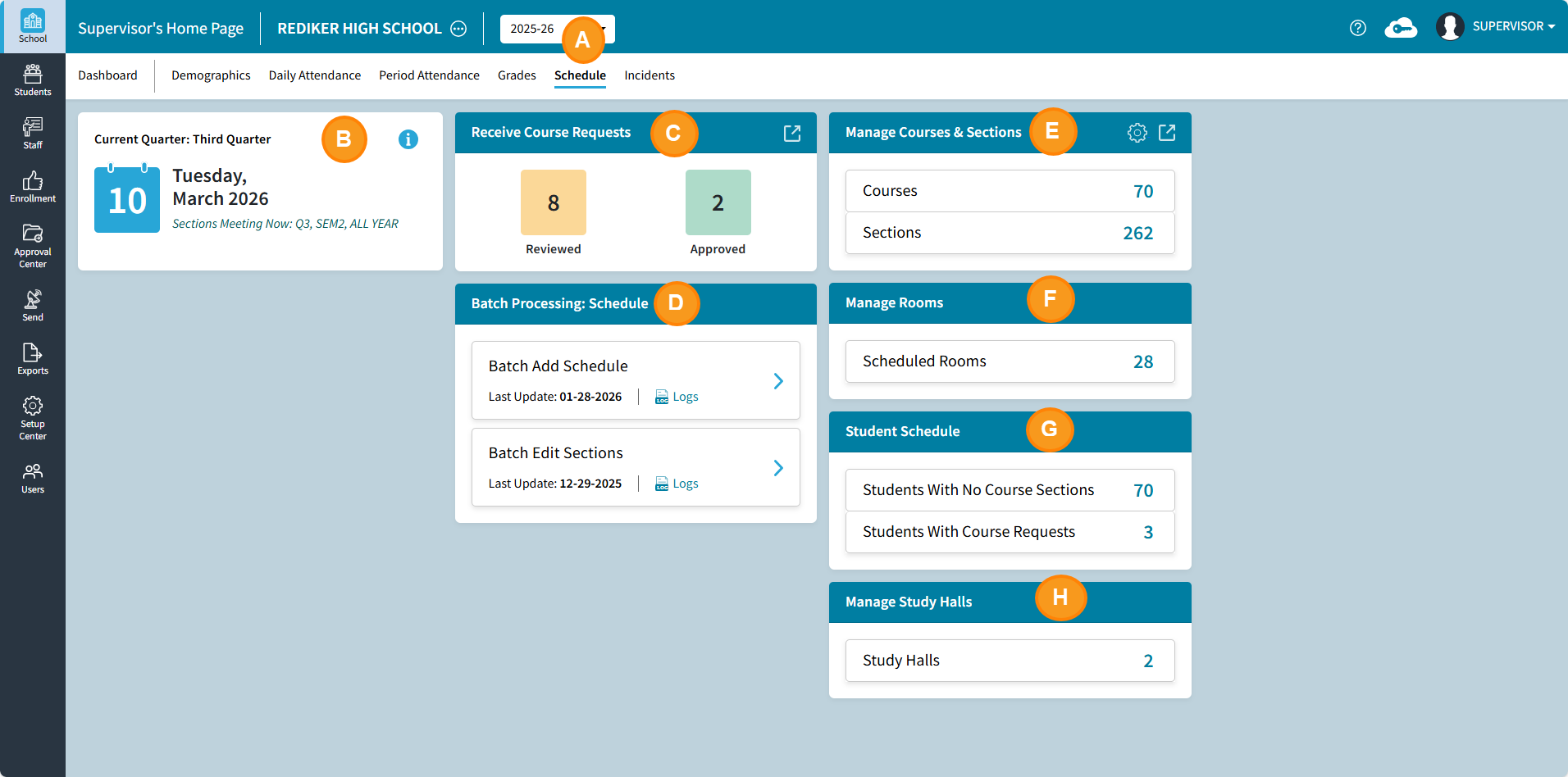
The School > Schedule dashboard enables users to quickly view scheduling analytics including current term, and counts for course requests, active courses, active sections, and scheduled rooms. The Student Schedule tile has the count of Students with No Course Sections and Students With Course Requests click on the number to see the detail!
| Schedule Dashboard | |
|---|---|
A | Schedule Tab |
B | The Current Quarter tile displays the following information:
To view the Quarter Ending Dates, select the The dates displayed here are User specific and are set in Classic Administrators Plus. |
C | Receive Course Requests: Displays the number of Course Request Forms that have been Reviewed on PlusPortals and Approved into AdminPlus.com. Click on the number to go to the corresponding tab or click on the expand icon  to review. to review.For more information, see Approval Center: Course Requests |
| D | Batch Processing Schedule: This can be used to Replace a schedule or Add New courses to existing Students' schedules from any of the following options:
For more information, see School Schedule: Batch Processing |
E | The Manage Courses & Sections tile displays the count of active courses and sections. Click on the number to see detail or click expand  to open the manage courses and sections page. to open the manage courses and sections page.For more information, see School Schedule: Manage Course & Sections. |
F | Manage Rooms: Click on the number of Scheduled Rooms to view the room list. Rooms can be selected on the left to view either the Grid Schedule or the Line Schedule. Select the Roster Icon from the Line Schedule to view the list of students. Both can be E-Mailed or Printed.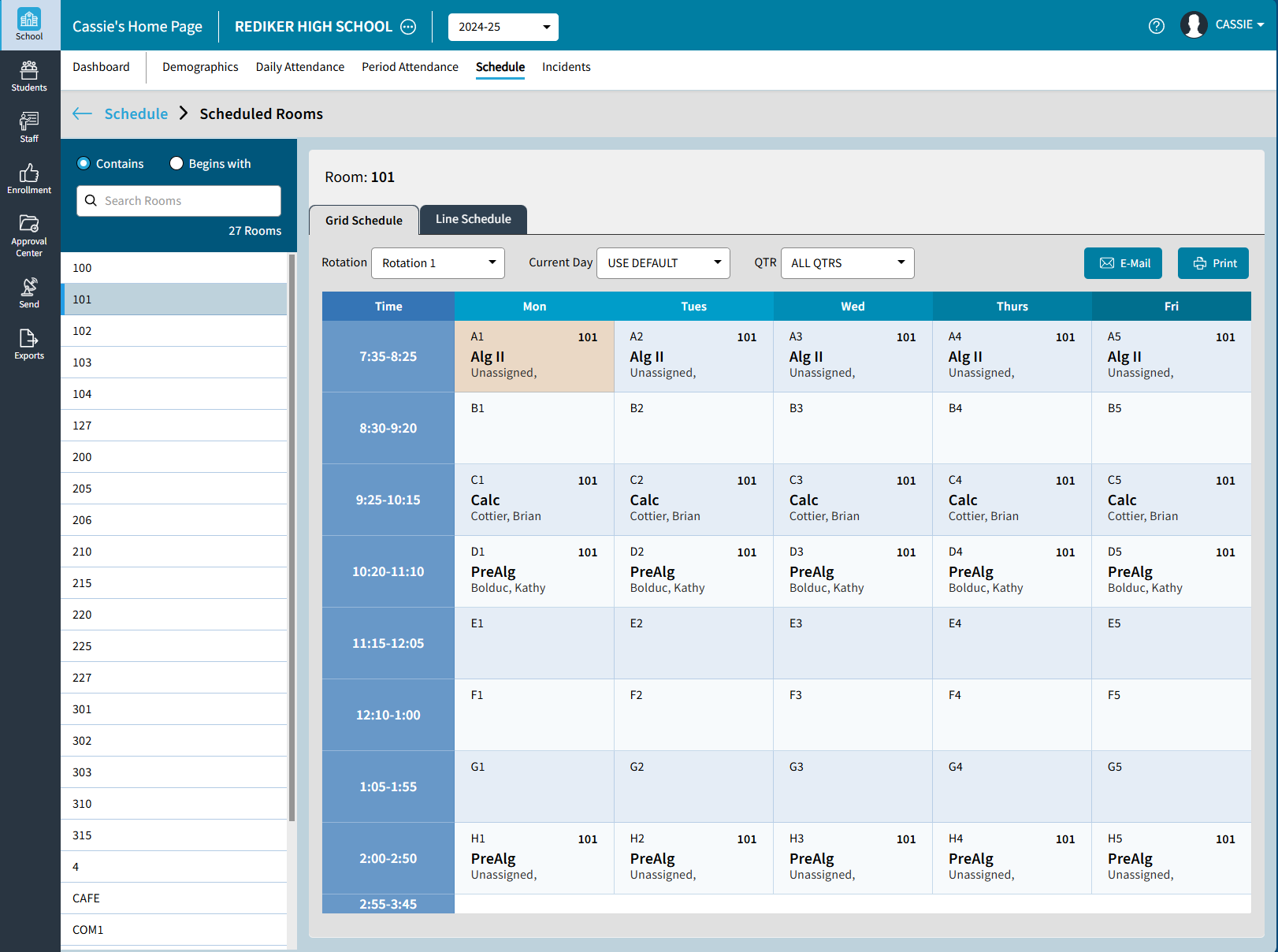 |
G | Student Schedule tile displays the number of students without sections and those with course requests. Select one of the counts to view additional details.
|
H | Manage Study Halls: Click on the number of Study Halls to view the Study Hall list. Click on the ellipsis to Edit or Unschedule a Study Hall. Select the view icon to view the Study Hall information in a pop-up that can be printed. Select the Roster Icon to view the list of students. E-mail, Send to Excel or Print options are available from View Roster. For more information see School Schedule: Manage Study Halls. |
 icon.
icon.